
Query All The Post Types
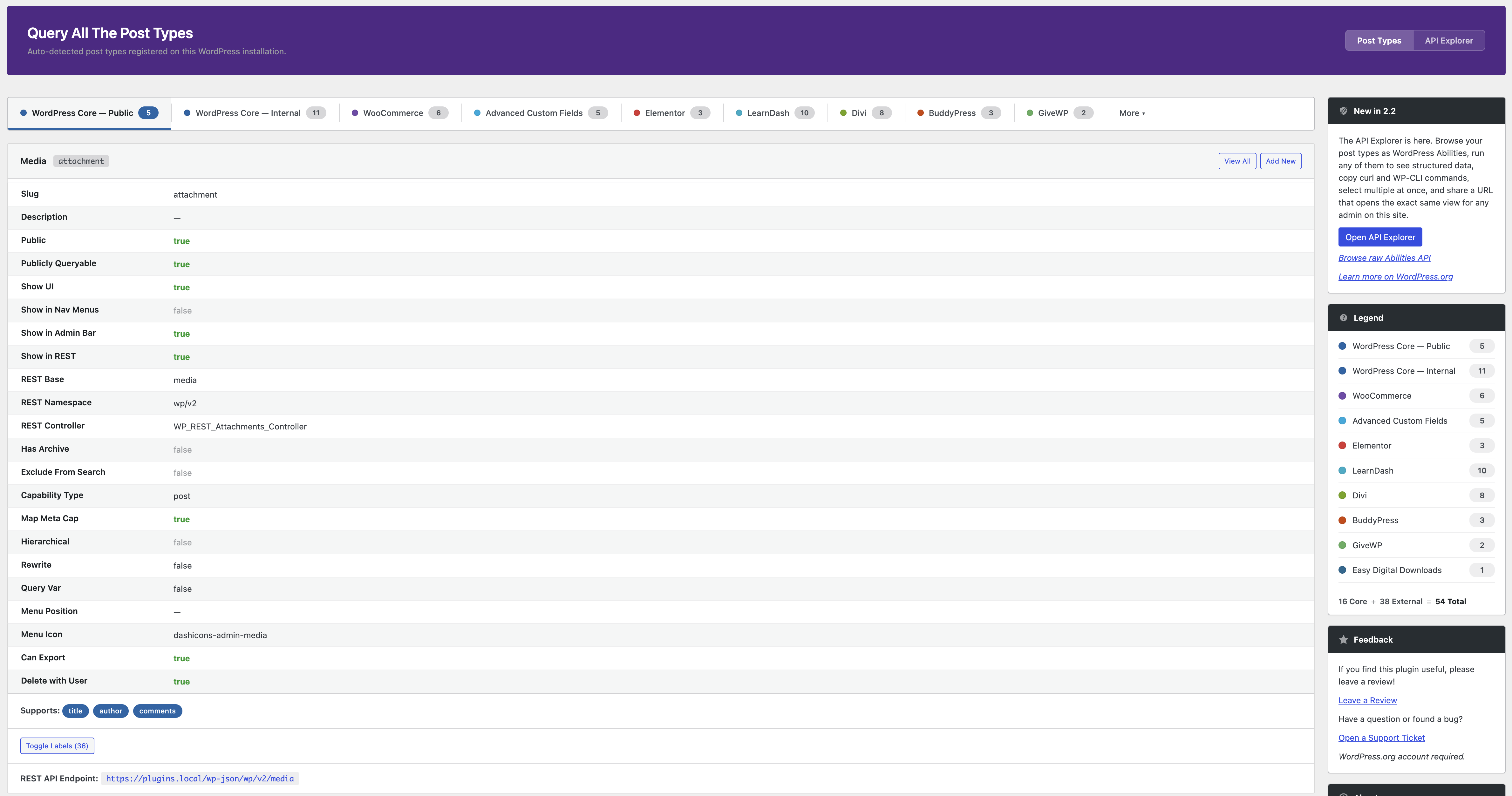
Main interface showing post types grouped into tabs
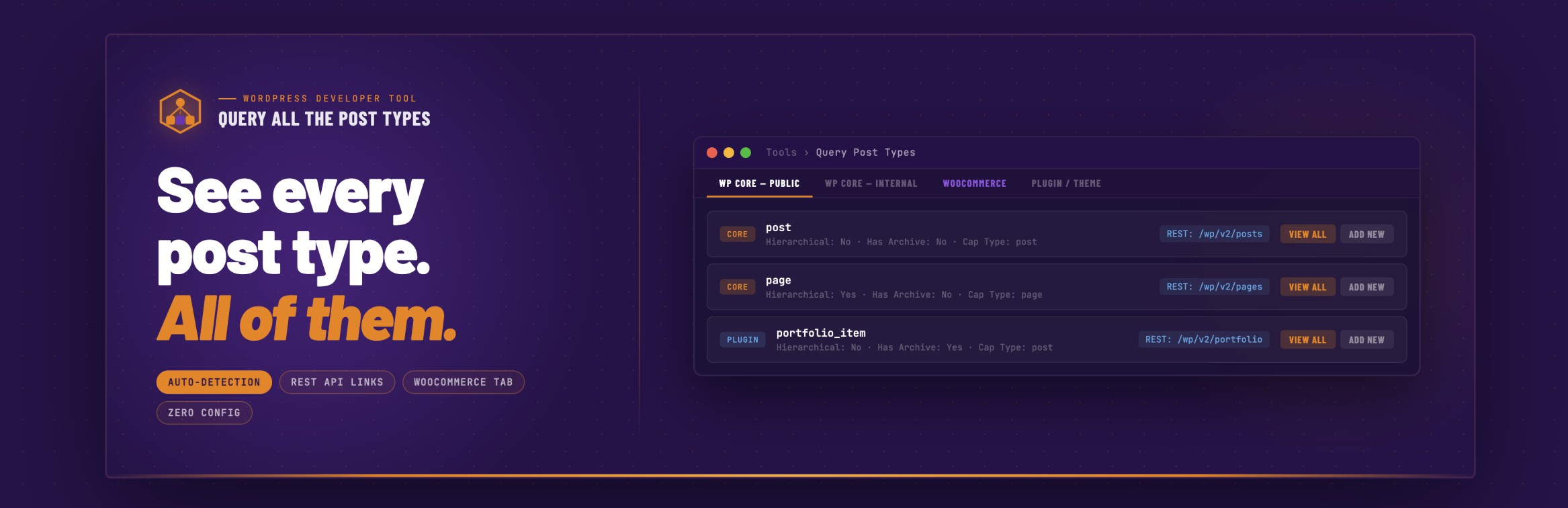
Query All The Post Types is a lightweight developer tool that auto-detects every registered post type on your WordPress site and displays comprehensive information about each one.
Post types are automatically grouped by origin. No configuration required.
WooCommerce store owners: All of your core WooCommerce post types (products, orders, coupons, subscriptions, etc.) are grouped in a dedicated WooCommerce tab for easy access.
Developers and AI users: As of version 2.1, Query All The Post Types now registers every post type as a discoverable entry in the WordPress Abilities API introduced in WordPress 6.9. Any authenticated tool, such as an MCP client, an AI assistant, or a custom admin dashboard, can query your site and get a complete, structured inventory of every post type, what it supports, and how it’s configured.
As of version 2.2, QATP includes a built-in API Explorer so you can browse, query, and share your site’s post type data directly from the WordPress admin without writing any code. Which makes building Custom Post Types easier and verifying the production site has all of the data needed.
Features
- Auto-Detection – Discovers all post types registered by WordPress core, plugins, and themes
- Tabbed Interface – Post types organized into logical groups for easy navigation.
- Comprehensive Data – View all registration settings, REST API config, supports, taxonomies, and labels
- REST API Links – Clickable endpoint URLs for post types exposed to the REST API
- WooCommerce Tab – Dedicated purple tab groups all your WooCommerce post types (products, orders, coupons, and more)
- Quick Actions – View All and Add New buttons for post types with admin UI
- WordPress Abilities API – Every post type registered as a machine-readable ability (WordPress 6.9+)
- API Explorer – Browse, query, and copy commands for any post type directly from the admin (version 2.2+)
Post Type Groups
- WordPress Core – Public – Built-in types with a UI (post, page, attachment)
- WordPress Core – Internal – Built-in types without a UI (revision, nav_menu_item, wp_template, etc.)
- WooCommerce – Products, orders, coupons, subscriptions, and more (when active)
- Advanced Custom Fields / ACF Pro – Field groups, post types, taxonomies, and options pages (when active)
- Elementor – Elementor library, floating buttons, and component types (when active)
- LearnDash – Courses, lessons, topics, quizzes, assignments, and more (when active)
- BuddyPress – Groups, member types, and email types (when active)
- GiveWP – Donation forms and payment types (when active)
- Easy Digital Downloads – Downloads and EDD-registered types (when active)
- AppPresser – Push notification and log types (when active)
- Plugin/Theme – Public – Custom post types from any other plugin or theme, with a public UI
- Plugin/Theme – Internal – Custom post types from any other plugin or theme, without a public UI
Data Displayed Per Post Type
- Slug, description, and all boolean settings
- Public, publicly queryable, show UI, show in nav menus, show in admin bar
- REST API: show in REST, REST base, REST namespace, REST controller class
- Has archive, exclude from search, capability type, map meta cap
- Hierarchical, rewrite rules, query var, menu position, menu icon
- Can export, delete with user
- Supported features (title, editor, thumbnail, excerpt, comments, etc.)
- Associated taxonomies with admin links
- All registered labels (expandable section)
- REST API endpoint URL (clickable)
WordPress Abilities API
Starting in version 2.1, QATP registers every post type as a WordPress Ability: a machine-readable declaration that authenticated tools can query via the REST API.
This feature requires WordPress 6.9 or later. On older versions, QATP continues to work normally and the Abilities API integration is silently skipped.
What gets registered
Each post type is registered as an ability under the qatp/ namespace. For example with WordPress Core, qatp/post, qatp/product, qatp/page. Abilities are grouped into categories matching the tabs you see in the admin UI: qatp-core-public, qatp-core-internal, qatp-woocommerce, and so on.
Running an ability returns a structured data object for that post type:
slug– the registered post type namelabel– plural label (e.g. “Posts”)singular– singular label (e.g. “Post”)public,show_ui,show_in_rest,hierarchical– boolean flagsrest_base– the REST API base URL segmentsupports– array of supported features (title, editor, thumbnail, etc.)taxonomies– array of associated taxonomy slugs
Who can access it
Access requires the manage_options capability, meaning site administrators only. This is intentional. Post type registration data can reveal details about your site’s plugin stack and data architecture. It is not exposed publicly.
API Explorer
The API Explorer is a built-in interface for browsing and querying your site’s WordPress Abilities directly from the admin. It is available as of version 2.2.
To open it, go to Tools > Query Post Types and click API Explorer in the toggle at the top right of the page.
How it works
When you open the Explorer, you see a row of pills across the top. Each pill represents an ecosystem on your site: WooCommerce, LearnDash, GiveWP, core WordPress types, and so on. Click a pill to filter the results to that group. Click All to see everything.
Below the pills, each post type on your site appears as a card. The card shows the ability name, the label, and which ecosystem it belongs to.
Click a card to select it. A Run button appears below the cards and Command Reference. Click Run button to fetch the live data for that ability and see the full JSON response displayed below.
The Command Reference
Every time you select a card and run an ability, the Command Reference panel updates automatically. It shows you three ways to fetch that same data yourself:
- REST URL – a clickable link you can open directly in your browser while logged in as an admin
- WP-CLI – a ready-to-copy WP-CLI command that runs the same request from the terminal, authenticated as your current user account
- curl – a curl command using Application Password authentication that works from any terminal or HTTP client
REST URL example:
https://yoursite.com/wp-json/wp-abilities/v1/abilities/qatp/post/run?_wpnonce=abc123
The nonce is generated automatically and appended to the URL. The link works in your browser as long as you are logged in as an admin.
WP-CLI example:
wp --user=1 eval 'print_r(rest_do_request(new WP_REST_Request("GET", "/wp-abilities/v1/abilities/qatp/post/run")));'
The --user= flag is automatically set to your current WordPress user ID. You do not need to edit the command.
curl example:
curl -s -u "admin:application_password" "https://yoursite.com/wp-json/wp-abilities/v1/abilities/qatp/post/run"
Replace admin with your WordPress username and application_password with an Application Password generated from your profile. See the Application Passwords section below.
Application Passwords for curl
The curl command in the Command Reference uses Application Password authentication. Application Passwords are a built-in WordPress feature (available since WordPress 5.6) that let external tools authenticate with the REST API without using your main account password.
To generate an Application Password:
- Go to Users > Your Profile in your WordPress admin
- Scroll down to the Application Passwords section
- Enter a name for the password (e.g. “QATP curl”)
- Click Add New Application Password
- Copy the generated password immediately. WordPress does not show it again.
Use the generated password in place of application_password in the curl command. Spaces in the generated password are fine — you can include them as-is or remove them.
Note: The X-WP-Nonce authentication approach used in some WordPress tutorials only works when a browser session cookie is also present. It does not work for standalone curl requests from a terminal. Application Passwords are the correct approach for curl and all external HTTP clients.
Selecting multiple post types
You can select more than one card at a time. Click additional cards to add them to your selection. A bar appears above the results showing how many abilities you have selected, with a Clear button to start over.
When you have two or more abilities selected, the Command Reference updates to show one curl command per selected ability, stacked together. This gives you a ready-made set of commands you can run in sequence to pull data for all your selected post types at once.
Click Run All to fetch all selected abilities at once and see their responses stacked in the drilldown panel. This is useful when you want to compare post type configurations side by side.
You can mix and match across ecosystems. Select a LearnDash course, a GiveWP form, and a WooCommerce product all at the same time to get the commands for all three in one block.
Shareable links
The URL in your browser updates as you make selections. If you are in Explorer mode with abilities selected, the URL encodes that state using a hash fragment:
https://yoursite.com/wp-admin/tools.php?page=query-all-the-post-types#mode=explorer&abilities=qatp/product,qatp/course
Copy and paste the URL into Slack, an email, or a document. Anyone with admin access on that site can open it and land in the exact same view, with the same abilities selected and the Command Reference already populated.
The back button also works as expected. Navigate to a previous selection by pressing back, just like any other page.
Giving the Explorer output to Claude
The API Explorer is designed to work with AI assistants. Copy the curl commands from the Command Reference and paste them into a conversation with Claude. Claude can read the JSON responses and use them to understand your site’s post type structure, answer questions about your data architecture, or help you write code that works with your specific setup.
You can also share the URL directly. A URL with abilities pre-selected is a compact way to give someone, or an AI tool, a pointer to exactly what you want them to look at.
How to browse without the Explorer
In your browser:
Go to Tools > Query Post Types in your WordPress admin. The sidebar shows a Browse Abilities API button. Click it and it opens the endpoint in a new tab with authentication already handled.
Install a JSON Formatter browser extension (available for Chrome and Firefox) to make the output readable.
Note: visiting the endpoint URL directly in your browser without clicking the button will return a 401 error. The WordPress REST API requires a valid nonce for cookie-authenticated requests. The button generates one automatically.
With WP-CLI:
See all QATP abilities and their descriptions:
wp --url=https://yoursite.com --user=1 eval '$r = rest_do_request(new WP_REST_Request("GET", "/wp-abilities/v1/abilities")); $qatp = array_filter($r->get_data(), fn($a) => strpos($a["name"], "qatp/") === 0); foreach ($qatp as $a) { echo $a["name"] . "\n " . $a["label"] . " - " . $a["description"] . "\n"; }'
Run a specific ability to get full structured data:
wp --url=https://yoursite.com --user=1 eval '$r = rest_do_request(new WP_REST_Request("GET", "/wp-abilities/v1/abilities/qatp/post/run")); echo json_encode($r->get_data(), JSON_PRETTY_PRINT);'
Replace --user=1 with the ID of any administrator account on your site if user ID 1 is not an admin.
With curl:
List all QATP abilities:
curl -s -u "admin:application_password" "https://yoursite.com/wp-json/wp-abilities/v1/abilities?category=qatp-core-public"
Run a specific ability:
curl -s -u "admin:application_password" "https://yoursite.com/wp-json/wp-abilities/v1/abilities/qatp/post/run"
With Postman or any REST client:
Create an Application Password in your WordPress admin under Users > Your Profile > Application Passwords. Use HTTP Basic Auth with your username and the generated password. Send a GET request to https://yoursite.com/wp-json/wp-abilities/v1/abilities.