
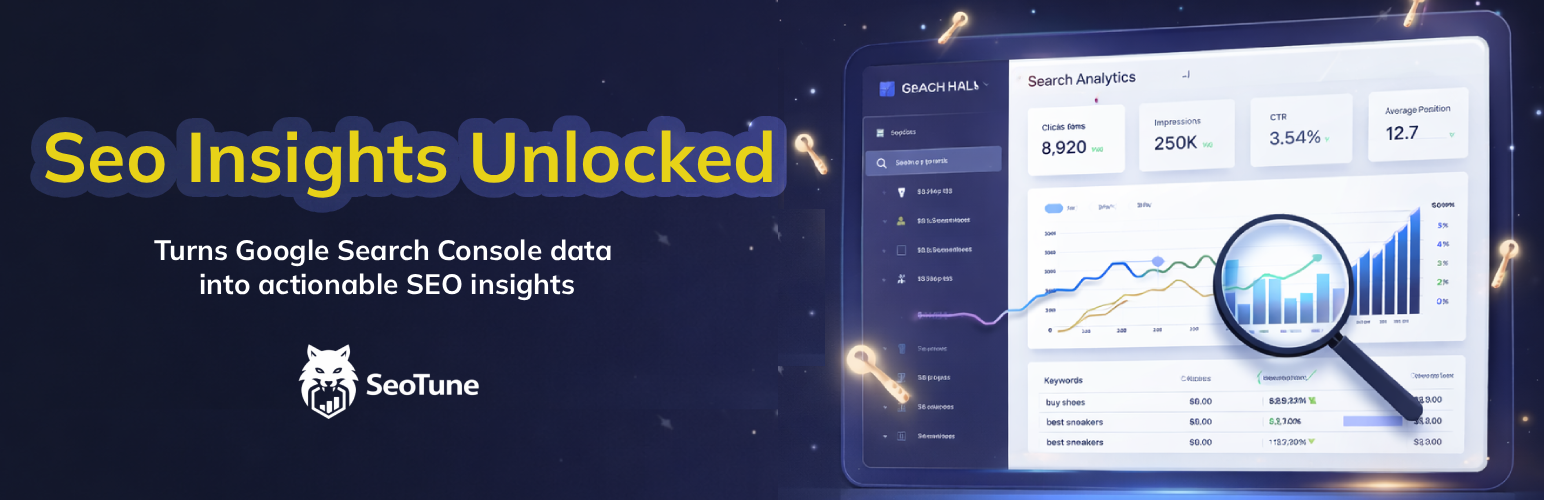


Dashboard overview with KPIs, charts, top queries and pages, and recent alerts.
Seotune Search Insights connects to Google Search Console, stores search analytics in your WordPress database, and provides an admin dashboard with KPIs, reports, and actionable SEO insights.
For setup help, see the Documentation.
Without external accounts: The plugin installs and activates like any other plugin, but reports and sync require a Google Cloud OAuth client and a Google account with access to a Search Console property for your site. Until you complete connection in Seotune Search Insights Settings, no Search Console data is fetched and dashboards stay empty.
Features
Data is synced for the last 3 days on manual run or via a daily cron. After the first successful connection to Google Search Console, Seotune Search Insights automatically imports the last 28 days so that the Dashboard and reports are not empty; you can then use Sync & Import to extend or restart the import for a larger range. After the first import, data is updated automatically every day via cron. Historical data can be imported in background batches (by default 7 days per batch and 1000 rows per DB write) that stay within sensible Google Search Console usage and are tuned for performance; you can adjust these values from Settings Sync & Import if needed. The Sync & Import card also includes an Import diagnostics panel that shows recent import activity, cron status, and common issues (e.g. cron not running, API quota, PHP/DB limits) without exposing sensitive query data. Custom database tables use a plugin-specific prefix (in addition to your WordPress table prefix).
This plugin does not send your site’s front-end visitor traffic to Seotune Search Insights or to a proprietary Seotune API. It does not add visitor tracking, advertising pixels, or marketing analytics to the public site.
Declared service data (administrators)
Responsibility: Site owners should inform end users where required by law (e.g. privacy policy, cookie/consent flows) that Search Console-related data is processed when administrators connect Google services.
Technical map (endpoints, when requests run): documentation/network-and-privacy.txt. Narrative guide: documentation/index.html (Privacy & third-party services).
In Seotune Search Insights Settings Sync & Import you will find an Import diagnostics box:
The panel is read-only and is meant to help you and support quickly understand what is happening on your server.
“Cron may not be running regularly” / “No plugin cron jobs have run in the last few hours”
This usually means WordPress cron is disabled or not being triggered. Check wp-config.php for DISABLE_WP_CRON. If it is set to true, configure a real server cron job that calls wp-cron.php every few minutes, or ask your hosting provider to set this up.
“Historical import is marked as running, but no backfill batches have completed yet”
The backfill state is “running” but no historical batches are logged. This is typically another sign that cron is not firing. Verify the cron configuration as above, then wait a few minutes and refresh the page.
“Historical import seems stuck (no progress for a while)”
If the progress bar stays at 0% or does not move for a long time, use Stop / Reset import in the Sync & Import card, then start a new import with smaller batches (lower “Days per batch”). Also make sure cron is running.
Search Console quota / rate limit errors in the log
If recent log entries mention quota or rate-limit errors from the Google Search Console API, try lowering Days per batch for the historical import, and consider running imports at quieter times of day. If the issue persists, you may need to wait for quotas to reset or use a dedicated Google Cloud project.
PHP execution time, memory, or database errors in the log
Messages mentioning maximum execution time, memory limits, or database connection issues indicate that the server limits are too strict for large imports. Try reducing Days per batch and, if needed, ask your hosting provider to increase PHP memory_limit and max_execution_time, or to relax database limits for background jobs.
Seotune Search Insights’ historical import runs in the background via WordPress cron: each cron run processes one batch (a few days of data), then schedules the next. For the import to complete without blocking or stalling, the hosting environment must meet the following.
Default settings (7 days per batch, 60 seconds delay between batches, 1000 rows per DB batch) are chosen to work on most hosting. On servers with more resources you can increase Days per batch and reduce Delay between batches in Seotune Search Insights Settings Sync & Import for a faster import.
Minimum (plugin runs, import may be slow or need tuning)
DISABLE_WP_CRON is set to true in wp-config.php, a system cron job must call wp-cron.php (or trigger WordPress cron) every few minutes; otherwise the import never advances.Recommended (smooth, reliable import)
Restrictive shared hosting (e.g. some Aruba, or low-resource plans)
On hosting with strict limits (low memory, 30s execution time, or cron that rarely runs), the import can block, time out, or appear stuck. To improve reliability:
DISABLE_WP_CRON, set up a real cron job (e.g. */5 * * * * to hit https://yoursite.com/wp-cron.php?doing_wp_cron or run wp cron event run --due-now via WP-CLI every few minutes). Ask the host (e.g. Aruba) how to add a cron job and what the URL/command should be.If the import still fails or gets stuck, use Import diagnostics in Settings (and Copy log for support) to see whether the cause is cron not running, timeouts, memory, or API quota; then adjust the above or contact the host with the requested limits.
Backend (Composer)
composer install.vendor/ directory when deploying (plugin requires it for the Google API client).composer.json uses a classmap for includes/ (no PSR-4 path mismatch warnings).monolog/monolog is required by google/apiclient; it stays in composer.json as ^2.9 to pin Monolog 2.x and remain compatible with PHP 8.0 (Monolog 3 needs PHP 8.1+).Frontend (React)
admin/react-app: npm install then npm run build.admin/assets/js/admin-app.js (IIFE bundle for classic wp_enqueue_script, no import.meta) plus admin/assets/js/admin-app.css (extracted CSS). Deploy both files; without the built JS, a placeholder script is loaded.admin/react-app/ (Vite/React sources, package-lock.json; node_modules excluded — run npm ci inside admin/react-app to rebuild). Compiled admin-app.js + admin-app.css are also present. Optional: add a public git mirror URL below for convenience. Details: documentation/source-and-build.txt.Release zip(s) (from plugin root, after composer / npm as needed)
scripts/README-release.txt (Stable tag, version constant in seotune-search-insights.php aligned with the plugin header, changelog, Subversion tag folder).npm run release — creates a zip in dist/ (includes admin/react-app sources; excludes node_modules and documentation/).npm run release:src — creates only the *-with-sources.zip variant with the same contents (alias for workflows that expect the filename).npm run release:all — writes both filenames; the archives are identical (duplicate name for compatibility).Translations (i18n)
seotune-search-insights. PHP uses load_plugin_textdomain with languages/.@wordpress/i18n (__(), sprintf, _n) in JSX; wp_set_script_translations() loads Jed JSON for the built script.languages/seotune-search-insights-en_US.po with wp i18n update-po languages/seotune-search-insights.pot languages/seotune-search-insights-en_US.po.languages/seotune-search-insights.pot, languages/seotune-search-insights-en_US.po, languages/wp-i18n-map.json, and languages/seotune-search-insights-*-*.json with the plugin.