


Kitgenix Order Tracking for WooCommerce
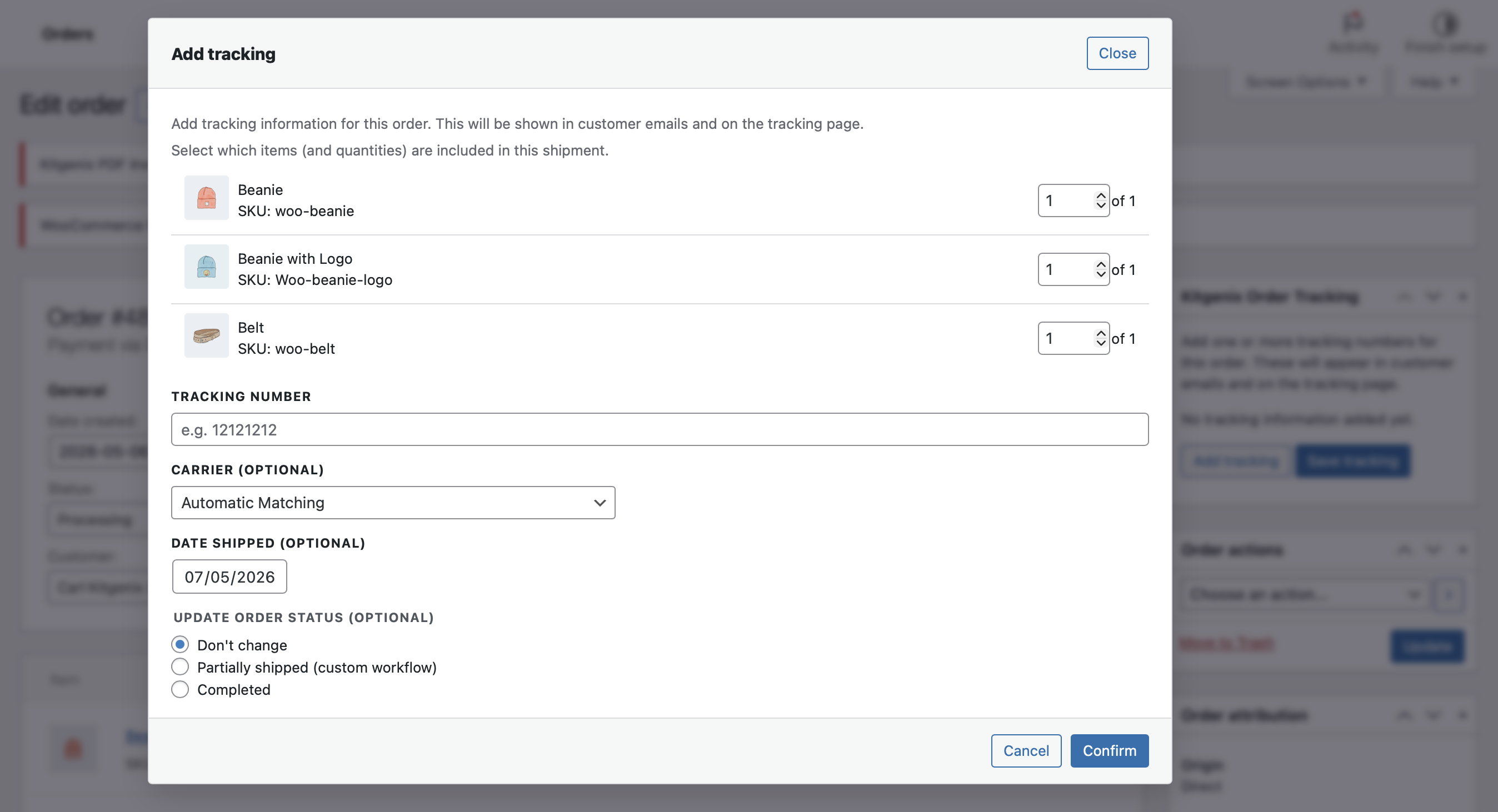
Admin order screen: Add shipments with carrier, tracking number, shipped date, and item quantities.
Customers don’t just want a tracking number — they want confidence.
After purchase, the questions are predictable:
“Has it shipped yet?”, “Is this coming in multiple parcels?”, “Which courier is it with?”, and “Can I track it right now?”
Kitgenix Order Tracking for WooCommerce gives you a clean, reliable way to manage WooCommerce shipment tracking without bloated shipping suites. Add multiple shipments to a single order (split deliveries, replacements, multi-parcel, different carriers), bulk import or export shipment data in CSV format for spreadsheet-based fulfilment workflows, apply international carrier packs for different regions, show tracking clearly to customers, and reduce “where is my order?” support tickets with a self-service tracking page.
It also includes a Tracking Analytics screen inside WooCommerce so you can understand shipping speed, exceptions, and how often customers check tracking.
Built for real-world shipping workflows
This plugin is especially useful if you:
– ship orders in more than one box (multi-parcel / multi-shipment),
– part-ship items while the rest are backordered,
– manage fulfilment in spreadsheets or need to update lots of tracking numbers at once,
– ship to multiple regions and need better carrier coverage than UK/Ireland-only defaults,
– use multiple couriers (Amazon Logistics, An Post, DHL, DPD, DX, Evri, FedEx, Parcelforce, Royal Mail, UPS, Woodside, Yodel, etc.),
– want a branded tracking page instead of sending customers to random courier sites,
– want tracking shown in emails (cleanly, without duplicate blocks),
– want a “Partially shipped” workflow and email for staged fulfilment.
What the plugin does
- Add one or more shipments to a WooCommerce order (carrier + tracking number + optional shipped date + per-item quantities).
- Generate courier tracking links from built-in carrier URL patterns (plus an “Other” courier option for custom links).
- Display tracking for customers:
- in emails,
- and on a public tracking page via shortcode.
- Optionally show an approximate delivery route map (Leaflet + OpenStreetMap; no Google Maps, no API key, no CDN).
- Monitor operations with a Tracking Analytics dashboard (ship speed, totals, breakdowns, lookups, recent shipments).
- Import or export shipment rows in CSV format so warehouse teams can round-trip tracking updates through Excel or Google Sheets.
- Apply regional carrier packs and country-aware postcode / ZIP / postal-code verification for broader international use.
Key features
Multiple shipments (multi-parcel, split deliveries, replacements)
Add as many shipments as you need to a single order. Each shipment can include:
– carrier (optional; if omitted, no carrier tracking link is generated),
– tracking number,
– shipped date (optional),
– shipped items + quantities (line-item allocation for partial fulfilment).
This makes partial shipments and multi-parcel deliveries accurate and customer-friendly.
Built-in carriers (international-ready)
Includes a carrier registry with icons and tracking URL patterns, so customers get direct “Track shipment” links.
Built-in carriers include:
– Amazon Logistics
– An Post
– Australia Post
– Bpost
– Canada Post
– Chronopost
– Colissimo / La Poste
– Correos
– DHL
– Deutsche Post / DHL Germany
– DPD Ireland
– DPD UK
– DX
– Evri
– FedEx
– GLS
– NZ Post
– Other (custom link / no pattern)
– Parcelforce Worldwide
– PostNL
– PostNord
– Royal Mail
– UPS US
– UPS Ireland
– UPS UK
– USPS
– Woodside Distribution
– Yodel
Carrier management (built-in + custom)
The carrier registry is configurable from Kitgenix Order Tracking Carriers:
– apply recommended carrier packs for UK & Ireland, Europe, North America, Australia & New Zealand, or a global mixed-carrier setup,
– enable or disable built-in carriers,
– reorder carriers by priority so the most-used options appear first,
– add custom carriers with their own tracking URL patterns,
– upload custom carrier icons from the WordPress media library,
– keep the built-in “Other” fallback available for manual links.
International carrier packs and country-aware validation
Stores shipping internationally often need two things at once: broader carrier coverage and customer verification that matches the destination market.
The plugin now includes recommended built-in carrier packs for:
– UK & Ireland
– Europe
– North America
– Australia & New Zealand
– Global / mixed-carrier stores
Applying a carrier pack configures a recommended built-in carrier set and priority order for that region, while still letting you fine-tune carriers manually afterwards.
The customer tracking form now also uses country-aware postcode validation rules, so ZIP codes, postal codes, and country-prefixed formats are handled more accurately for international orders instead of assuming every market behaves like a UK postcode.
Customer tracking page (self-service)
Add a tracking page anywhere using:
[kitgenix_tracking_form]
The tracking form supports:
– Order-based lookup (order number + billing email, with country-aware postcode / ZIP / postal-code verification used before showing full addresses, the route map, and item details), and
– Tracking-number lookup (useful when the customer only has parcel details)
When shipments have item allocations, the tracking results can show which items were shipped in each parcel and which items remain unshipped. Postcode verification is normalised so common spacing and punctuation differences do not block valid customer lookups.
Tracking-number lookups show shipment status and tracking details, but full addresses, route maps, and item-level detail stay behind postcode verification when the order includes a stored postcode.
Great for reducing support tickets and giving customers a consistent experience.
Tracking in WooCommerce emails (done cleanly)
Tracking is appended to:
– WooCommerce Completed Order email, and
– the plugin’s own Partially Shipped email
Includes duplicate-guarding so tracking blocks aren’t repeated if templates/hooks are customised.
“Partially shipped” order status + email (included)
The plugin registers:
– a custom order status: wc-partially-shipped (“Partially shipped”), and
– a custom email: Kitgenix Partially Shipped
Ideal for stores that ship in stages and want to send tracking early without marking the whole order completed.
Optional route map (OpenStreetMap + Leaflet)
If enabled, the tracking view can show an approximate route map using:
– Leaflet (bundled locally — no CDN),
– OpenStreetMap tiles,
– Nominatim geocoding (endpoint + contact email are filterable)
Includes fallbacks if geocoding fails (shows what it can, or hides the map with a message).
Tracking Analytics dashboard (inside WooCommerce)
Adds an admin screen under the Kitgenix hub with practical metrics:
– shipped vs unshipped orders,
– total shipments,
– exceptions,
– average/median time-to-ship,
– carrier/status breakdowns,
– recent shipments,
– privacy-safe totals for tracking numbers added and successful customer lookups,
– customer tracking lookup totals,
– date range selection (predefined windows like 7–180 days)
Calculations are batched and cached briefly (transients) to keep the dashboard fast.
Bulk shipment import and export
Stores that process a lot of orders often work from spreadsheets rather than opening each order one by one.
The new Bulk Tools tab in Kitgenix Order Tracking lets you:
– export tracked shipments to CSV with one row per shipment,
– re-import edited CSV files to add tracking updates across many orders,
– choose whether imports append new shipments or replace all shipments on matched orders,
– round-trip per-item shipment quantities using the item_id:qty|item_id:qty format,
– keep warehouse and support workflows aligned by using the exported order_id values for reliable imports.
The CSV workflow is built on top of the plugin’s existing shipment data model, so imported shipments use the same storage, tracking links, customer email rendering, analytics totals, and public tracking-page output as shipments added manually in the order screen.
How it works (quick overview)
1) Add tracking in wp-admin
Edit an order and use the Order Tracking meta box. Create shipments using the “Add tracking” modal:
– tracking number
– carrier dropdown (explicit selection, or leave blank)
– shipped date
– item quantities (loaded via AJAX)
– optional order status update after save (don’t change / partially shipped / completed)
2) Tracking appears for customers
If shipments exist, customers see a clear “Shipment Tracking” section in key emails and via the tracking page.
3) Customers can track without contacting you
Use the shortcode page so customers can look up tracking by order details or by tracking number.
4) You can measure shipping performance
Open Tracking Analytics to see speed, breakdowns, and customer behaviour.
Quick Start
- Install and activate the plugin.
- Create a page called “Track Your Order” (or similar).
- Add this shortcode:
[kitgenix_tracking_form] - Edit any order and add a shipment in the Order Tracking meta box.
- Send a Completed Order email (or use Partially Shipped) and confirm tracking is shown.
- Optional: use Kitgenix Order Tracking Bulk Tools when your fulfilment team needs CSV import/export workflows.
- Optional: use Kitgenix Order Tracking Carriers to apply a regional carrier pack before fine-tuning carrier priorities.
Developers
Text domain:
kitgenix-order-tracking-for-woocommerce
Shortcode:
[kitgenix_tracking_form]
Data model (high level):
– Shipments are stored as order meta under _kitgenix_tracking_shipments (array)
– Tracking numbers are indexed for fast lookup via repeated order meta _kitgenix_tracking_number (one meta row per tracking number)
– Each shipment can also store a status value for future workflow and analytics extensions
– Admin UI stores the last chosen “update order status” action as order meta kitgenix_order_status_action (values: no_change, partial, completed)
– Carrier settings are stored in the option kitgenix_order_tracking_for_woocommerce_carriers_settings
– Counter option: kitgenix_order_tracking_for_woocommerce_tracking_numbers_added (privacy-safe total)
– Counter option: kitgenix_order_tracking_for_woocommerce_lookup_count (successful tracking-page lookups)
– Analytics aggregates are cached briefly in transients prefixed kitgenix_order_tracking_for_woocommerce_analytics_...
– Activation redirect uses transient kitgenix_order_tracking_for_woocommerce_do_activation_redirect (about 30 seconds)
– No custom database tables are created
– Uninstall does not automatically remove order meta (to preserve historical tracking)
Nonces / capabilities (summary):
– Order edit tracking save uses nonce action kitgenix_order_tracking_save (kitgenix_order_tracking_nonce) and requires edit_shop_order.
– Order-items modal loads via AJAX action kitgenix_order_tracking_for_woocommerce_get_order_items using nonce action kitgenix_order_tracking.
– Tracking form submissions use nonce action kitgenix_tracking_lookup (kitgenix_tracking_nonce).
– Carriers (Shippers) settings form uses nonce action kitgenix_order_tracking_for_woocommerce_save_carriers (kitgenix_order_tracking_for_woocommerce_carriers_nonce).
Hooks / filters:
– kitgenix_order_tracking_for_woocommerce_debug_save( bool $enabled, int $order_id ): bool (enable debug order note on save)
– kitgenix_order_tracking_for_woocommerce_nominatim_email( string $email ): string (supply/override Nominatim email param)
– kitgenix_order_tracking_for_woocommerce_nominatim_endpoint( string $endpoint ): string (override geocoding endpoint)
Templates:
– The custom Partially Shipped email uses standard WooCommerce template override patterns via the files in templates/emails/ and templates/emails/plain/.
Admin AJAX endpoints:
– wp_ajax_kitgenix_order_tracking_for_woocommerce_get_order_items (load order items into the shipment modal)
External Services
This plugin may connect to external services in two situations:
1) When customers click courier tracking links
Tracking links open the carrier’s tracking page (e.g. Amazon Logistics, An Post, DHL, DPD, DX, Evri, FedEx, Parcelforce Worldwide, Royal Mail, UPS, Woodside Distribution, Yodel) or a custom “Other” URL. These links may contain the tracking number.
2) When the optional map is enabled
The tracking view may request:
– OpenStreetMap tile images
– Nominatim geocoding requests (to convert store/customer address details into coordinates)
Map implementation notes:
– Leaflet is bundled locally (no CDN fallback).
– Map tiles are loaded from https://{s}.tile.openstreetmap.org/{z}/{x}/{y}.png.
– Geocoding defaults to https://nominatim.openstreetmap.org/search and may include the full store and delivery address string in the q parameter.
3) In wp-admin (Kitgenix hub)
This plugin includes a shared “Kitgenix hub” component in wp-admin which may fetch publicly available plugin metadata from WordPress.org using WordPress core’s plugins_api() function.
Caching:
– Transient: kitgenix_hub_wporg_active_installs_v1
– Transient: kitgenix_hub_wporg_ratings_v1
– Transient: kitgenix_hub_wporg_media_v1
Leaflet assets are bundled locally (no CDN).
No personal data is sold or shared by this plugin. Where external services are used, requests may include data required to perform the function (for example, a tracking number in a carrier link, or address data used for geocoding). Review the relevant provider policies for your use case.
Trademark Notice
All carrier names and logos are trademarks of their respective owners. This plugin is not affiliated with or endorsed by any courier, carrier, OpenStreetMap, or Nominatim service.
Support Development
If this plugin reduces “where is my order?” tickets and helps customers self-serve tracking, you can support ongoing development here:
https://buymeacoffee.com/kitgenix
Credits
Built with ❤︎ by @kitgenix – https://kitgenix.com