
Integration for Zoho Campaigns – Contact Form 7, WPForms, Elementor, Gravity Forms and More

Connect your Zoho Campaigns account
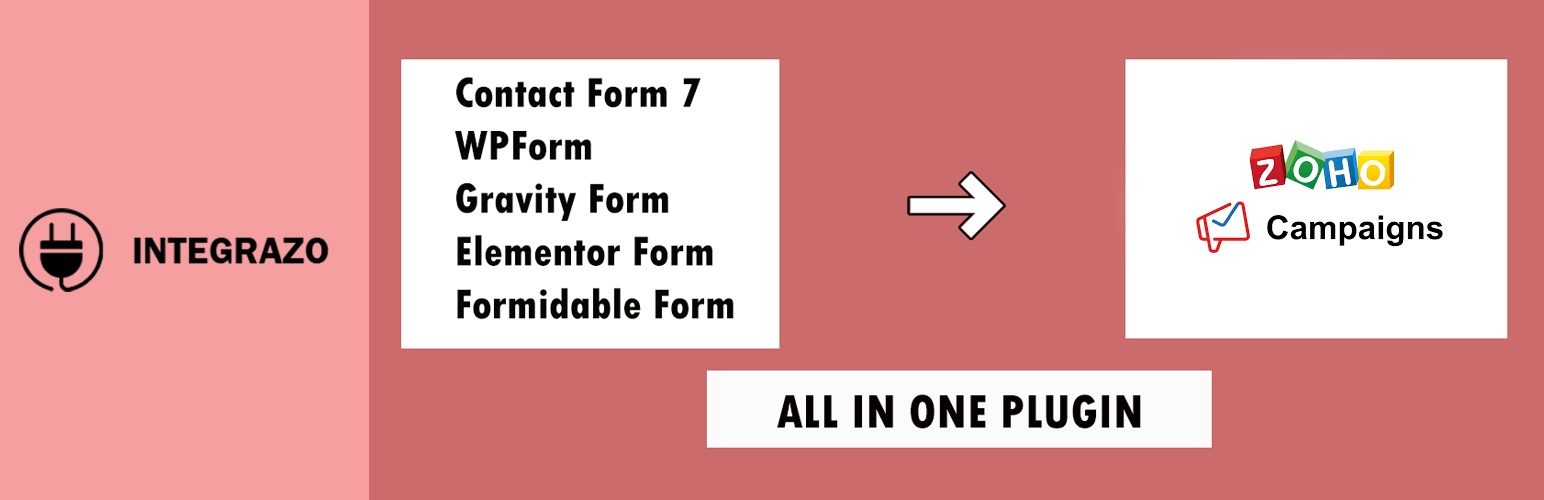
This plugin sends form submissions from Contact Form 7, WPForms, Elementor Forms, Gravity Forms, and Formidable Forms to Zoho Campaigns.
When a user submits a form, the plugin can create or update subscribers in your Zoho Campaigns mailing lists. This helps reduce manual data entry and keeps your Zoho Campaigns lists in sync with your website forms.
Supported form plugins:
Video tutorial:
Authentication
To connect your Zoho Campaigns account:
- Go to the Accounts page in the plugin.
- Click Add Account.
- Enter an identifiable account name (for example, “Main Zoho Campaigns Account”).
- Select the appropriate data center (for example,
zoho.com,zoho.eu). - Click Authenticate to open the Zoho authorization page.
- Log in to Zoho and approve the requested permissions.
- After approval, you will be redirected back to WordPress, and the account will be listed on the Accounts page.
Add Integration
To create a new integration:
- Go to the Setup page.
- Click Add Integration.
- Enter an integration name (for example, “Newsletter Signup”).
- Select the form type (Contact Form 7, WPForms, Elementor, Gravity Forms, or Formidable).
- Choose the connected Zoho Campaigns account.
- Select the Zoho Campaigns list where subscribers should be added.
- Map form fields to Zoho Campaigns fields in the field mapping section.
- Optionally map additional fields such as custom fields, country, city, UTM parameters, or submitted URLs (where supported).
- Use the filter criteria section to apply conditions (for example, sync only if a checkbox is selected).
- Click Save Mapping.
Logs
The plugin provides a logs section to review how data is being sent to Zoho Campaigns.
- Open the Logs page to see a list of submissions and their statuses.
- Typical statuses include:
- SUCCESS – record synced successfully.
- RECORD_FAILED – record not synced due to an error (for example, an invalid email).
- AI_DETECTION – record held due to AI rules (for example, based on domain rules).
Additional options:
- Filter logs by integration, status, or date range.
- Open the log details view to see the full request, response, and error messages.
- Resync or delete individual records, or use bulk actions where available.
- Review AI-detected records and resync them after manual review, if required.
Settings
Global settings can be managed from the Settings page:
- Delete data on uninstall – when enabled, plugin data will be removed when the plugin is deleted from WordPress.
- Error email notification – enable or disable email notifications when a record fails.
- Notification emails – specify one or more email addresses (comma-separated) to receive error notifications.
- Email subject – set the subject line for error notification emails.
AI Settings
AI-related options can be managed from the AI Settings section:
- Email validation – configure rules to handle email addresses from specific domains (for example, public email domains).
- Blocked domains – add or remove domains that should be treated according to your rules.
- Action for blocked emails:
- Send to Zoho Campaigns (ignore AI detection), or
- Store in logs for review and manual resync later.
- Tabs for Email Validation, Email Detection, and Spam Detection – configure rules separately for each type of check.
Note: If Double Opt-in is enabled in Zoho Campaigns, subscribers will receive a confirmation email and will be added to the list only after confirmation. This behavior can be adjusted in Zoho Campaigns settings.
Privacy and Data Handling
- Form submission data is sent from your WordPress site to Zoho Campaigns via their API.
- The plugin does not send data to any third-party service other than the configured Zoho services.
- Data handling is subject to your Zoho Campaigns account configuration and policies.
Free and Paid Features
The plugin is available in a free version with optional paid features.
Free version includes:
- Connect up to 2 Zoho Campaigns accounts
- Connect up to 2 forms
- Support for standard fields and basic field mapping
- Custom value support
- Basic AI settings for email handling
- System fields mapping where applicable
- Error log view and basic management
- No daily record limit enforced by the plugin
Paid version adds:
- Unlimited account connections (subject to Zoho limits)
- Unlimited form connections
- Premium field support
- Custom field mapping
- Advanced AI options and additional controls
- Extended resync options and log handling
- Email notifications for failed records
Upgrade now: https://integrazo.com/products/integrate-with-zoho-campaigns
Features Overview
- Connect Zoho Campaigns to supported form plugins
- Configure multiple Zoho Campaigns accounts and lists
- Map form fields to Zoho Campaigns fields, including custom fields
- Real-time syncing of form submissions to Zoho Campaigns
- Optional conditional logic to control when records are created or updated
- Activity logs with status and error details
- Resync options for failed or AI-held records
- AI-based rules for email and spam handling
- Optional email notifications for errors
- Settings to control data removal on uninstall
Support
If you need help or want to request a feature:
- https://integrazo.com/pages/contact
- https://integrazo.com/pages/request-feature
Website: https://integrazo.com/
Email: [email protected]
Additional Notes
This plugin supports WordPress multisite installations and has been tested for compatibility with recent WordPress versions.