


HDWebmobile Mix & Match Bundles
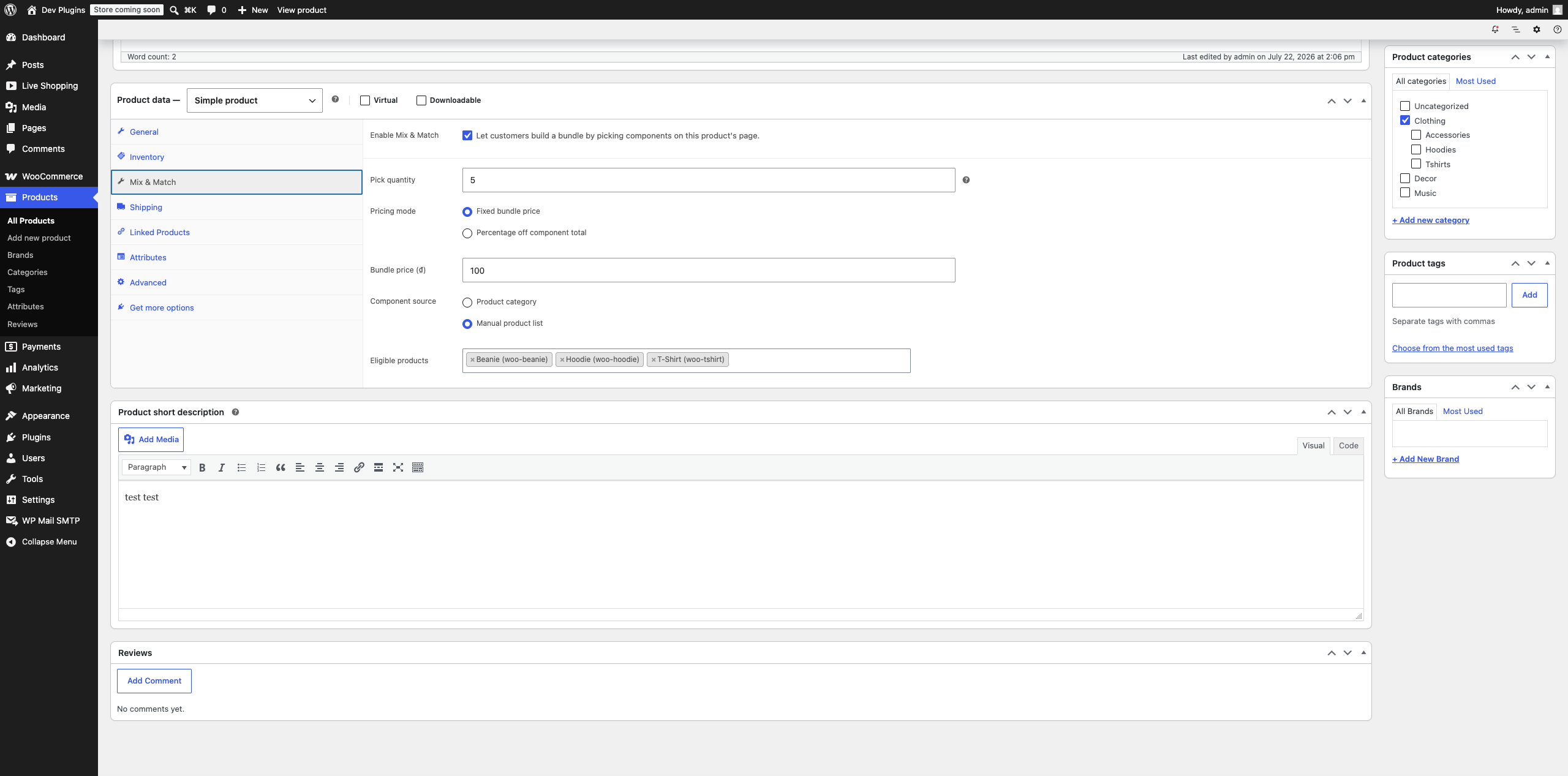
The Mix & Match tab on a simple product: enable the bundle, set pick quantity, pricing mode, and component source.
HDWebmobile Mix & Match Bundles turns any WooCommerce simple product into a “build a box” bundle picker. Instead of a plain Add to Cart button, shoppers see a grid of eligible components and choose exactly the number of items you configure before they can add the bundle to their cart.
Key Features
- Enable Mix & Match on any simple product with one checkbox
- Draw eligible components from a product category or a manual list
- Customers pick an exact quantity before Add to Cart activates
- Fixed bundle price or percentage-off-components pricing
- Bundle contents shown in cart, checkout, order admin, and order emails — including the WooCommerce Cart and Checkout blocks
- HPOS (custom order tables) compatible
Limitations (please read before installing)
- Works with simple products only — variable/other product types are not supported in this version
- Component stock is validated at add-to-cart time but is not automatically deducted from component inventory — track component-level stock manually if that precision matters to you
- Selection is exactly-N only; there is no min/max range picking in this version
How to Use
1. Turn any simple product into a bundle
Edit a simple product, open its Mix & Match tab in the Product data box (Screenshot 1), and tick Enable Mix & Match.
2. Set how many items customers must pick
Pick quantity is the exact number of components a customer must choose before they can add the bundle to their cart — there’s no min/max range, it’s always exactly this number.
3. Choose how the bundle is priced
- Fixed bundle price — the customer always pays the same total (set in Bundle price) no matter which eligible components they pick.
- Percentage off component total — the price is calculated from the real prices of whatever components they picked, minus your discount percentage.
4. Choose where eligible components come from
Component source is either:
* Product category — any published, purchasable product in the category you pick is automatically eligible (add new products to that category later and they’re automatically includable, no bundle edit needed).
* Manual product list — hand-pick the exact eligible products yourself.
5. What customers see and do
On the product page, eligible components appear as a grid of cards, each with a −/+ stepper (Screenshot 2). A running Selected: X / Y counter and the bundle’s live total update as they click, and Add to cart only enables once they’ve picked exactly the required quantity.
6. Where the bundle contents show up afterward
Once added, the exact picked breakdown (e.g. “2 x Beanie, 2 x Hoodie, 1 x T-Shirt”) is attached to that cart line item and follows it everywhere — the Cart page (Screenshot 3), Checkout (including the WooCommerce Checkout block, not just the classic shortcode checkout), the resulting order in WooCommerce > Orders, and the customer’s order confirmation/order-details emails. You never have to guess what a customer picked after the fact.