

CiteKit Reference Manager with Footnotes, Citations, Bibliographies, Tooltips and Glossary
Documentation | Live Demo | Shortcodes & Blocks Reference | Changelog | Support
CiteKit Reference Manager for WordPress allows online publishers to create, organize, edit, reuse, and publish structured references and citations as part of their WordPress publishing workflow.
Built for content that cites its sources:
- Research and academic blogs
- Health, medical, and nutrition sites citing studies and clinical guidelines
- Legal, policy, and government-focused publishers
- Finance and business analysis
- Product reviews and comparison sites
- Independent publishers and journalists
- AI-assisted content teams that need real, verifiable sources
- Agencies managing citations across many client sites
It includes:
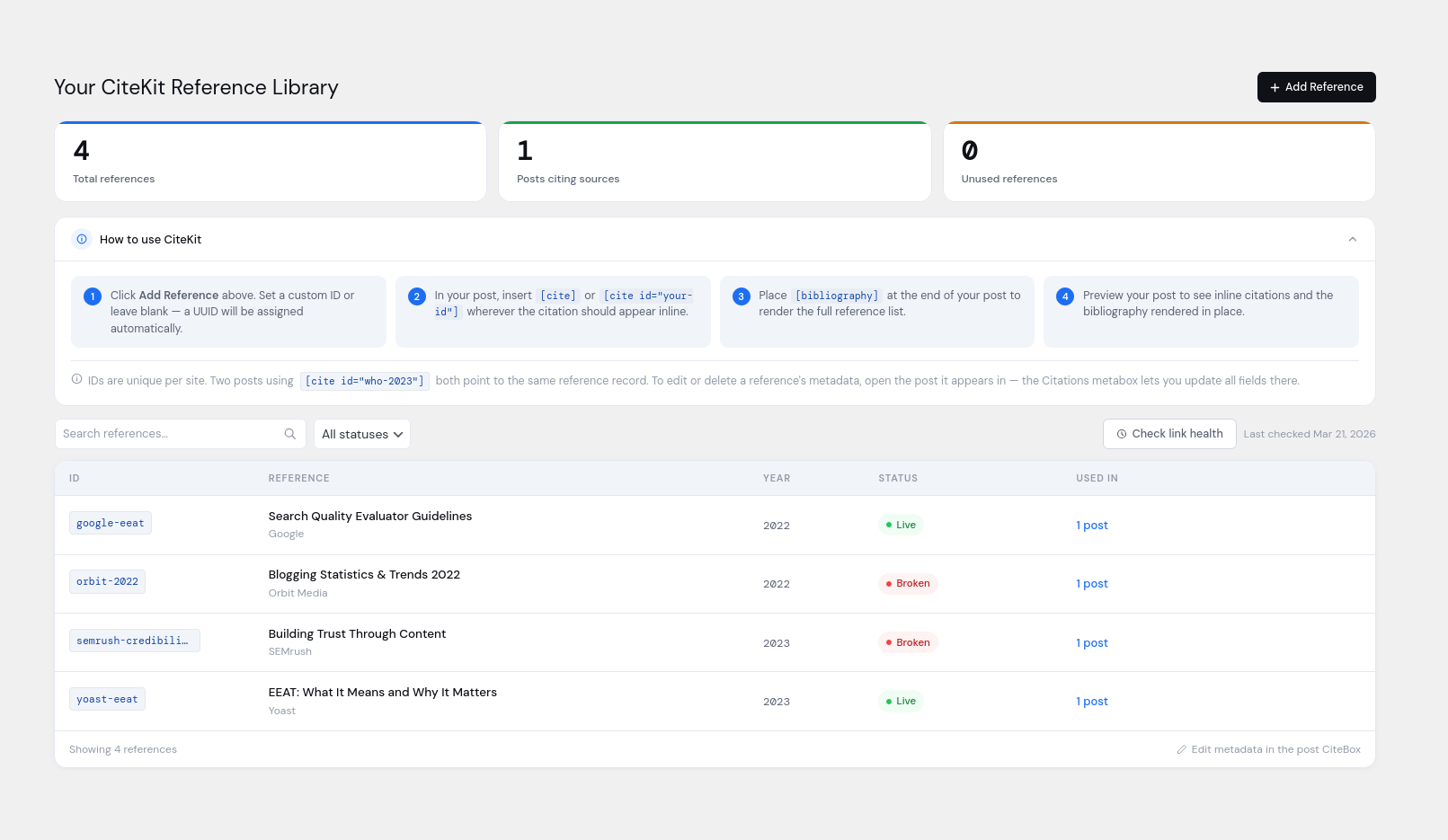
- Reference Library — a central library for storing and managing references used across a WordPress site. References can be reused across multiple posts, searched and filtered, and traced to the posts in which they are used.
- Source lookup and manual entry — create references manually or look up sources using URLs and YouTube links, DOIs, ISBNs, PubMed IDs, or title search. Retrieved metadata can be reviewed and edited before the reference is saved.
- Source types for online publishing — web pages, journal articles, books and chapters, reports, news, theses, datasets and standards, plus videos, social posts, wiki articles and code repositories. Each records what identifies the exact version cited, from a DOI to a wiki revision id to a commit.
- Reference import and export — import existing references from BibTeX, RIS, or CSL-JSON and export CiteKit references back into those formats for use in other reference-management and publishing systems.
- Multiple citation styles — publish references using APA, MLA, Chicago Author-Date, Chicago Notes-Bibliography, Harvard, IEEE, Vancouver, or AMA. Choose one style for the whole site, and set the bibliography heading site-wide or per post.
- Reference reuse — cite the same reference from multiple posts and maintain a single underlying reference record rather than duplicating source metadata throughout the site.
- Structured creators — record each author or editor as a person or an organization, so institutional names are published whole and personal names are inverted or initialised as the citation style requires.
- Post-level citation editor — review and edit the references used in the current post from one place.
- Citation Link Checker — check the URLs attached to references and mark them as Live, Broken, or Unchecked so publishers can identify inaccessible or deteriorating sources.
- Portable references and citations — content created outside WordPress can carry structured source data with it, allowing CiteKit to reconstruct and reuse the corresponding Reference Library records when the content is published.
CiteKit Reference Manager for WordPress also includes additional publishing features:
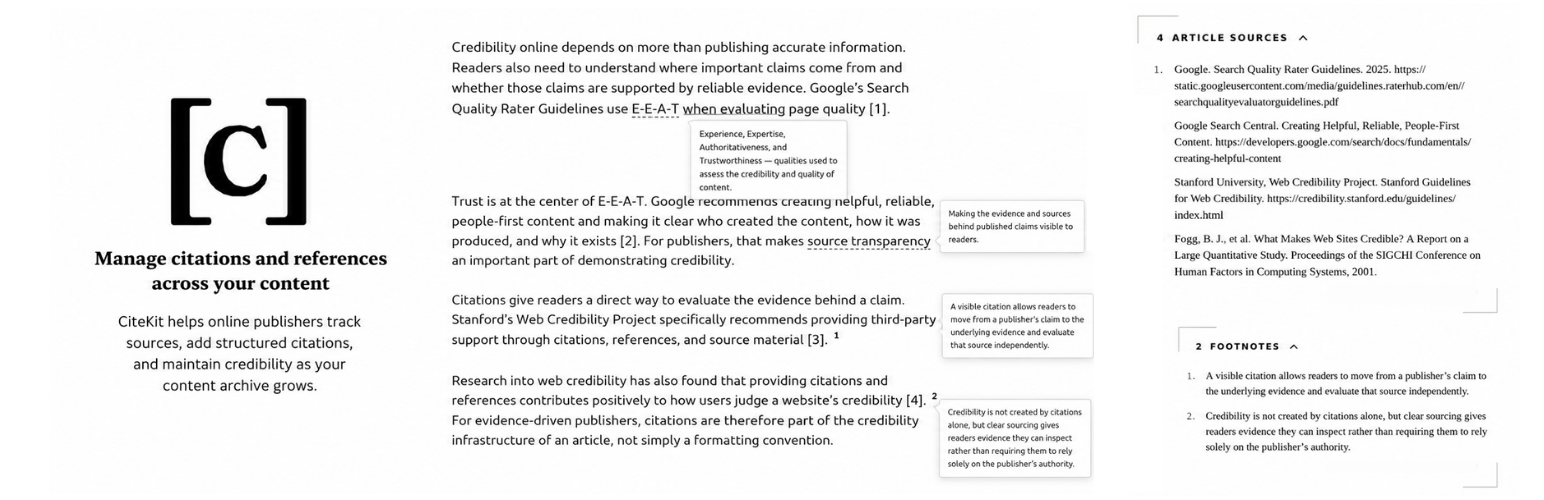
- Citations — insert inline citations connected to structured references throughout WordPress content.
- Bibliographies — generate formatted, backlinked bibliographies from the references cited in a post, with configurable headings and citation styles.
- Footnotes — add numbered footnotes with hover previews and publish a complete numbered footnote list.
- Tooltips — add inline definitions, explanations, and asides using dashed or dotted terms or superscript symbols, with the explanatory content displayed on hover.
- Glossary — maintain a separate structured terminology library containing terms, definitions, aliases, concepts, related terms, examples, and URLs; import and export glossary data; promote tooltip definitions into reusable glossary terms; and publish a glossary or an index of it. Glossary terms are published with schema.org DefinedTermSet data.
CiteKit Premium
- Custom Citation Style Builder — build your own in-text and bibliography formats (author order, punctuation, italics, separators) with a live preview, applied site-wide, per post type, or per post.
- Multi-style switching — give any post its own citation style instead of one style for the whole site.
- Global reference editing — edit a reference in your Reference Library and the change propagates to every post that cites it.
- In-post reference search — search your Reference Library and insert a predefined reference right from the post editor.
- Custom post type support — use CiteKit on all posts, pages, and custom post types, and apply a custom-built citation style per post.
- Citation metadata — output schema.org / JSON-LD data for every cited source so search engines and other tools can read and understand the citation metadata.
- Rich footnotes & tooltips — a native rich footnote and tooltip editor: add formatting, links, lists, images, alt text, and captions directly in WordPress, without writing custom markup.
CiteKit Blocks & Formats
Three blocks in the CiteKit category of the block inserter:
Bibliography by CiteKit — the formatted, backlinked bibliography for the current post.
Footnotes by CiteKit — the numbered footnote list collected from earlier in the post, with hover previews and integration with the rest of the plugin.
Glossary by CiteKit — publish the site’s glossary as a full term list or index.
Three inline formats on the block toolbar — Citation, Tooltip, and Footnote.