

ZooMeet – WordPress Zoom Integration: Meetings, Webinars & Video Conference Plugin
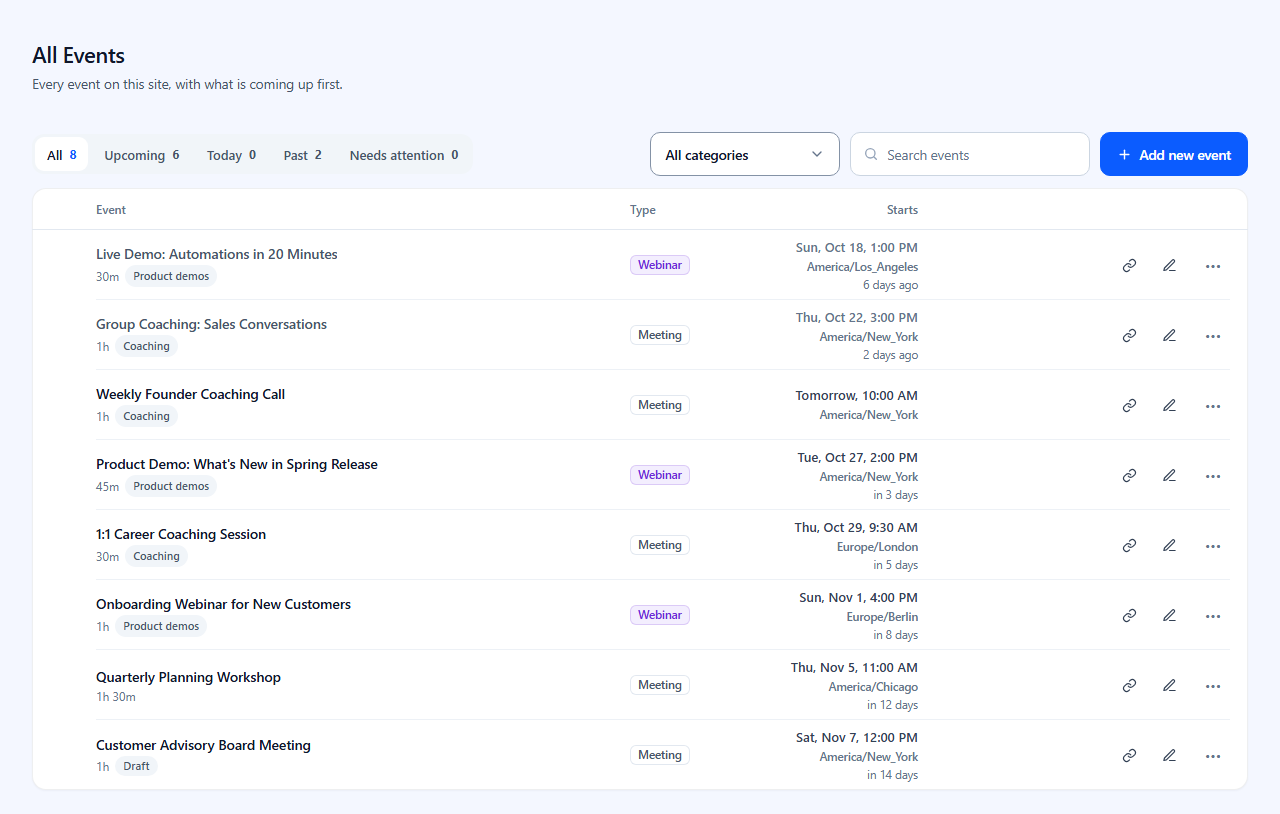
All Events: manage every Zoom meeting and webinar from WordPress in one list, with tabs for upcoming, past and events that need attention
ZooMeet is a WordPress Zoom integration plugin that creates Zoom meetings and webinars from your dashboard, gives each one its own page on your site, and shows what is live on your Zoom account in wp-admin.
Connect your Zoom account once with a Server-to-Server OAuth app, and every event you create in WordPress is a real Zoom meeting or webinar. Visitors join from your site, in the Zoom app or right in the browser, and you manage the account behind it without switching tabs.
📖 Documentation | 🤝 Join Community | 🕹️ YouTube
Looking for a video conference plugin for WordPress, a simple way to integrate Zoom with WordPress, or a video call plugin that keeps visitors on your own site? ZooMeet adds Zoom meetings for WordPress in a few minutes, with no code.
Why Use ZooMeet to Integrate Zoom with WordPress? 🤔
- Real Zoom meetings and webinars, created and updated through the Zoom API, not embeds or copied links.
- A join page for every event with details, a countdown and a Join button, in the Zoom app or in the browser.
- The full agenda on every event page, as a PDF or a link, also added to the agenda Zoom sends to registrants.
- Your Zoom account in WordPress: live meetings, live webinars, imports and API logs.
- Secure by design: Zoom keys and passcodes are never sent to the browser.
- Works with the block editor, Elementor and shortcodes, and on WordPress Multisite.
Zoom Meetings & Webinars From WordPress
-
A guided event wizard
- Create a Zoom meeting or webinar in clear steps, with quick picks for the date and length, the time zone, a passcode, the host and alternative hosts.
-
Every Zoom setting you rely on
- Waiting room, join before host, Zoom sign-in required, mute on entry, host and participant video, auto recording, and for webinars, panelist video, practice session and HD video.
-
All Events in one list
- View, publish drafts, copy a shortcode and delete (to the trash, never straight away). A summary panel flags clashing events and busy days.
-
Categories
- Group events by course, client or team, with category pages and a category filter on the list shortcodes.
Event Pages: Join Zoom in the App or in the Browser
Every event gets a page on your site with the details, a countdown and a Join button.
-
Join in the Zoom app or in the browser
- Add Meeting SDK keys and visitors can join inside your site. The signature is made on your server, so no secret reaches the browser.
-
Host controls on the page
- The host can start the event, end it or let people join early.
-
Full agenda as a PDF or a link
- Upload the programme as a PDF or paste a link under Agenda. The event page shows a Full agenda link, and Zoom adds it to its registration page and confirmation emails.
-
Two page designs, Classic and Paper
- Choose a brand colour, button shape, sidebar side, thumbnail, and whether the site header and footer show. Pick a design for the whole site, then change it on any one event.
-
Times in each visitor’s own time zone
- Optional, per event, with the time zone shown beside the time.
Manage Your Zoom Account Inside WordPress
- Live Meetings and Live Webinars: see what is on your Zoom account right now, refresh it, and delete on Zoom.
- Import: bring existing Zoom meetings into WordPress as events, with a duplicate check.
- API logs: see why a Zoom API request failed, with errors only or every call, kept 14 days and never storing secrets.
Zoom Shortcodes, Block Editor Block & Elementor Widget
[zmeet-zoom-meeting id="123"]and[zmeet-zoom-webinar id="123"]show one event, with options to hide the details or the timer.[zmeet-zoom-meeting-list]and[zmeet-zoom-webinar-list]list upcoming events; addcategory="slug"orshow_past="yes".- A block for the block editor and an Elementor widget that embed a meeting or webinar straight from a Zoom host.
Zoom Meeting Access & Security
- Choose who may open event pages: everyone, logged-in users, or chosen roles. Hosts and admins always get in.
- Passcodes and the waiting room, sent to Zoom with the event.
- Zoom keys and passcodes are never sent to the browser.
- Works on WordPress Multisite.
How to Integrate Zoom with WordPress in 4 Steps
- Install and activate ZooMeet from Plugins Add New Plugin.
- Create a Server-to-Server OAuth app in the Zoom App Marketplace and paste its keys into Settings Connect.
- Optional: add Meeting SDK keys so visitors can join in the browser.
- Click Add New Event, then share the event page or drop a shortcode, block or Elementor widget on any page.
Full guide: Connect Zoom with ZooMeet.
Video Conference Plugin Use Cases
- Online classes and coaching: a page for each live session, with the agenda, a countdown and a Join button.
- Webinars and virtual events: a public page with the full programme, Zoom registration and a Join button.
- Teams and agencies: run every Zoom event from one WordPress login, with each event on its own page.
📖 Documentation | 🤝 Join Community | 🕹️ YouTube
Documentation
Step-by-step guides with screenshots for every feature of the ZooMeet Zoom WordPress plugin:
- Connect Zoom with ZooMeet (Server-to-Server OAuth)
- Set up Join in browser (Meeting SDK)
- Create your first Zoom meeting
- Show Zoom meetings on any page with shortcodes
- All ZooMeet guides
What Users Say About ZooMeet
⭐⭐⭐⭐⭐
Best Zoom plugin for WordPress
This zoom meeting plugin is fantastic. Loved this one and its team’s dedication and support.
– by @tasnim179
Other Plugins from Our Team
- MeetingHub – Appointment booking and meeting scheduling for Zoom, Google Meet, Microsoft Teams, Webex and Jitsi
- GoodMeet – Meetings, webinars and classes for Google Meet
- DriveHub – Google Drive integration for WordPress
- WeMeet – Webex integration for webinars, meetings and video conferences
- TogMeet – Microsoft Teams integration for webinars, meetings and video conferences
External services
This plugin connects to Zoom to create and manage meetings and webinars, and to Freemius for licensing. Each is listed with what is sent and when.
Zoom OAuth (zoom.us/oauth/token) – exchanges the Account ID, Client ID and Client Secret you enter under Settings Connect for an access token, when you save the settings and whenever the token needs renewing.
Zoom REST API (api.zoom.us) – used to create, update, delete and import meetings and webinars, and to list the active Zoom users who can host them.
– Creating or updating an event sends its title, description, agenda (with the link to the full agenda PDF or page, if you add one), start time, time zone, duration, passcode, host, alternative hosts and the meeting settings you chose.
– Admin screens such as All Events, Live Meetings and Live Webinars read from Zoom when you open them, and event pages read the meeting’s status.
Zoom Meeting SDK (source.zoom.us) – loaded in the visitor’s browser only on the Join in browser page. The browser connects to Zoom with the meeting number, a signature made on your server, and the display name and email the visitor enters.
This service is provided by Zoom Video Communications, Inc.: Terms of Service, Privacy Policy.
Freemius – used for licensing and, if you opt in on the activation screen, to receive basic site data (site URL, WordPress, PHP and plugin versions, and your admin email) that helps us support the plugin. You can skip the opt-in; the plugin works the same either way.
This service is provided by Freemius, Inc.: Terms of Service, Privacy Policy.
Source Code
The admin interface is built with React and compiled to the minified JavaScript and CSS in assets/dist/. The uncompiled source ships with the plugin in assets/src/, and package.json in the plugin root lists the build tools (webpack, Tailwind CSS, PostCSS and Babel) and the build commands, npm run build and npm run build:getstarted, run with NODE_ENV=production. The PHP libraries in vendor/ are listed in composer.json.