
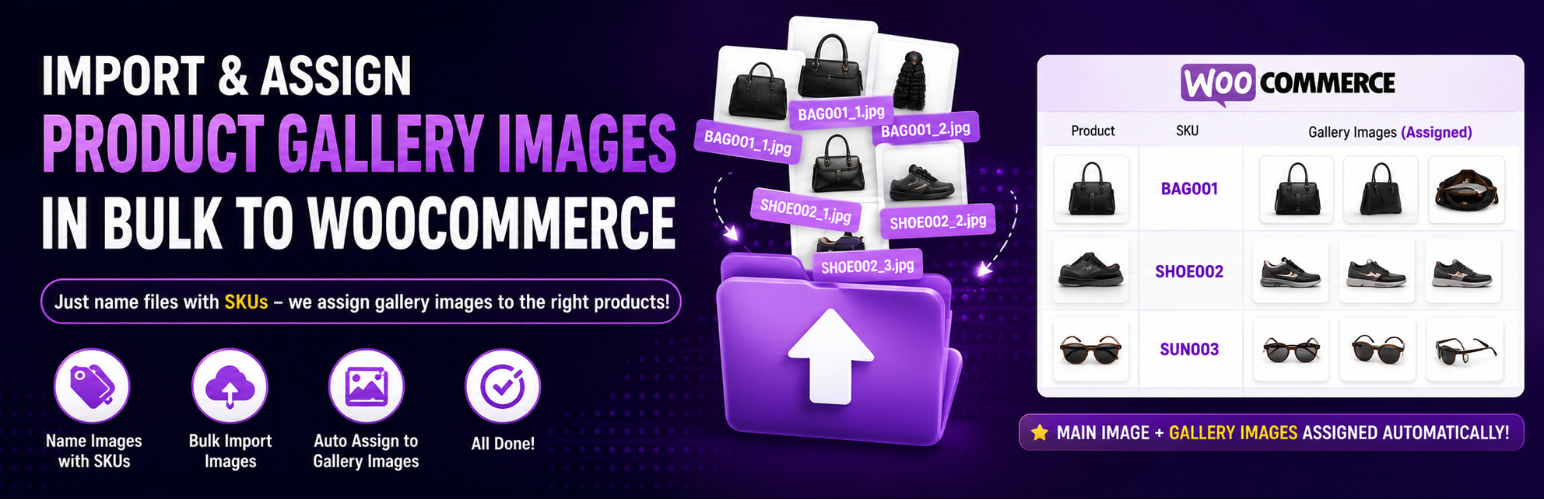

Zealot Bulk Image Assign by SKU for WooCommerce
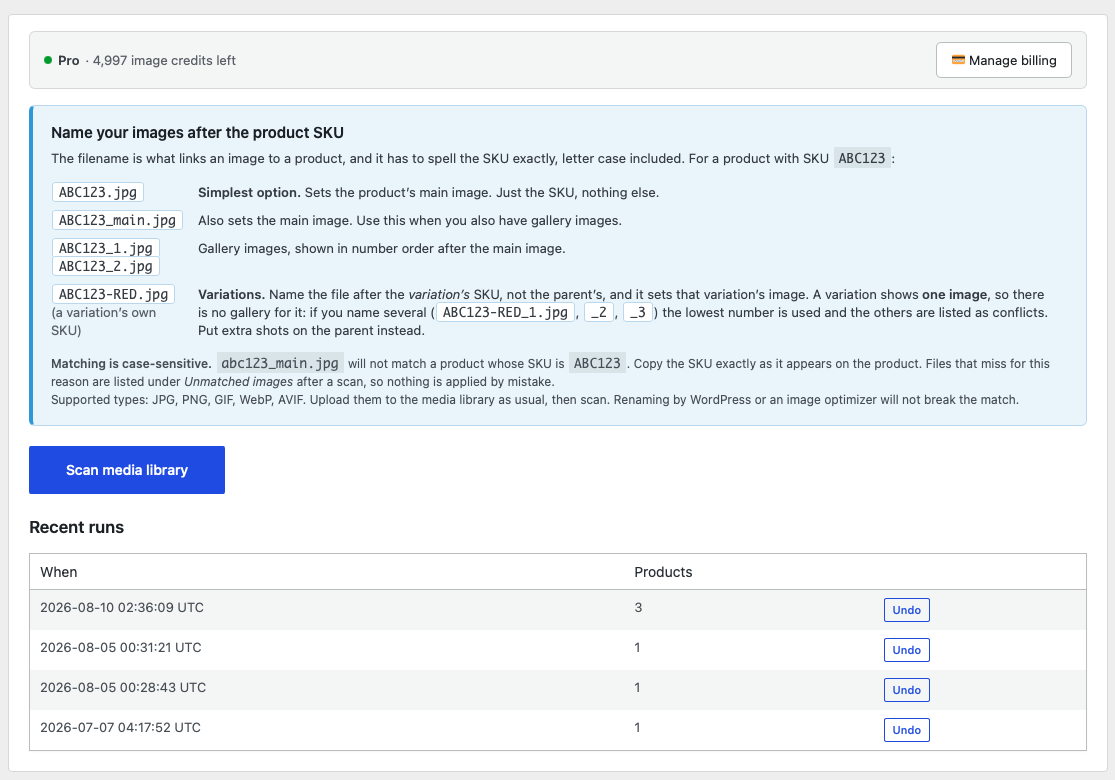
The naming rules up front, so a scan does what you expect. Past runs are listed underneath and any of them can be undone in one click.
WooCommerce can set one featured image, for one product, at the moment you upload a file whose name is exactly the SKU. That is the whole feature, and if it is all you need, you do not need this plugin.
This plugin is for the rest of it:
- Full galleries, not one image.
<sku>_1.jpg,<sku>_2.jpgbecome the product gallery, in order. - Variation images. Name a file after a variation’s own SKU and it lands on that variation.
- The library you already have. WooCommerce only matches at upload, so it can never touch the thousands of images already sitting in your media library. This scans all of them.
- A preview before anything is written, and one-click undo afterwards.
WooCommerce’s own setting lives at Settings -> Products -> Advanced. If you leave it on, both will
act on new uploads, and anything it assigns bypasses the preview, the undo and the optional cloud
processing here. The plugin notices when it is on and offers to switch it off for you.
It uses the same filename convention Amazon uses for bulk seller uploads:
<sku>_main.jpg-> the product’s featured (main) image<sku>_1.jpg,<sku>_2.jpg-> gallery images, in order<sku>.jpg-> featured image (simple fallback)
Matching is case-sensitive: abc123_main.jpg will not match a product whose SKU is ABC123. Copy
the SKU exactly as it appears on the product. Only the SKU is strict, so _main and _MAIN mean the
same thing. A file that misses on case is listed under “Unmatched images” after a scan rather than
applied to a guess, so you can spot it and rename it.
Product variations
Name the file after the VARIATION’s own SKU, not the parent’s: <variation_sku>.jpg sets that
variation’s image. A variation displays a single image, so it has no gallery. If you name several
files for one variation (<variation_sku>_1.jpg, _2, _3), the lowest number is used as the
variation’s image and the rest are reported as conflicts rather than applied silently. Put extra
shots on the parent product, whose gallery does show them.
What else it does
- Unlimited batches: no 10- or 20-image cap; large catalogs run in safe background batches.
- Rename-proof matching: survives WordPress’s own
-scaled,-768x1024, and duplicate-1filename changes, and records each image’s original upload name so later optimization (Imagify, ShortPixel, Smush, EWWW) never breaks a match. - Preview before applying: see every proposed match and deselect any before anything is written.
- One-click rollback: revert a completed run.
- Import straight from your supplier: have the WPZealot service pull images from a URL list, or from your supplier’s SFTP folder (Pro).
- Optional image resizing/optimization: offload resize + compression to the WPZealot cloud (Pro).
Matching runs entirely on your own server: filename-to-SKU is plain string work, so no images leave your site for the core feature.
Importing from SFTP (Pro)
Most suppliers deliver photography to an SFTP folder rather than a public link. Give the WPZealot service the folder details and it fetches new files for you; the plugin copies them into your media library with their filenames intact, so the usual SKU matching applies.
The connection is made by the WPZealot cloud service, not by your store. Your username and password or key are stored by that service, encrypted, and are used only to reach the server you nominated. Your store never opens an SSH connection and never holds the credential. See “External services” below.
The service records the server’s host key the first time it connects and pins it. If that key ever changes, the import stops rather than handing your credential to a server that is not the one you set up.
We recommend asking your supplier for key-based access and an account that can do nothing but read that one folder.
External services
The core matching and assignment features run locally and contact no external service.
The OPTIONAL cloud features connect to the WPZealot cloud service
(https://images-by-sku.wpzealot.com), operated by WPZealot, and are off by default.
The service is contacted only after you press Connect, and never before. When you enable it:
- Your site URL, WordPress/WooCommerce/PHP versions, and plan usage counts are sent for licensing and batch sizing.
- Image resizing: the image files you choose to optimize are uploaded to the service, processed, and returned to your store.
- URL import: the addresses you supply are fetched by the service, which returns the image data to your store.
- SFTP import: the address, username and password or key of the server YOU nominate are sent to the
service and stored there, encrypted, so that it can connect on your behalf and fetch new files.
They are used for nothing else, are never returned to your site or shared with any third party,
and are deleted when you remove the server in the plugin or disconnect from the service. - No customer or order data is ever read or transmitted.
The service’s terms are at https://wpzealot.com/terms and its privacy policy at https://wpzealot.com/privacy.
Source code and build
The admin screen is a React app. Its compiled bundle ships at assets/app/wpz-pis.js and
assets/app/wpz-pis.css because a WordPress install has no build step, and the complete,
human-readable source that produced it ships alongside it in the src/ folder of this plugin.
To rebuild it, from src/:
npm install
npm run build
Vite writes the result back to assets/app/. See src/README.md for detail. Every other file in
this plugin is source: nothing else is generated, minified or obfuscated.