

YeePDF – PDF Builder for Bookly
YeePDF – PDF Builder for Bookly turns every Bookly appointment into a PDF document: an invoice, a booking confirmation, a ticket, a voucher or any document you design.
Build the PDF layout with a drag and drop template builder, insert the appointment data with Bookly codes such as {client_name}, {service_name}, {appointment_date} or {total_price}, and the plugin attaches the generated PDF to the Bookly email notifications you choose. Customers and staff receive the PDF automatically; administrators can download it from Bookly > Payments.
No coding needed. No change to your booking form. Works with the free version of Bookly – Bookly Pro is not required (it only unlocks a few extras, see below).
Bookly is a trademark of Nota-Info / Ladela Interactive. This plugin is an independent add-on developed by add-ons.org and is not affiliated with, endorsed by or sponsored by the Bookly team.
DEMO: https://pdf.add-ons.org/
DOCUMENTS: https://pdf.add-ons.org/bookly-pdf/
Download Pro Version: https://add-ons.org/plugin/pdf-for-bookly/
Why Choose PDF for Bookly?
- Works with Bookly free and Bookly Pro – no paid Bookly add-on is needed to generate, attach or download PDFs.
- Works out of the box – a ready made invoice template is installed on activation; just tick the notifications that should carry it.
- Drag and drop builder – rows, columns, text, images, dividers, page breaks, QR codes, barcodes, signatures and more. No HTML or CSS required.
- Real Bookly data – every Bookly notification code is available in the builder, plus dedicated blocks for the booked services and the totals.
- Cart ready – the Bookly Items block lists every service of an order, so it also works with the Bookly Cart add-on.
- Preview with real appointments – pick any appointment (or sample data) in the editor and preview the PDF with its values.
- Download anywhere – PDFs are attached to emails, downloadable per payment in Bookly > Payments, and (with Bookly Pro) from the last step of the booking form.
Key Features
Drag and Drop PDF Template Builder
Design the document visually. Each block has its own settings (padding, background, alignment, fonts, borders, conditional logic) and the page settings control paper size, orientation, margins and fonts.
Bookly Codes
Insert customer, appointment, service, staff, payment and company data with the same codes Bookly uses in its notifications: {client_name}, {client_email}, {client_phone}, {appointment_date}, {appointment_time}, {appointment_end_time}, {booking_number}, {service_name}, {service_price}, {service_duration}, {staff_name}, {staff_phone}, {number_of_persons}, {total_price}, {total_tax}, {amount_paid}, {amount_due}, {payment_type}, {payment_status}, {company_name}, {company_address}, {company_logo} and more.
Bookly Items and Bookly Totals blocks
Two blocks dedicated to bookings:
- Bookly Items – a table with one row per booked service (service, category, staff, date, time, duration, persons, price). Switch any column on or off and style the header, rows, cells and borders.
- Bookly Totals – subtotal, tax, total, paid and amount due. Switch any row on or off.
Both are also available as shortcodes for Text blocks: [yeepdf_bookly_items columns="service,staff,date,time,duration,persons,price"] and [yeepdf_bookly_totals rows="subtotal,tax,total"].
Attach to Bookly Email Notifications
Choose which Bookly email notifications carry the PDF: new booking (customer / staff), cancelled, rejected, reminders, combined booking and any notification you add later. The PDF is generated when the notification is sent, with the data of that appointment.
Download from Bookly > Payments
Every payment gets a PDF action, selected payments can be downloaded at once and Download all PDFs exports the filtered list, exactly like the Bookly Invoices add-on.
Preview with Real Data
A dropdown in the template editor lists your latest appointments. Pick one (or “sample data”) and the builder canvas and the Preview button show the PDF with real values instead of codes.
File Name and Password
Name the generated file with codes, e.g. invoice-{booking_number}, and optionally protect it with a password (codes are supported too).
Multiple Templates
Create as many templates as you need (invoice, confirmation, ticket, certificate). The free version attaches one template to the chosen notifications; the Pro version lets you pick a different template for each notification.
Popular Use Cases
- Invoices – send an invoice PDF with every approved booking.
- Booking confirmations – a printable confirmation with date, time, staff and location.
- Tickets and vouchers – add a QR code or barcode with the booking number.
- Certificates and consent forms – pre-filled with the customer’s details and a signature line.
- Staff work orders – a PDF for the staff member with the customer’s notes and custom fields.
Upgrade to Pro
- Different template per notification – e.g. an invoice for the customer and a work order for staff.
- Advanced table block – styled tables for lists and reports.
- QR codes and barcodes – generated from appointment data.
- Watermarks – custom text or image watermarks.
- Headers and footers – branding, page numbers and document metadata.
- Dropbox integration – automatically save every generated PDF to Dropbox.
- Conditional logic – show or hide blocks depending on the appointment data.
- Priority support – one year of dedicated technical support and updates.
Bookly Pro
The plugin does not require Bookly Pro. With Bookly Pro installed the plugin also plugs into Bookly’s own add-on system:
- the settings are available under Bookly > Settings > PDF Invoices;
- the code
{pdf_link}is available in the notification editor to put a download link of the PDF in the email body; - the booking form can show a Download PDF button on the last step (enable it under Bookly > Appearance, step “Complete”; the label is editable there).
Everything else works with the free version of Bookly.
Third-party services
The plugin works entirely on your own server: templates are rendered with the bundled mPDF library and the generated files are stored in your WordPress uploads folder. No data is sent anywhere and nothing is tracked.
The only optional external service is Dropbox, used solely when you connect your own Dropbox app under PDF Templates > Settings and tick “Save a copy to Dropbox”:
- What is sent: the generated PDF file, and your Dropbox OAuth credentials (app key, app secret, access / refresh token) to obtain and refresh the access token.
- When: only when a PDF is generated while that option is enabled, and when you click “Validate API Key” on the settings page.
- Where:
https://api.dropbox.comandhttps://api.dropboxapi.com. - Dropbox terms: https://www.dropbox.com/terms – Dropbox privacy policy: https://www.dropbox.com/privacy
Links to pdf.add-ons.org and add-ons.org in the plugin are documentation and support links only; opening them is up to you and no data is transmitted by the plugin.
How to Use
Step 1 — Design the template (optional)
- Go to PDF Templates in the WordPress admin menu and open “Bookly Default”, or click New Template.
- Drag blocks from the left panel into the page. Use the shortcode panel (group “Bookly”) to insert appointment codes.
- Use the Bookly Items and Bookly Totals blocks for the booked services and the totals. Select a block to switch its columns or rows on or off.
- Pick an appointment (or “sample data”) in the dropdown at the top and click Preview to see the PDF with real values.
- Save.
Step 2 — Attach the template to Bookly notifications
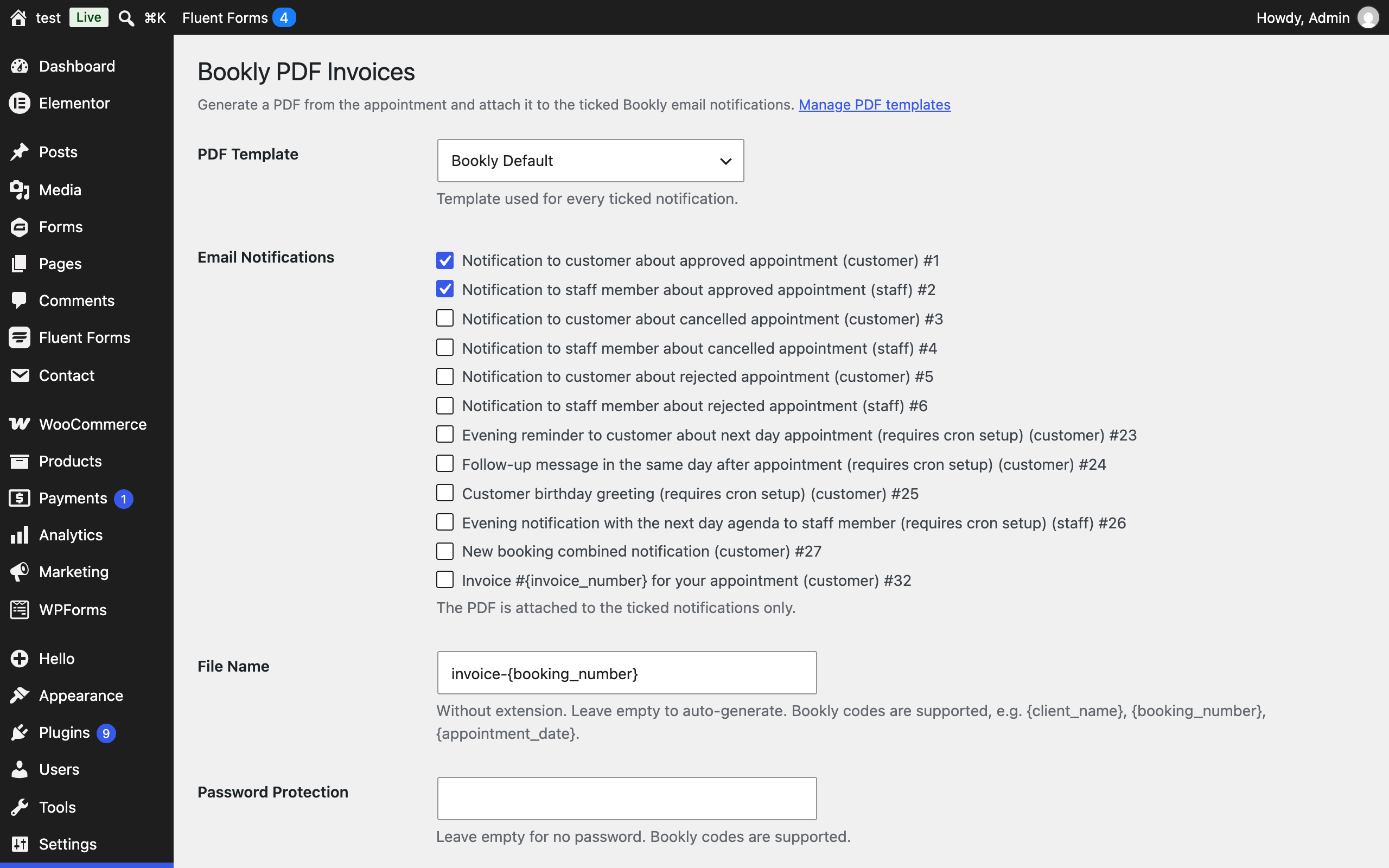
- Go to Bookly > PDF Invoices (with Bookly Pro also Bookly > Settings > PDF Invoices).
- Choose the PDF Template.
- Tick the Bookly email notifications that should carry the PDF.
- Optionally set a File Name (e.g.
invoice-{booking_number}) and a Password. - Save.
From now on, every time Bookly sends one of the ticked notifications, the PDF is generated from that appointment and attached to the email. Administrators can download the PDFs at any time from Bookly > Payments.