


WP Secure Content
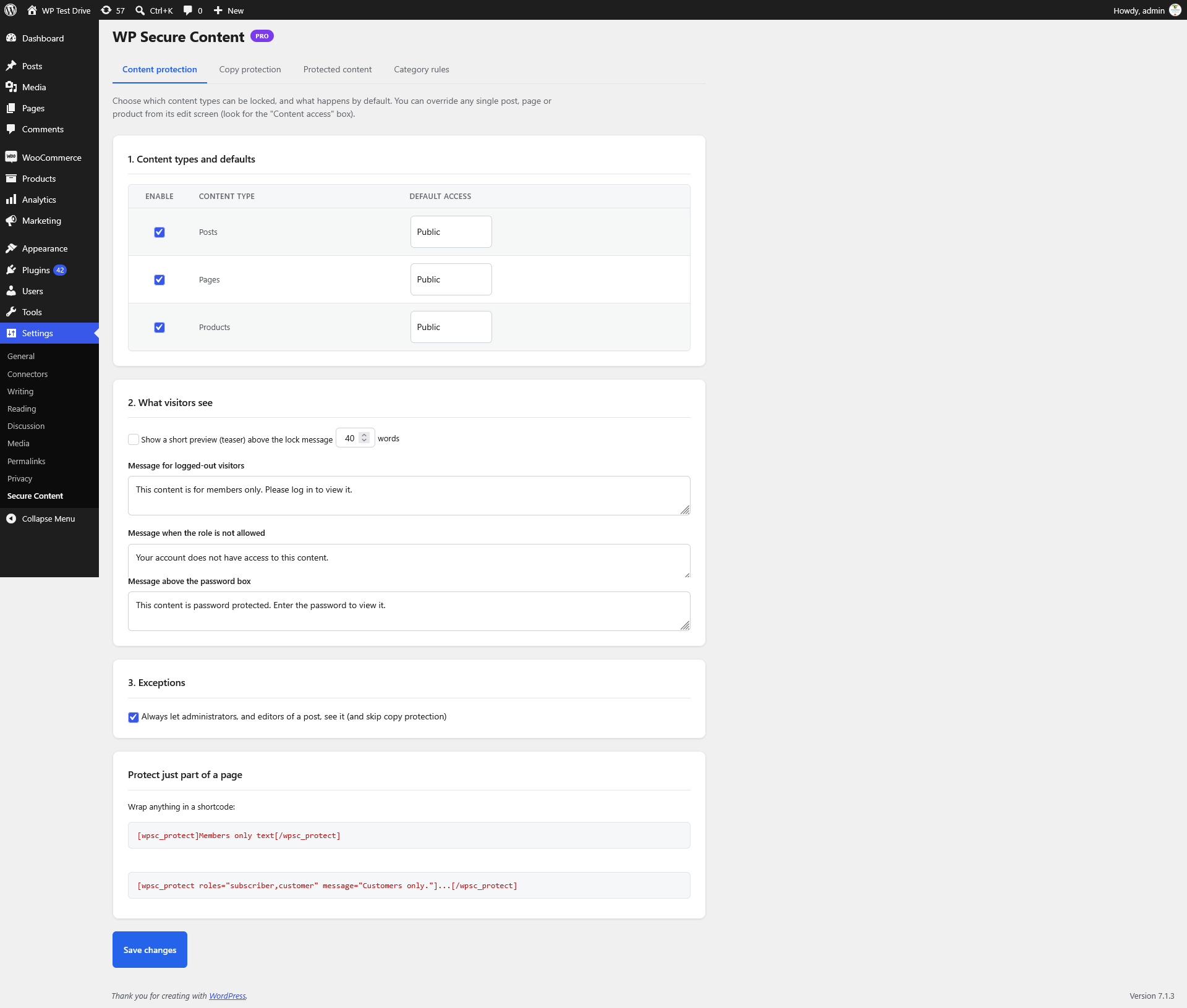
Content protection settings — content types, defaults, teaser and lock messages.
WP Secure Content lets you lock down any post, page, or WooCommerce product without writing a single line of code. Choose per item whether content is public, members only, restricted to specific roles, or protected by a password — and optionally add copy protection on top.
Why use it?
- Turn selected content into a members-only area without a heavy membership plugin.
- Gate premium products or downloads behind a password or role.
- Show a teaser to logged-out visitors to encourage sign-ups.
- Lock just part of a page with a shortcode when the whole page should stay public.
Core features
- Per-item “Content access” box — set access on each post, page, or product: public, members only, specific roles, or password protected.
- Sensible defaults per content type — choose a default access level for posts, pages, and products; override it per item whenever needed.
- Bulk actions — apply access changes to many posts at once from the post list screens.
- Teaser previews — display a short excerpt above the lock message to give visitors a taste of what’s behind the gate.
- Custom lock messages — separate, editable messages for logged-out visitors, disallowed roles, and the password prompt.
- Brute-force protection — passwords are rate-limited to slow down guessing attempts.
- Deep protection — also protects excerpts, the REST API, and feeds so the content can’t leak through alternate channels.
- WooCommerce aware — locked products cannot be purchased, and access is enforced on the product page.
- Shortcode — wrap any part of a page in
[wpsc_protect]...[/wpsc_protect]to lock only that block. - Optional copy protection — block right-click, text selection, copy keys, dragging, and printing. Configurable and off by default.
- Administrator bypass — admins and post editors can always view protected content, and skip copy protection.
Where to configure it
Go to Settings WP Secure Content and use the tabs:
- Content protection — enable content types, set default access, teaser and lock messages, and exceptions.
- Copy protection — toggle and tune the copy-protection behaviours.
- Protected content — review every item that is currently locked.
- Category rules — apply access rules to whole categories.
Usage
Lock a single item
Edit the post, page, or product and open the Content access box in the sidebar. Select Public, Members only, Specific roles, or Password, then save.
Lock part of a page with a shortcode
[code]
[wpsc_protect]Members only text[/wpsc_protect]
[/code]
Restrict to specific roles and show a custom message:
[code]
[wpsc_protect roles=”subscriber,customer” message=”Customers only.”]…[/wpsc_protect]
[/code]
Attributes:
roles— comma-separated role slugs allowed to view the block.message— custom message shown when the visitor cannot view the block.password— require a password for the block.
Set defaults for a content type
On the Content protection tab, enable the content types you want to lock and choose a default access level for each. Individual items can still override the default.
Bulk edit access
From the post list screen, select multiple items, choose the access action in the Bulk actions dropdown, and apply.
Pro
Pro adds unlock-by-purchase (WooCommerce), access windows, multiple passwords, and category rules.
Enabling Pro
- Drop the
pro/folder into the plugin folder. - Visit Settings WP Secure Content — Pro features appear automatically.
- Remove the
pro/folder at any time to return to the free version. Your data is preserved.
License
WP Secure Content is free software, released under the GPLv2 or later.
This program is distributed in the hope that it will be useful, but WITHOUT ANY WARRANTY; without even the implied warranty of MERCHANTABILITY or FITNESS FOR A PARTICULAR PURPOSE. See the GNU General Public License for more details.