


Wishlist and Compare for WooCommerce
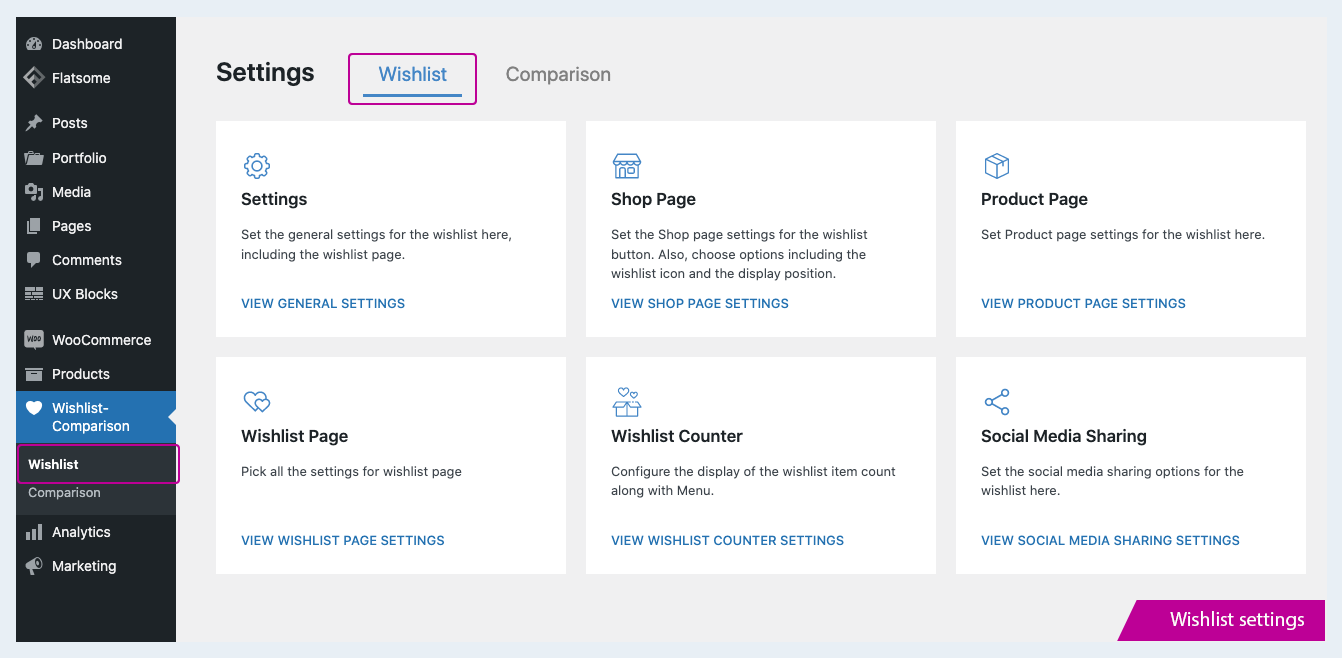
Wishlist settings.
Best Plugin to Wishlist and Compare WooCommerce Products 🏆
WooCommerce Wishlist and Comparison Plugin enables your customer to Wishlist their favorite products for future purchases. The comparison aspect of the plugin enables you to determine the best in terms of product features Where shoppers can:
- Shortlist favorite products in the wishlist for hassle-free navigation and checkout.
- Share the wishlist with their loved ones through the social share options available.
- Compare products to determine which best suits their needs.
- The product comparison table will help you view the product differences and improve the user experience.
- The plugin offers a wide variety of styling options, also you can customize them using the Custom CSS.
WOOCOMMERCE WISHLIST FEATURES
- Display the Wishlist button on your desired pages.
- Create a new page to display the products added to the Wishlist.
-
Determine the position of the Wishlist button on the shop/product page from:
- After the “Add to cart button”.
- Before the “Add to cart button”.
- Above Thumbnail
- Custom position with code.
-
If the position of the wishlist button is set as “Above Thumbnail” on the shop page, then choose a position for the wishlist thumbnail from the given choices:
- Top Left
- Top Right
- Bottom Right
The same applies to the product page, with an option:
- Top Left
-
Add custom text to your wishlist button and the option to upload a custom icon for your wishlist.
- Choose a heart or bookmark as the wishlist icon or else upload a custom icon.
- Options to display the number of products on your wishlist in the Menu.
- Enable “Grid/ListView” option to display products on Wishlist page in two styles:
- Grid
- ListView
- Move products in the wishlist to the cart page with the “Add to Cart” button and the option to remove products from the wishlist once added to the cart.
- Share the products in the wishlist with your friends using social share buttons.
- Enable the option to add products to the wishlist for logged-in customers.
- Generate a popup alert for the products added to the wishlist.
- With a second click on the wishlist icon, you can remove an item that was already added to your wishlist.
- Display wishlist option as Button/Link on shop and product page.
-
You can style the Wishlist Button/Link on the shop page and product page.
-
To style the ‘Button’:
You can change the Background color, Font color, Border color of the button, if “Use custom style” is selected from the “Wishlist Button/Link Style” dropdown. -
To style the ‘Link’:
You can change the font color and font size of the link, if “Use custom style” is selected from the “Wishlist Button/Link Style” dropdown.
Note: if “Use default theme style” is chosen, then the button /link will be displayed in the normal form.
-
-
The popup style has been updated to a more user-friendly design.
COMPARISON FEATURES
- Quickly compare products from the compare popup/compare page.
- Create a new page to compare the products.
- Set a custom text on the compare button.
- Set an icon for the comparison button or upload a custom icon.
- Options to display different fields for comparison. Also, rearrange the fields in the desired position by drag and drop.
-
Determine the position of the Comparison button on the shop/product page from:
- After the “Add to cart button”.
- Before the “Add to cart button”.
- Above thumbnail.
-
You can display the comparison button on the shop page at “Bottom Right” if the position is chosen as ”Above Thumbnail”.
The same applies to the product page, with the option “Bottom Left”. - With the “Add to cart” button, move products from the compare page and option to remove products from the compare page once added to the cart.
- Option to ‘show only differences’ in comparison that hide fields with the same value. Example: Say the “Nike Air Basketball Shoe” and “Nike Air Men’s Shoe” both come in the price range $200 and description. Enabling the option will hide the price field and description that have the same value.
- If the compare list is empty, an “Add Products” button appears. Click the button to continue shopping.
Join Themehigh Community to get help from similar people