
Trilobita DocVault
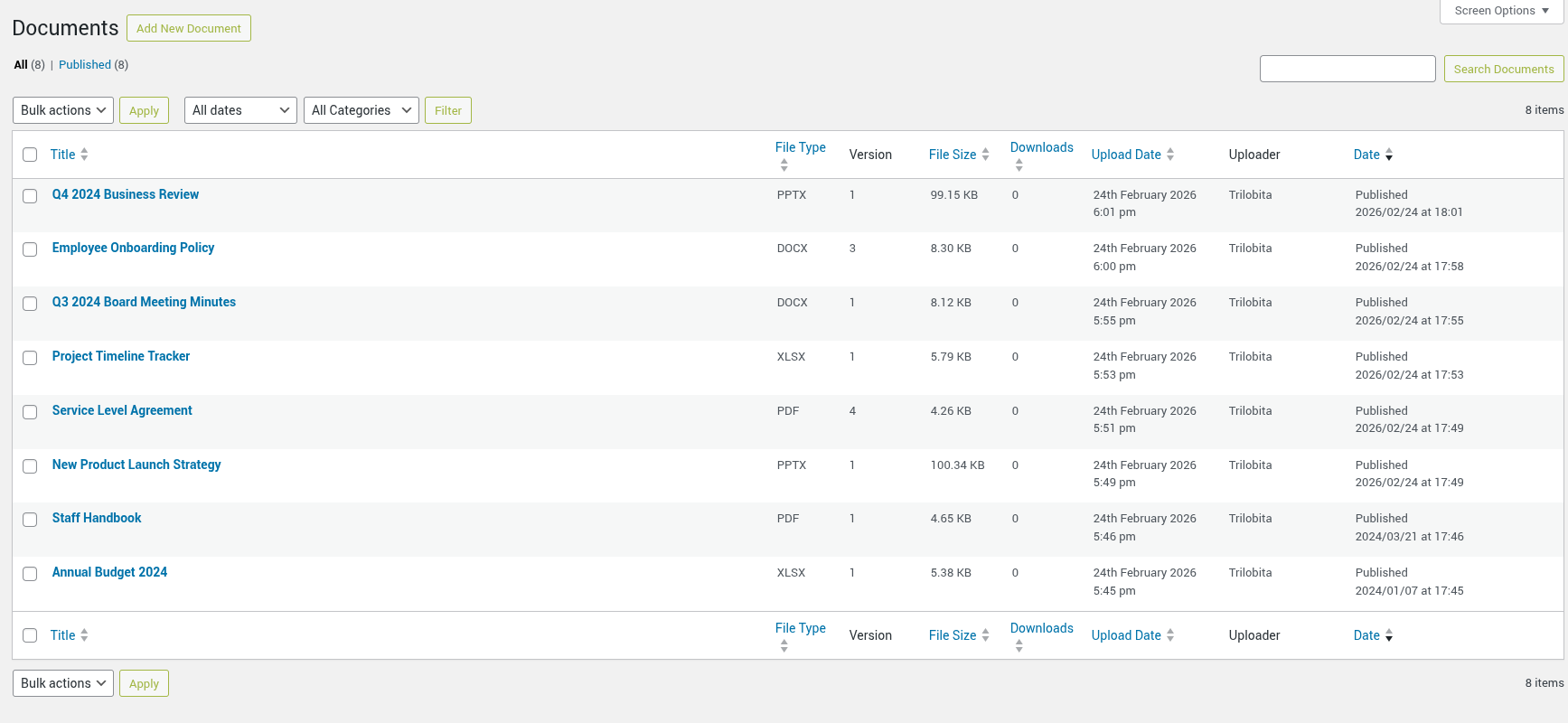
Document list in admin showing file type, version count, size, and download stats.
Trilobita DocVault is a WordPress document management plugin with version control and a searchable document library. Upload and organise files in the admin, then share them with your team or site visitors — with a searchable, sortable document table, Gutenberg block support, full version history, download tracking, and access control.
Key Features:
- Version History – Full version history with rollback, download, and delete for every document.
- Drag & Drop Upload – Intuitive drag-and-drop file upload interface in the admin.
- Download Tracking – Track download counts for all documents.
- Access Control – Restrict documents to logged-in users only.
- Frontend Display – Responsive shortcode-powered document table with AJAX search, sortable columns, and pagination.
- Gutenberg Block – Native block editor support for embedding documents.
- File Type Support – PDF, DOC, DOCX, XLS, XLSX, PPT, PPTX, ODT, ODS, ODP, RTF, CSV, TXT.
- Document Categories – Hierarchical taxonomy for organizing documents.
- Document Tags – Flat tag taxonomy for cross-cutting labels; filter the frontend list by tag with
[trdv_list tag="slug"]or show a tag dropdown withshow_tag_filter="true". - Document Expiry Dates – Set an optional expiry date per document; expired documents are automatically hidden from the frontend list.
- Manual Sort Order – Drag documents into your preferred order in the admin list; use
[trdv_list orderby="menu_order"]to apply that order on the frontend.
Go further with Trilobita DocVault Pro
Trilobita DocVault Pro adds enterprise-grade features for teams that need more control:
- Unlimited Version History – Remove the 5-version limit and keep complete history for every document.
- Per-Document Access Control – Restrict individual documents to specific user roles.
- Audit Trail – Full activity log with CSV export for compliance and accountability.
- Email Notifications – Configurable alerts for uploads, updates, and approvals.
- Document Approval Workflow – Require documents to be reviewed before publishing.
- Bulk Upload – Upload multiple documents at once with duplicate detection.
- Download Analytics – Detailed per-version download statistics.
- Duplicate Detection – Find and merge duplicate documents to save storage.
- Storage Management – Advanced tools for monitoring and cleaning up storage.
Privacy
Trilobita DocVault stores the following user data:
- Uploader user ID – Stored as post meta (
_trdv_uploaded_by) to track who uploaded each document version. - Download logs – When download tracking is enabled, the plugin records the downloader’s IP address, user ID (if logged in), and timestamp in a custom database table (
trdv_download_log).
This data is handled in compliance with GDPR and CCPA:
- The plugin registers with the WordPress privacy tools for data export and erasure requests.
- A suggested privacy policy text is provided under Settings > Privacy.
- IP addresses and download logs can be deleted via the WordPress personal data erasure tool.
Usage
Document Block (Gutenberg):
Add a single document with a download button directly in the block editor:
- Click the + button to add a block
- Search for “DocVault Document”
- Select a document from the dropdown
Block options:
- Layout: Full (with icon and download button) or Minimal (compact inline link)
- Show/hide file type icon
- Show/hide file info (type and size)
- Show/hide view button (PDF and images, full layout only)
- Show/hide description (full layout only)
- Show/hide download count (full layout only)
- Alignment (left, center, right, wide)
[trdv_list] — Document Table Shortcode:
Display a searchable, sortable table of documents on any page or post:
[trdv_list]
Parameters:
category– Filter by document category slugtag– Filter by document tag slugtype– Filter by file type (pdf, docx, etc.)orderby– Sort by: date, title, size, menu_order (default: date). Usemenu_orderto display documents in the drag-and-drop order set in the admin list. Whenmenu_orderis selected andorderis not explicitly set, the list defaults to ASC.order– ASC or DESC (default: DESC)show_search– Show search box: true/false (default: true)show_download– Show download button: true/false (default: true)show_view– Show view button for PDFs and images: true/false (default: true)show_category_filter– Show category dropdown filter: true/false (default: false)show_tag_filter– Show tag dropdown filter: true/false (default: false)show_type_filter– Show file type dropdown filter (only types present in the library): true/false (default: false)show_count– Show download count column: true/false (default: false)columns– Columns to display: title, type, size, date (default: title,type,size,date)per_page– Documents per page (default: 20)show_expired– Include expired documents: true/false (default: false)
Examples:
[trdv_list type="pdf" orderby="title" order="ASC"]
[trdv_list category="reports" show_search="false" columns="title,date"]
[trdv_list orderby="menu_order"]
[trdv_list show_category_filter="true" show_type_filter="true" show_count="true"]
[trdv_list show_tag_filter="true"]
[trdv_list show_download="false" show_view="true"]
Document Link Toolbar Button:
Link any selected text to a document download without leaving the block editor:
- Select the text you want to turn into a download link
- Click the document icon in the formatting toolbar (“Trilobita DocVault Link”)
- Choose a document from the dropdown and click Apply
[trdv_link] — Inline Document Link Shortcode:
Insert a download link within any text:
[trdv_link id="123"]Download the report[/trdv_link]
Parameters:
id(required) – The document IDnew_tab– Open in new tab: true/false (default: false)class– Add custom CSS class
Examples:
[trdv_link id="123"] - Uses document title as link text
[trdv_link id="123"]Click here[/trdv_link] - Custom link text
[trdv_link id="123" new_tab="true"]Download[/trdv_link] - Opens in new tab