
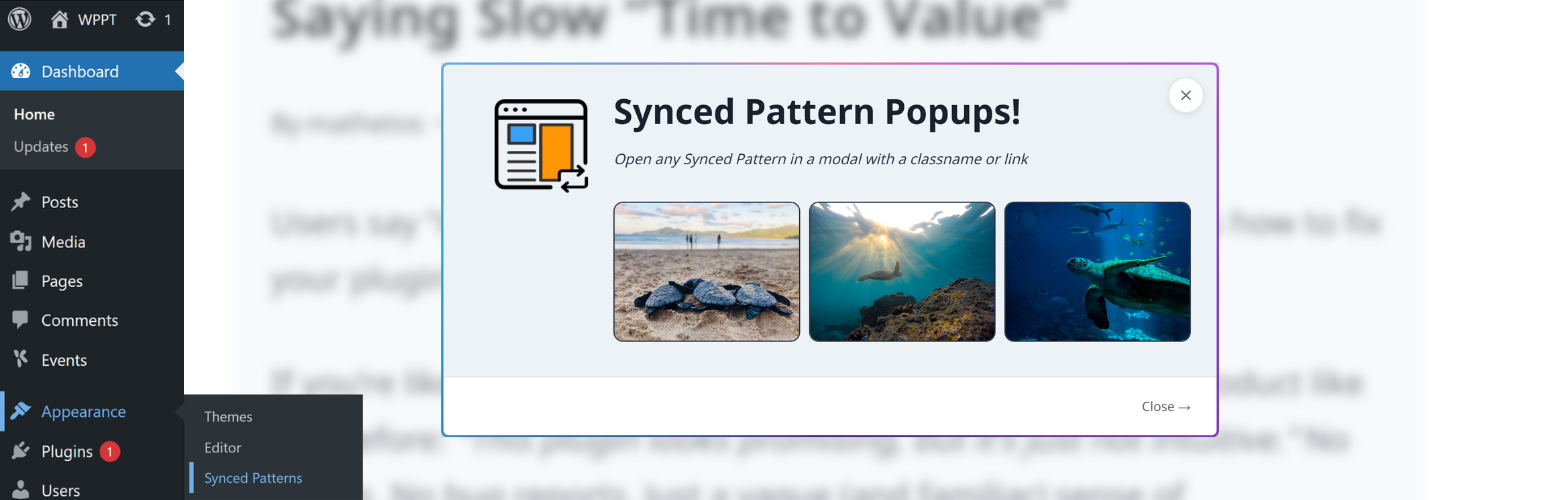

Synced Pattern Popups
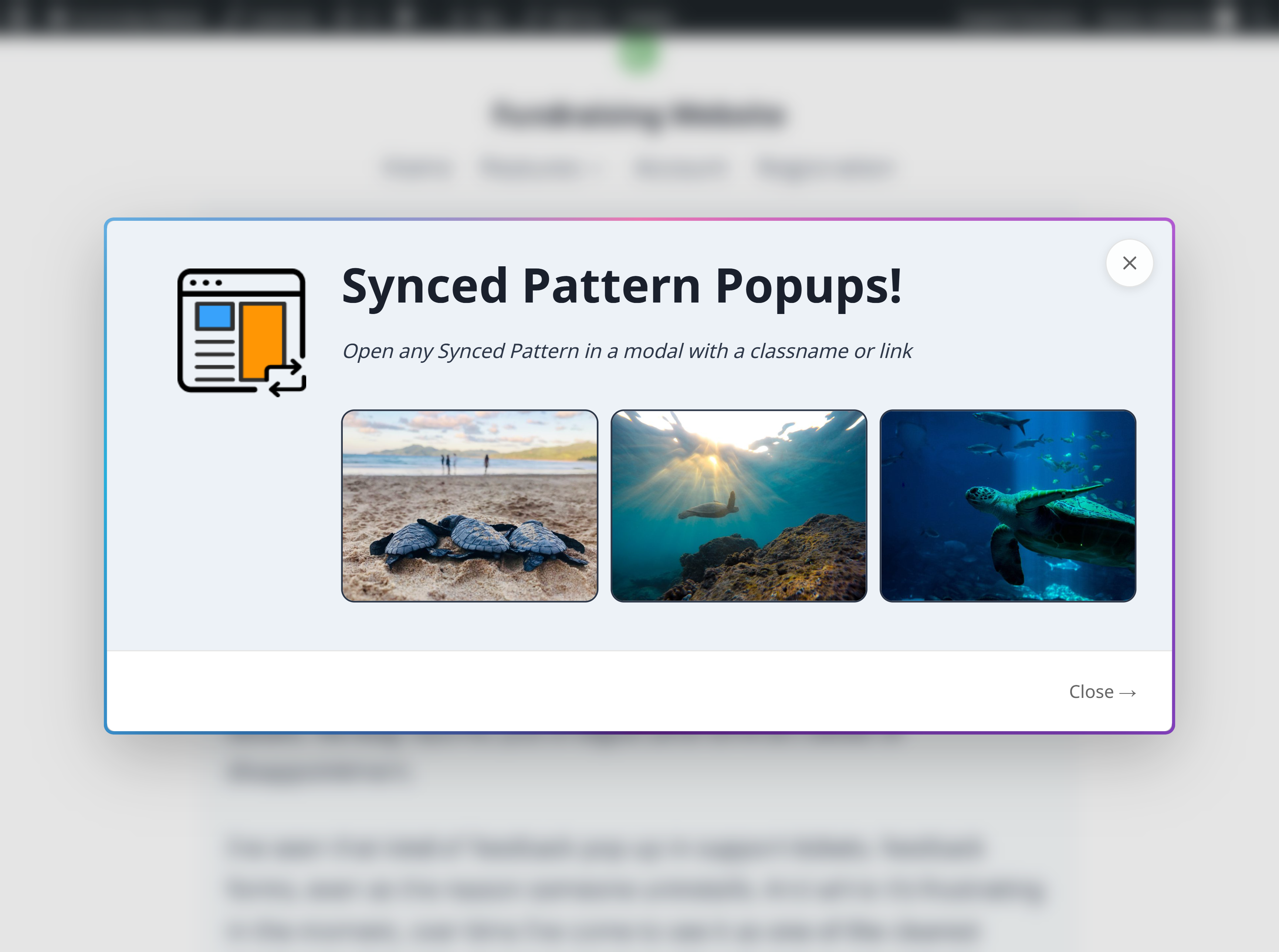
An example Synced Pattern Popup using a 3rd party block: KadenceWP Blocks
Synced Pattern Popups helps you create popups using the WordPress editor you already know, not yet another builder. Create a Pattern yourself or from the Pattern Library, paste the trigger code as a link anywhere on your site, and your Pattern is now opened via a beautiful and accessible modal popup. Manually triggered by your website viewers because they are interested in your content, not because you’re punishing them for scrolling too far, or exiting your tab.
Most popup plugins are built on a desperate lie: if you interrupt your visitor enough times, they’ll eventually give in. They sell “triggers” like exit intent and scroll depth as features, but in reality, these are just ways to guess what a user wants. When you guess wrong, you don’t get a lead; you get a “close” click and a bruised brand reputation.
Synced Pattern Popups was built for the site owner who trusts their content and respects their visitors’ time.
Built for the Modern WordPress Stack
Don’t step out of your workflow into a bespoke, clunky UI. Synced Pattern Popups uses 100% Native Architecture. If it’s a block, it works—forms, videos, or third-party embeds.
- 🧱 100% Native Architecture: Your popups are Synced Patterns. No parallel builders, no proprietary styling engines, no bloat.
- 🔌 Zero Integration Friction: If it’s a block, it works. Forms, videos, or third-party embeds—if you can drop it on a page, you can put it in a popup.
- ♿ Radical Accessibility: Inclusion isn’t an afterthought. Our modals feature rock-solid focus trapping, full keyboard support, and screen-reader optimization out of the box. You don’t have to “fix” your popups for compliance; they’re born ready.
- 🔄 Global Updates, Zero Effort: Edit your Synced Pattern once, and every instance—across your pages and inside your popups—updates instantly.
- 🖼️ Media-First Popups: Full support for the Core Gallery block. Stop settling for static images; give your visitors the high-fidelity experience they asked for.
- ⌘ Built into your Workflow: With Command Palette integration, managing your popups is as fast as typing a shortcut.
Key Benefits
- Global Updates, Zero Effort: Edit a Synced Pattern once, and every instance across your site updates instantly.
- Performance Optimized: Intelligent caching and AJAX loading ensure your initial page load stays lightning-fast.
- Developer Friendly: Clean code, WordPress hooks, and Abilities API support for programmatic workflows.
- AI-Powered TLDR: Generate instant summaries of page content (requires AI Experiments plugin).
Major Features
️Modal popups powered by Synced Patterns
Create your popup content using the native Block Editor – layouts, images, galleries, buttons, and third-party blocks all work.
Simple trigger system (class or href)
Highlight a word or click into a button then open the hyperlink option. Paste in your Trigger code, for example: #spp-trigger-{id} and now that link will open your modal on click, just like that!
You can also set a custom class name on a block:
- Custom Class name:
spp-trigger-{id}(like on a column or section block) - Link:
href="#spp-trigger-{id}"(handy in the Block Editor)
Width overrides
By default all modals open at 600px. You can override that in your general settings at “Appearance Synced Pattern” then the “Defaults” tab.
Or you can also set it on a per modal basis within the trigger code by appending the width in pixels to the end of the trigger code: spp-trigger-{id}-{width}.
🖼️Core Gallery Block Support
The Core Gallery block has a “lightbox” feature. But that feature does not support image navigation within the lightbox or captions or width management. Synced Pattern Popups lets you do all of that with your Core Gallery blocks. Simply choose the Gallery block (not the individual images within the Gallery block), and click on the link icon (“🔗”). There you’ll see several options, including the Core lightbox feature, and now also “Open in Synced Pattern Popups”.
🤖AI-powered TLDR (optional)
Generate AI summaries of the current page content on demand by adding a spp-trigger-tldr trigger. This feature requires the AI Experiments plugin and configured credentials (you’ll see guided setup in the TLDR tab).
💻Handy for Developer Features
Synced Pattern Popups is made to be user friendly, but it’s also full of useful utilities for developers.
- On-demand loading (AJAX)
Popup content loads only when needed, which keeps initial page loads fast. - Smart caching with automatic invalidation
Rendered popup output is cached using WordPress transients for performance, and automatically cleared when synced patterns or default settings change. You can also clear a single pattern’s cache from the admin UI. - Full block styling support (core + third‑party)
The plugin loads the styles required to render the synced pattern correctly inside the modal – including WordPress core block styles and supported third-party block styles. - Accessibility-first modal behavior
Includes keyboard navigation (Escape to close, Tab stays within the popup), focus management, and screen-reader friendly UI. - Abilities API integration (WordPress 6.9+)
On WordPress 6.9+, the plugin registers Abilities to enable programmatic use cases (e.g., rendering popup content viawp_execute_ability()in custom workflows). If the Abilities API isn’t available, the plugin simply skips this integration.
How It Works
- Create a Synced Pattern in WordPress (Appearance Synced Patterns)
- Add a trigger as a link or class to any block or element:
class="spp-trigger-{ID}"orhref="#spp-trigger-{ID}" - When clicked, the popup opens with your pattern content
- Content loads via AJAX for optimal performance
What are Synced Patterns?
Synced Patterns (stored as wp_block posts) are reusable block layouts you can create and manage once, then reuse across your site. When you edit a synced pattern, any place it’s used is updated automatically.
This plugin surfaces them with a dedicated admin screen at Appearance Synced Patterns, making it easy to:
– See each pattern’s ID at a glance
– Copy the trigger code
– Edit or delete the pattern
– Clear the cached popup output when needed
Support
For support, feature requests, or bug reports, please visit the plugin’s support page or GitHub repository.