

StockNotify
0/5 (0 ratings) — active installs Updated Nov 4, 2026

Subscription form on an out-of-stock product page.
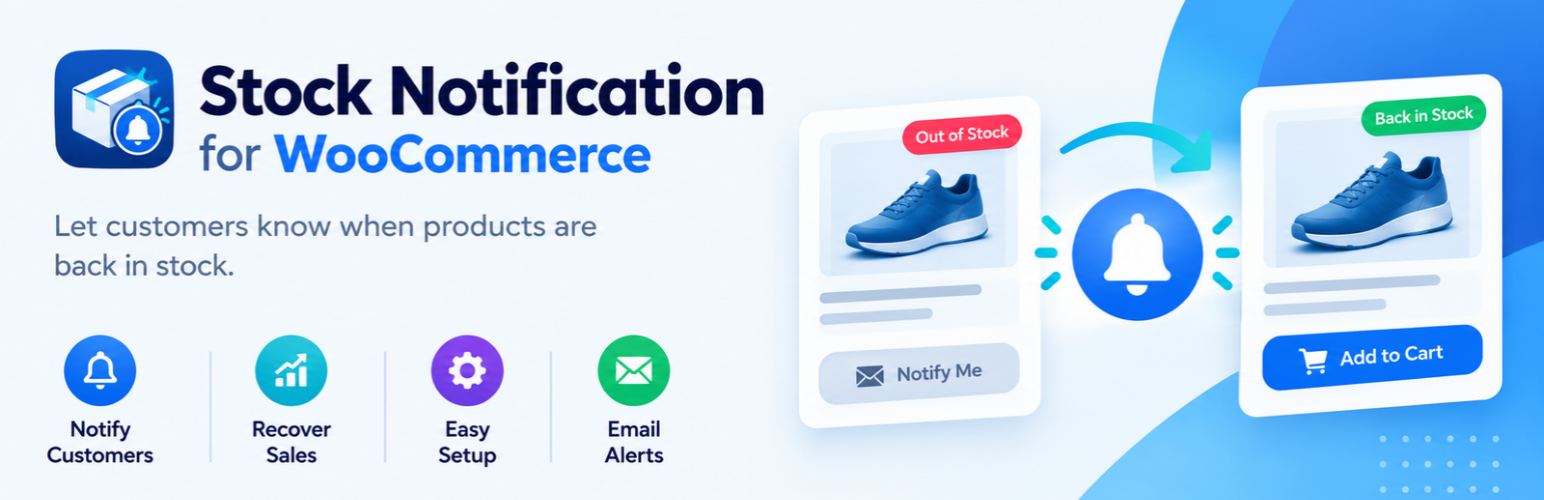
StockNotify adds a “Notify me when this product is back in stock” form to WooCommerce product pages whenever a product, or a selected variation, is out of stock.
Core flow
- A product (or variation) goes out of stock.
- A customer enters their email address on the product page.
- The product comes back in stock.
- The customer receives an email notification.
- Store owners can track who subscribed and who was notified under WooCommerce > StockNotify.
Features:
- A back-in-stock subscription form on the single product page.
- Support for simple products.
- Support for variable products, with the form appearing automatically for the selected out-of-stock variation.
- AJAX submission with no page reload.
- Duplicate-subscription protection and per-IP rate limiting.
- A “StockNotify” screen under WooCommerce to browse subscribers, filter by Pending or Notified, search by email, delete, and export to CSV.
- A Settings tab (WooCommerce > StockNotify > Settings) to edit the form heading, placeholder, button text and success message.
- A “Back in Stock Notify” block and a
[stocknotify]shortcode to place the form anywhere, including block themes. - A “Demand” tab that ranks products by how many customers are waiting, with a per-variation breakdown for variable products.
- An unsubscribe link (and one-click List-Unsubscribe header) in every notification email.
- The email field is prefilled for logged-in customers (can be turned off in Settings).
- A “Waitlist” column on the WooCommerce Products list showing how many customers are waiting.
- WordPress privacy tools support (personal data export and erase).
- Automatic “back in stock” email sent to every pending subscriber as soon as a product or variation returns to stock.
- The notification email is a standard WooCommerce email, editable under WooCommerce > Settings > Emails (subject, heading, extra text, HTML/plain format) and themeable by copying its template into
yourtheme/stocknotify/.
Requirements
- WooCommerce must be installed and active. StockNotify will show an admin notice if it is not.