


Image Quality Control | Still BE
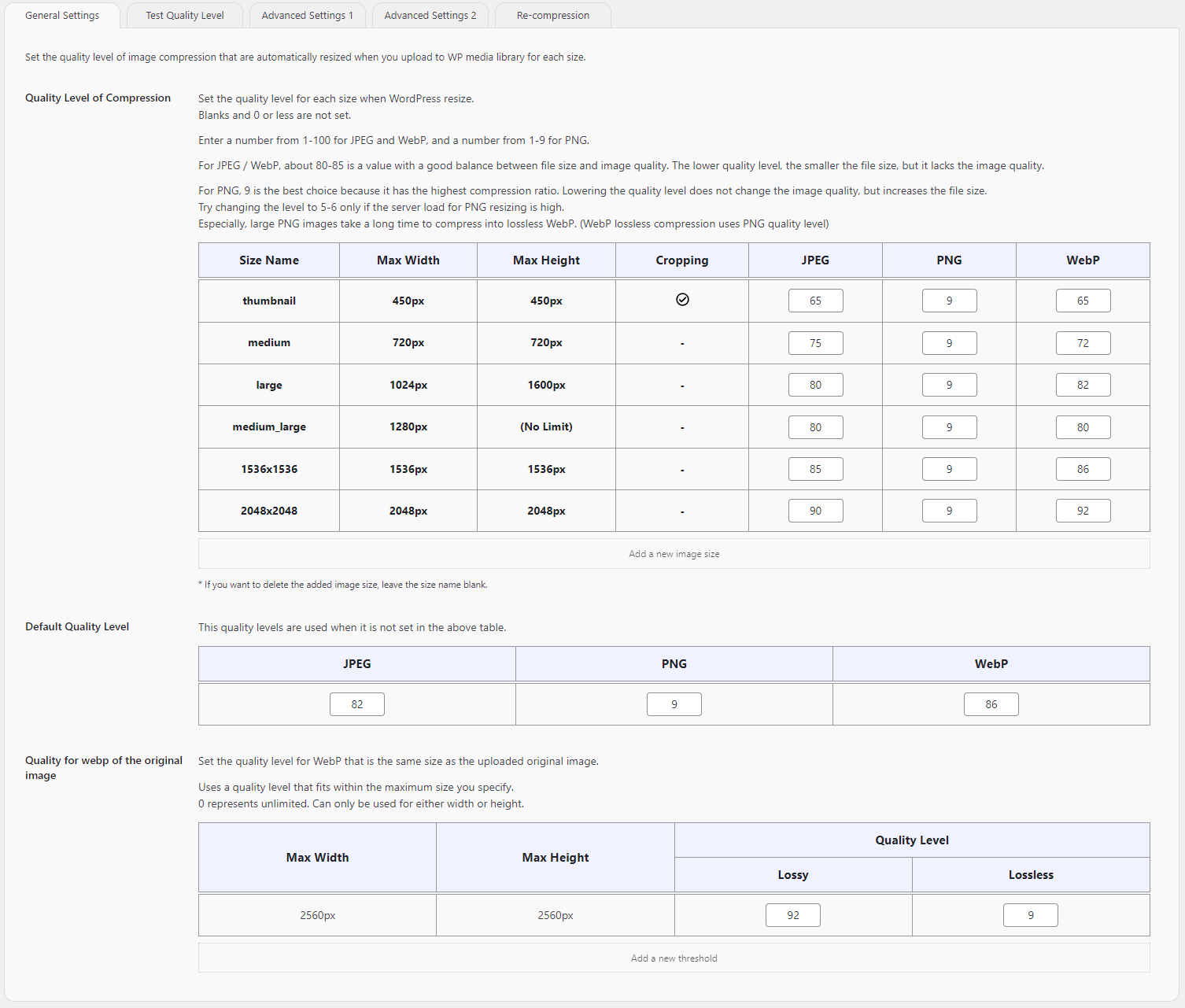
Quality Level Table
WordPress creates many image sizes when you upload a photo. This plugin tunes each size to a suitable quality level so pages load faster, while keeping the pictures looking good.
It works with sensible defaults as soon as you install and activate it. You do not need a long setup to get started.
Your images never leave your server
All processing stays on your own hosting. There are no cloud conversion fees, usage credits, monthly limits, or third-party watermarks.
When images are rebuilt, the plugin always starts from your original upload — it does not repeatedly compress already optimized files. Even if you change settings and regenerate again and again, quality does not degrade across generations (generational degradation).
That helps both cost and long-term image quality.
Automatic WebP and AVIF
WebP and AVIF are next-generation formats that keep high image quality at smaller file sizes.
On compatible servers, the plugin builds those versions and serves them to browsers that support them — without rewriting image URLs in your content.
Adjust settings yourself (optional)
You can leave the defaults as they are, or adjust compression yourself for each size and format (JPEG, PNG, WebP, and AVIF).
This is especially useful on WooCommerce and other product sites, where product thumbnails can be lighter for fast catalog pages while larger product photos stay sharper for detail views.
There is also an optional quality test screen if you want to compare settings with your own eyes.
Automatic optimization
After upload, the plugin keeps working in the background to find a smaller file that still looks close to the original.
A second check helps avoid images that look too blocky or soft.
Progress and size savings are recorded per image.
You can turn this off in the settings if you prefer recompression only.
Protecting your privacy
Uploaded photos often contain EXIF metadata — for example GPS location, camera model, or the time the shot was taken.
By default, the plugin removes EXIF data when images are processed, which helps protect visitors’ and photographers’ privacy.
You can turn this off in the settings if you need to keep EXIF.
More options
- Guarantee a Secure Filename (Deny a multibyte filename)
- Autoset Alt from Exif (only JPEG)
- Add a Quality Level Suffix
- Enable Interlace/Progressive
- Enable Index Color (PNG8)
- Optimize “srcset” Attribute
- Force Adding the Query String for Image Cache Clear
- Delete Original Large Images *
* Available in version 2.0 and later.
Admin tools
- Add custom image sizes
- Change the big image threshold
- Run re-compression
- Auto re-compression using WP-Cron
How to use
Just install and activate. Sensible defaults start optimizing new uploads right away, including WebP and AVIF when your server supports them.
- Install
- Activate
- Change settings later if you want finer control
- Recompress existing images if you want those settings applied to files already on the site
Be sure to make a backup before recompressing.
Open the settings
In the WordPress admin, go to Settings Image Qualities.