

Sticky Copy Button for Code Blocks

Plugin settings screen
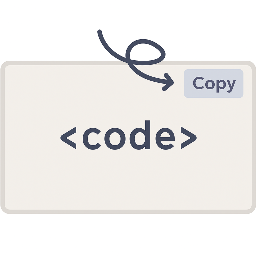
Sticky Copy Button for Code Blocks automatically adds a floating copy button to each <pre><code> block on your website.
It provides convenient front-end copying for developers, readers, and tutorial users.
Features
This plugin is light, fast, and highly customizable:
- Adjustable button position (up/down and left/right)
- Customizable labels (“Copy” / “Copied”)
- Adjustable font size
- Background color, text color, or transparent mode
- Max-height option for large code blocks (with scroll support)
- Optional line numbers (simple native implementation)
- Custom CSS that is safely sanitized
No dependencies such as Prism or Highlight.js are required.
Detailed Settings Guide
The following explains every option in the plugin settings page.
1. Button Position
Adjust vertical position (top offset in px)
Moves the button up or down relative to the top of the code block.
Use positive or negative values to fine-tune vertical alignment.
Adjust horizontal position (right offset in px)
Moves the button left or right by adjusting how far it sits from the right edge of the code block.
Use positive or negative values to fine-tune horizontal alignment.
These values help fine-tune button alignment to avoid overlapping with theme elements.
2. Button Text and Behavior
Copy button label
The label shown normally (default: “Copy”).
Label after copying (2 seconds)
Once the text is copied, the button temporarily displays this label.
Default: “Copied”.
3. Button Size
Button size (8–36 px)
Controls the font size of the button.
Padding is automatically adjusted based on this value.
4. Button Colors
Button text color
Hex color of button text.
Button background color
Hex background color.
When copying, the plugin automatically swaps the text and background colors for visual feedback.
However, if the background is transparent, only the text color is swapped.
Always transparent background
If enabled:
– The button background always becomes transparent.
– Only text + border remain visible
5. Code Block Max Height
Enable
Must be checked for the value to apply.
Code block max height (px)
Sets a maximum height (minimum: 100px).
Content taller than this becomes scrollable.
This prevents long code blocks from stretching your page layout.
6. Display Line Numbers
Display Line Numbers (Enable)
Shows simple line numbers next to each line. You can also fine-tune the position of the line numbers (offset adjustment is available).
Notes:
– Line height is unified for consistency.
– Theme-specific code styling is preserved.
– Line wrapping is forcibly disabled.
This is a built-in lightweight alternative to syntax-highlighter libraries.
7. Custom Styles (CSS)
You can add any custom CSS to adjust:
- Button design
- Wrapper layout
- Code spacing
- Line number appearance
Optionally, you can enable “Add !important to CSS declarations automatically” to force your custom styles to take effect even when the theme’s CSS has higher specificity.
Usable Selectors (CSS) :
- .copy-code-btn The copy button
- .copy-code-btn.copied The button after Copying
- .code-block-wrapper Wrapper of the code block (position: relative)
- .code-block-wrapper pre Inner code text area (the
<pre>element) -
.line-numbers The container holding the line numbers
-
Example:
.copy-code-btn {
font-family: "Comic Sans MS", cursive;
font-weight: 700;
border: none;
}
Donate
If you find this plugin useful and would like to support its development,
you can make a voluntary donation via PayPal.
Your support helps keep this plugin maintained and improved.
Thank you!
PayPal: https://www.paypal.me/Kasuga16