


ShortPixel Image Optimizer – Optimize Images, Convert WebP & AVIF
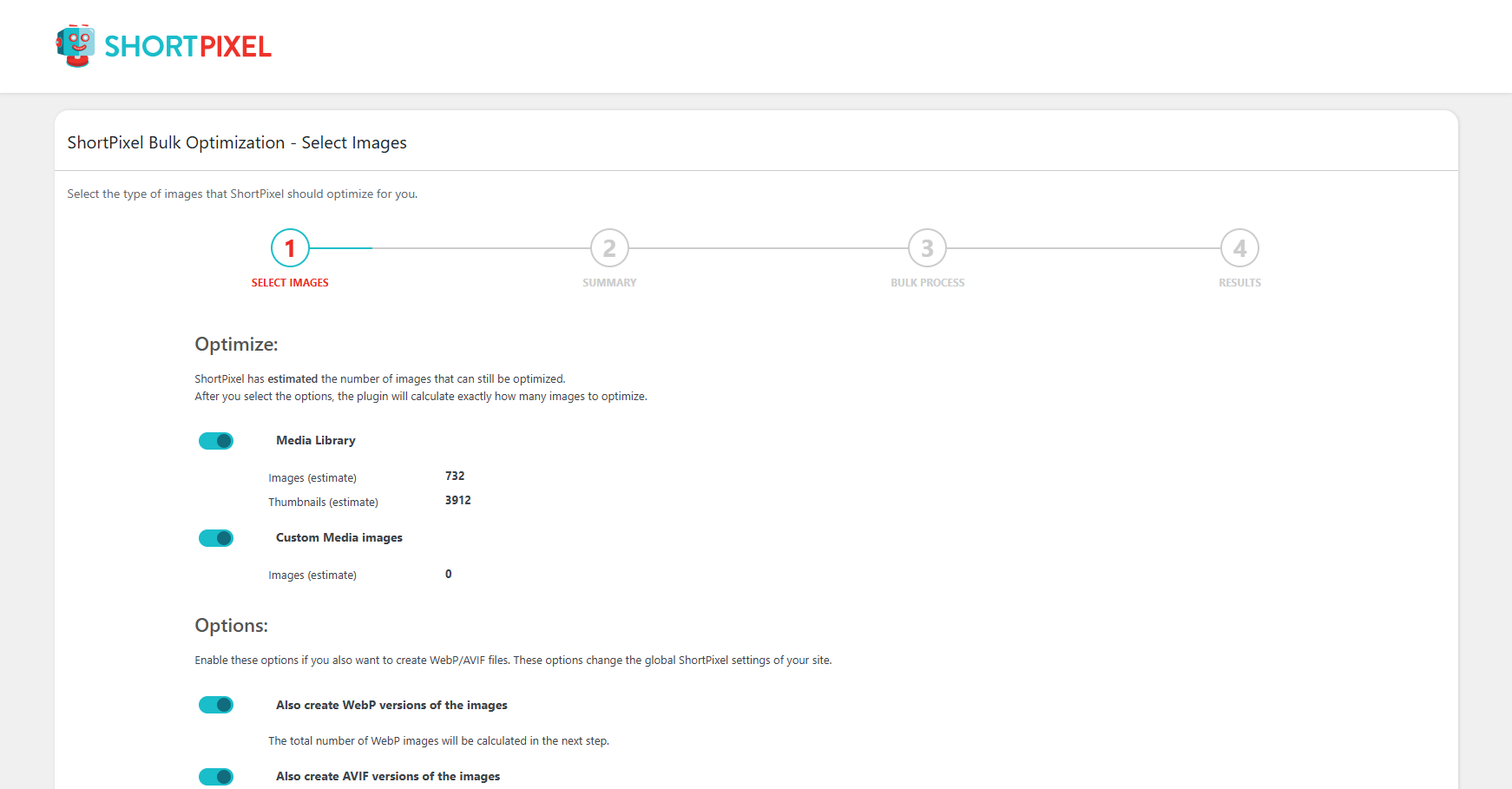
<p>Select bulk optimization options. (Media -> Bulk ShortPixel)</p>
🚀 The Ultimate Image Optimization Plugin for WordPress
⚡ Speed up your website with automatic image compression, WebP and AVIF conversion, and bulk optimization. Optimize images and PDFs, resize large uploads, and reduce file sizes with minimal setup.
Smaller images help your pages load faster, giving visitors a smoother experience, supporting your website’s SEO, and helping turn more visits into conversions.
🆕 New! AI image renaming and assistant support
- AI-generated, SEO-friendly filenames – Say goodbye to generic filenames like “IMG00931.JPG”. Automatically generate descriptive, SEO-friendly filenames for new uploads or existing images not yet used in published content.
- Manual file renaming – Rename images directly from the Media Library, including their thumbnails, WebP/AVIF versions, and backups.
- Multisite network settings – Manage ShortPixel settings across your network from one place.
- WPML and WP Offload Media compatibility – File renaming supports WPML Media Translation and WP Offload Media, including images stored only in the cloud.
- AI assistants and MCP support – Connected AI assistants can optimize and restore images, run bulk jobs, generate or undo AI Image SEO data, check statistics and credits, and adjust settings through the WordPress Abilities API and WordPress MCP Adapter. Actions follow your WordPress user’s permissions. Read more.
The ShortPixel plugin is a lightweight, user-friendly, install-and-forget solution for image optimization.
It is designed to work with any website type, whether it’s a small blog or a large WooCommerce-powered online store with tens of thousands of products.
🎬 Ready for a Quick DEMO of our Top Image Optimization Tool?
Test our plugin here.
Run an instant image compression test on your site, or try out our image compressor and compress some images to test our optimization algorithms.
💡 Why is ShortPixel the best choice for image optimization or PDF compression?
🤖 AI image features
- AI Image Upscale (2x, 3x, 4x) – Upscale smaller images with high-quality AI upscaling, perfect for retina displays and crisp visuals.
- AI Background Removal – Instantly remove background from your images with one click, ideal for creating clean product photos. After the background is removed, your image can have a transparent background or be filled with a single solid color.
- AI Image Titles – In addition to ALT text, captions, and descriptions, generate smart image titles using AI for better SEO.
- Bulk Remove AI Data – Easily clear all AI-generated image SEO data in one go.
- Prefix/suffix for AI SEO data – Add custom text before or after AI-generated image SEO data to keep it consistent across your site
🔎 AI Image SEO features
- AI-powered image SEO – Automatically generate ALT text, captions, and image descriptions for all your images.
- SEO-friendly filenames – Let AI generate descriptive filenames for new uploads or images not yet used in published content, without breaking existing links.
- Bulk mode – Mass-generate and update details for all your images.
- Preview mode – Test and fine-tune AI results before applying new ALT texts and descriptions in bulk.
- Multilingual – Support for 100+ languages.
- WooCommerce – Seamless support for WooCommerce product images.
- Unlimited credits – AI-generate image titles, captions, and more with our Unlimited AI plan.
- Accessibility – Improve website accessibility by generating all the necessary metadata for each image.
🌍 Faster Websites for Global Audiences
Improve your website’s loading speed with ShortPixel’s built-in global Content Delivery Network (CDN). Deliver optimized WebP and AVIF images, along with CSS, JavaScript, and font files, from locations closer to your visitors. The result? Faster loading times, better website performance, and less strain on your server.
📸 Resize and Compress Images Without Losing Quality
Automatically resize large images and compress image files, saving you the work of editing each upload manually.
- Popular plugin with over 300,000 active installations – according to WordPress
- Compress JPG (and its variations: JPEG, JPEG 2000, JPEG XR), PNG, GIF (still or animated) images, and also PDF documents.
- Option to automatically convert PNG to JPG if that results in smaller images (ideal for large PNG pictures).
- CMYK to RGB conversion.
- Progressive JPEG is used whenever it leads to a smaller image.
🌟 Lossy and Lossless image compression
Both Lossy and Lossless image compression are available for the most common image types (JPG, PNG, GIF, WebP, and AVIF) plus PDF files.
We also offer Glossy JPEG compression, a high-quality lossy optimization algorithm designed especially for photographers and websites featuring high-quality product pictures.
Optimized images improve website performance and user experience, help achieve better PageSpeed Insights and GTmetrix scores, and may even increase conversions. Choose Lossless for pixel-perfect image quality, Glossy for an excellent balance between quality and compression, or Lossy for maximum file size reductions.
🔄 Convert Images to WebP and AVIF
ShortPixel includes both a WebP converter and an AVIF converter, with options for generating and delivering the converted files.
- Option to automatically convert JPEG, PNG, or GIF to WebP and AVIF for better performance and improved Google ranking.
- Automatically optimize your existing WebP files with ShortPixel’s SmartCompress algorithm.
- Animated GIFs can be automatically converted to much smaller animated WebP or AVIF files.
- Option to include next-gen images (WebP and AVIF) in front-end pages with a single click using the tag.
📦 Bulk Image Optimization and Background Image Processing
Use the bulk image optimizer for bulk image compression and bulk image optimization. You can bulk compress images in a single workflow.
- With ‘Background mode,’ images can be optimized without needing to keep a browser tab open.
- Easily add recurring cron jobs for background optimization, ideal for sites where users upload images via the front end.
- Bulk-optimize all images in the Media Library or any gallery with a single click. Use this media optimizer to optimize Media Library images without processing each file manually.
- Filter and select images in bulk using date-based criteria, giving you precise control over what gets optimized and when.
- Full WP-CLI support for background processing, especially useful for large Media Libraries.
🔥 Performance and Automatic Image Optimization
ShortPixel uses minimal resources and works well with any shared, cloud, VPS, or dedicated web hosting. It can optimize any image on your website, including those not listed in the Media Library, such as images in galleries or those added directly via FTP.
All optimization is performed using ShortPixel’s Image Optimization Cloud, so your hosting resources remain unaffected. Automatic image optimization lets you optimize images on upload.
- Automatic scan of Custom media folders for new images using cron jobs.
- Skip already optimized images to avoid redundant processing.
🎨 Compatibility with Popular Themes, Page Builders, and Media Library Plugins
- Works great for eCommerce websites using WooCommerce and other plugins. WooCommerce image optimization helps reduce the file sizes of your product photos.
- Compatible with NextGEN Gallery, Modula, Foo Gallery, and other galleries or sliders.
- Fully compatible with WP Retina 2x, including automatic compression of retina images.
- Works seamlessly with WordPress multisite installs (sub-folders or sub-domains) using a single API key, with settings that can be managed at network level.
- Fully compatible with WPML and WPML Media Translation, including file renaming.
- Fully compatible with WP Offload Media plugin, including file renaming.
- Supports both HTTPS and HTTP websites.
- Compatible with virtually all hosting providers.
- Integrates with Gravity Forms’ post_image field type to optimize images upon upload.
- Works with watermarking plugins.
- Integrates directly with Cloudflare via a Cloudflare Token, automatically synchronizing updates with Cloudflare cache.
- HEIC file support
With ShortPixel, you can add images in Apple’s HEIC format directly from your iPhone. They will be automatically converted to JPG and optimized according to your settings. Easy!
Read more.
🔧 Advanced Image Optimization Features
- Smart Cropping: Generate subject-centered thumbnails using AI, ideal for eCommerce websites.
- Optimize thumbnails and featured images, with options to exclude individual thumbnails from optimization.
- Advanced exclusion options (exclude images based on filename, path, size, or complex regex).
- Exclude images from optimization based on their file size, perfect for skipping very small images or large images that photographers need to keep in their original, full format.
- Ability to optimize any image, including those in NextGEN Gallery and other image galleries or sliders.
- Option to scale images down, with two automatic resizing options for large images (applicable to featured images). Optimize image dimensions before serving large uploads.
- Option to deactivate auto-optimization of images on upload.
- Keep or remove EXIF data from images, which is especially useful for photographers or for enhanced privacy. Combine photo optimization with the metadata settings that suit your photography workflow.
- Easily test lossy, glossy, or lossless versions of images with a single click in the Media Library.
- 100MB file size limit
🛡️ Backup and Safety
- Safe to test and use: original images are backed up locally and can be restored with a single click (either individually or in bulk).
- Smart Backups: Save disk space by backing up only the main image. When restoring, thumbnails are automatically regenerated based on current settings.
- Automatic Backup Cleanup: Set rules to automatically delete old backups after a chosen period.
- No credits are used for images optimized by less than 5%
- Save & Restore option for all settings – ideal for agencies and users managing multiple websites.
- Decide whether AI bots can use your images for machine learning (ML) training, or block them entirely.
📊 Reporting, Analytics, Compliance and Customer Support
- 30-day optimization report with detailed image statistics and overall site performance improvements.
- 24/7 stellar support.
- We are fully GDPR compliant.
🚀 ShortPixel Unlimited Plan
This is the ideal monthly plan for web agencies or website owners with multiple sites and frequent image uploads.
It allows you to optimize an unlimited number of images with ShortPixel Image Optimizer or use ShortPixel Adaptive Images without worrying about CDN traffic limits.
Read more details on our dedicated page.
- free optimization credits for non-profits, contact us for details
💸 How much does it cost?
ShortPixel comes with 100 free credits per month, and additional unlimited monthly credits can be purchased for $9.99.
One-time credit packages that never expire are available starting at $19.99.
Check out our prices.
🌟 Testimonials:
★★★★★ A Super Plugin works very well 62% reduction overall. robertvarns
★★★★★ The secret sauce for a WordPress website. mark1mark
★★★★★ A must have plugin, great support! ElColo13
★★★★★ Excellent Plugin! Even Better Customer Service! scaliendo
★★★★★ Great image compression, solid plugin, equally great support. matters1959
more testimonials
Help us spread the word by recommending ShortPixel to your friends and collect 100 lifetime monthly additional image credits for each referred active user. Make money by promoting a great plugin with our 30% commission affiliate program.
🛠️ Other plugins by ShortPixel
- FastPixel Caching – WP Optimization made easy
- ShortPixel Adaptive Images – On-the-fly image optimization & CDN delivery
- Enable Media Replace – Easily replace images or files in Media Library
- reGenerate Thumbnails Advanced – Easily regenerate thumbnails
- Resize Image After Upload – Automatically resize each uploaded image
- WP SVG Images – Secure upload of SVG files to Media Library
- ShortPixel Critical CSS – Automatically generate above-the-fold CSS for faster loading times and better SEO scores
📩 Get in touch!
- Email https://shortpixel.com/contact
- Twitter https://twitter.com/shortpixel
- Facebook https://www.facebook.com/ShortPixel
- LinkedIn https://www.linkedin.com/company/shortpixel
Actions and Filters for Developers
The ShortPixel Image Optimizer plugin calls the following actions and filters:
do_action( 'shortpixel_image_optimised', $post_id );
upon successful optimization;
do_action("shortpixel_before_restore_image", $post_id);
before restoring an image from backup;
do_action("shortpixel_after_restore_image", $post_id);
after successful restore;
apply_filters('shortpixel_image_urls', $URLs, $post_id);
filters the URLs that will be sent to optimisation, $URLs is a plain array;
do_action('shortpixel/image/after_restore', $this, $this->id, $cleanRestore);
This action can be used to cleanup the meta data from the database, regenerate thumbnails after restoring the main file, writing the updated meta data, etc.
apply_filters('shortpixel/settings/image_sizes', $sizes);
filters the array ($sizes) of image sizes that can be excluded from processing (displayed in the plugin Advanced settings);
apply_filters('shortpixel/image/imageparamlist', $result, $this->id, $this);
filters the list of parameters sent to the API so that resizing can be performed more granularly;
apply_filters('shortpixel/api/request', $requestParameters, $item_id);
filters the parameters sent to the optimization API (through $requestParameters), described in detail here: ShortPixel Reducer API; $item_id contains the ID of the Media Library item, or the ID of the Custom Media item (when used). In short, this filter can be used to alter any parameters sent to the API, depending on the needs. For example, you can set different resize parameters for different post types, different compression levels, remove EXIF or not, convert WebP/AVIF, and basically any other parameter that is sent to the API for a specific image (together with all its thumbnails).
This filter enables the background ShortPixel processing in additional pages (see here the original list). Here’s an example of this filter that enables the processing on the Comments screen (to be placed in your functions.php file):
add_filter('shortpixel/init/optimize_on_screens', function ($screens) {
    $screens[] = 'edit-comments';
    return $screens;
});
The edit-comments is the ID of the screen where you want to enable the processing.
If you want to add multiple pages, here’s what the snippet looks like:
add_filter('shortpixel/init/optimize_on_screens', function ($screens) {
    $screens = array('edit-comments', 'plugins', 'another-custom-post-type-page');
    return $screens;
    });


add_filter('shortpixel/image/filecheck', function () { return true; });
This filter forces a file check for WebP/AVIF in case they were manually removed from disk.
If you want to disable the automatic cache flush that is triggered after image optimization, you can use this filter:
add_filter( 'shortpixel/external/flush_cache', function() { return false; } );
In order to define custom thumbnails to be picked up by the optimization you have two options, both comma separated defines:
define('SHORTPIXEL_CUSTOM_THUMB_SUFFIXES', '_tl,_tr');
will handle custom thumbnails like image-100x100_tl.jpg;
define('SHORTPIXEL_CUSTOM_THUMB_INFIXES', '-uae');
will handle custom thumbnails like image-uae-100×100.jpg;
define('SHORTPIXEL_USE_DOUBLE_WEBP_EXTENSION', true);
define('SHORTPIXEL_USE_DOUBLE_AVIF_EXTENSION', true);
will tell the plugin to create double extensions for the WebP/AVIF image counterparts, for example, image.jpg.webp/image.jpg.avif for image.jpg;
Enable the “Trusted mode” in case the file system has limitations and is very slow in responding to direct file operations by adding this constant:
define('SHORTPIXEL_TRUSTED_MODE', true);
This will simply skip file check operations and if the Media Library loads very slowly or freezes, you might want to try adding the constant above to your wp-config.php file.
Disable the feedback survey when the plugin is deactivated:
define('SHORTPIXEL_SKIP_FEEDBACK', true);