


PureDash Cleaner – WordPress Dashboard Cleaning & Admin Cleanup
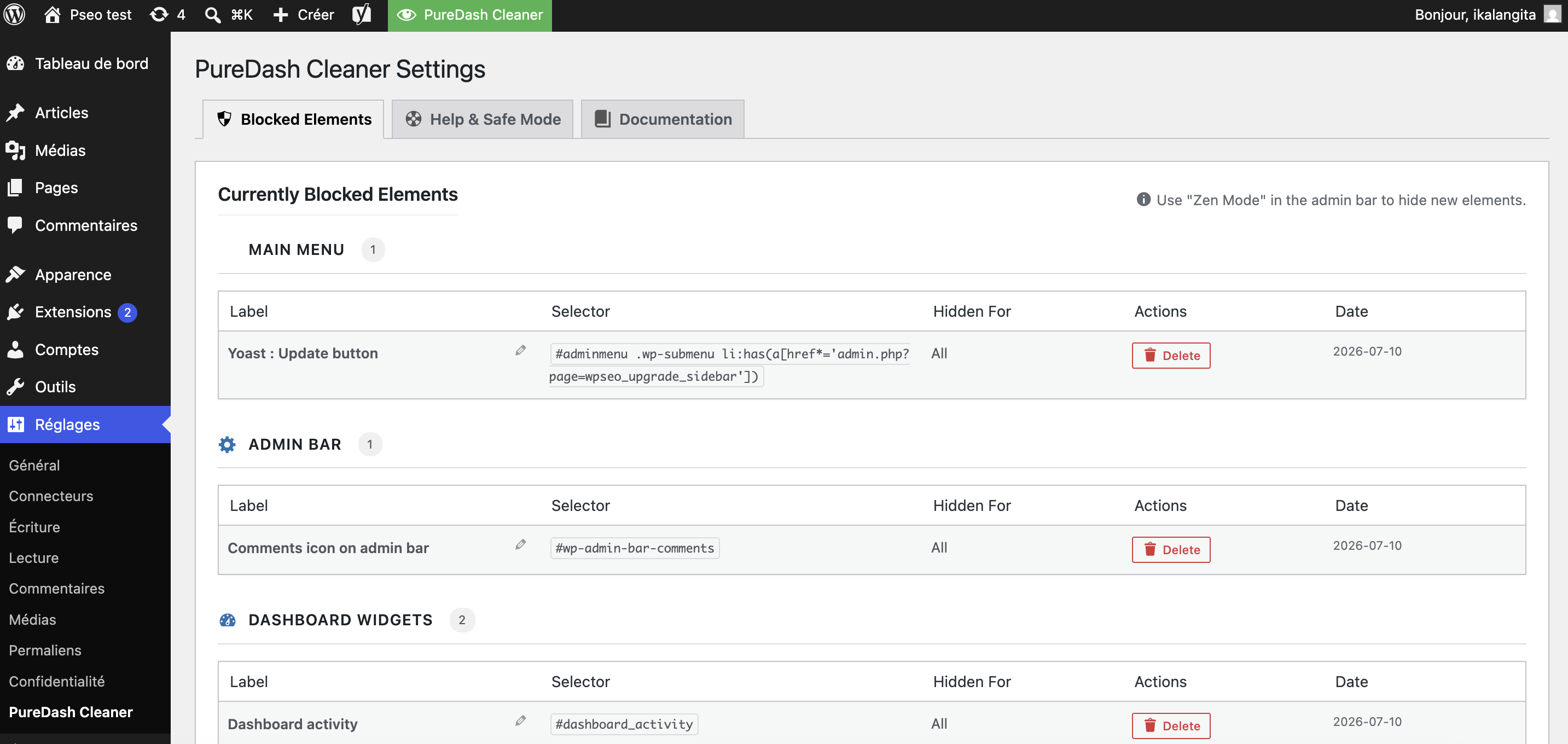
The PureDash Cleaner settings page showing blocked elements, grouped by category (Main Menu, Admin Bar, Dashboard Widgets, Admin Notices, Miscellaneous).
PureDash Cleaner is a WordPress plugin cleaning dashboard clutter from your admin area without writing a single line of CSS or editing theme files. If your backend is overwhelmed by messy promotional banners, review requests, or widgets that nobody reads, this lightweight tool lets you clean your dashboard layout instantly. Simply turn on Zen Mode, click the elements you want to hide, and enjoy a minimalist workspace.
Built for WordPress dashboard cleaning, the plugin lets you choose what is hidden across your admin area. Whether you want a clean dashboard for your client websites or simply need to hide intrusive admin notices, menu items, and admin bar links, PureDash Cleaner makes admin customization effortless. Every hidden element is safely stored and can be restored at any time from the settings page.
Learn more on the official website: puredashcleaner.com.
What you can hide
- Admin notices – hide admin notices such as promotional banners, review requests and other messages you have already read.
- Dashboard widgets – remove dashboard widgets like Activity, Quick Draft, WordPress Events and News, or boxes added by other plugins.
- Admin menu items – hide top-level admin menu entries or individual submenu links you never use.
- Admin bar items – hide individual links in the toolbar at the top of admin pages.
- Other page elements – almost any other visible block inside wp-admin can be selected.
Some core areas are protected and cannot be selected, such as the whole admin bar, the whole admin menu, the main content area and PureDash Cleaner’s own controls. This keeps you from locking yourself out of the interface.
How Zen Mode works
Zen Mode is the selection tool. Start it from the PureDash Cleaner menu in the admin bar. While it is on, a blue outline follows your mouse and clicking an element selects it instead of following links. A dialog then shows the detected element type and lets you add a label to recognize it later. Press Esc to leave Zen Mode without hiding anything.
You can also tick Hide temporarily (Reload to reset). The element disappears from the current page only, nothing is saved, and it comes back as soon as you reload.
Managing and restoring hidden elements
Go to Settings > PureDash Cleaner to see every saved rule, grouped by category: Main Menu, Admin Bar, Dashboard Widgets, Admin Notices and Miscellaneous. From there you can rename a rule or delete it to make the element visible again. A Reset All Settings option removes every rule at once, and Safe Mode lets you switch off all rules for your own account if you hid something by mistake.
Who sees the changes
Only users who can manage site options (administrators by default) can use Zen Mode and manage rules. Rules are stored once for the whole site and apply to every logged-in user who has a role on it, whatever that role is. They are not limited to the account that created them.
Good to know
- Hiding is visual only. Elements are hidden with CSS. Nothing is deleted, the plugin or feature behind an element keeps running, and hiding a menu link does not block access to its page. Do not rely on this plugin to restrict what users can do; use roles and capabilities for that.
- Rules apply inside wp-admin only. The admin bar shown on the front end of your site is not changed.
- No per-role choice in this version. Every rule applies to all user roles that exist on the site when the rule is saved. A role created later is not covered by existing rules.
- Rules depend on page markup. If another plugin changes the HTML of a notice or widget, for example after an update, a rule may stop matching and the element can reappear. Hide it again with Zen Mode.
- One rule can match several elements. If the selected element shares its selector with others, the dialog warns you before you confirm.
Privacy Policy
This plugin utilizes the Freemius SDK to provide optional usage tracking and support services. Data is only sent to freemius.com if you explicitly opt in during activation. For more information, please refer to the Freemius Privacy Policy: https://freemius.com/privacy/
How to Use
Hiding an element with Zen Mode
- Log in to your WordPress admin as an administrator.
- Look for the PureDash Cleaner entry in the top admin bar (black bar at the top). Hover over it to open the submenu.
- Click Toggle Zen Mode. The page enters selection mode and a blue highlight follows your cursor as you move over admin elements.
- Hover over the element you want to hide (a menu item, a dashboard widget, an admin notice, etc.) and click it.
- A dialog appears. Optionally give the element a label so you can identify it later, then click Hide Element to confirm.
- The rule is saved and the page reloads. The element is now hidden on every admin page for all logged-in users of the site, not only for you, until you delete the rule.
If you tick Hide temporarily (Reload to reset) in step 5, nothing is saved: the element is only hidden on the current page until you reload it.
Viewing and managing hidden elements
- Go to Settings > PureDash Cleaner.
- The Blocked Elements tab lists every element that has been hidden on the site, grouped by category (Main Menu, Admin Bar, Dashboard Widgets, Admin Notices, Miscellaneous).
- To restore an element, click the Delete button next to it. It reappears on the next page load.
- To rename a rule’s label, click the pencil icon next to its name.
- To remove every rule at once, use Reset All Settings in the Help & Safe Mode tab or in the admin bar menu. This cannot be undone.
Safe Mode (emergency recovery)
If you accidentally hide something you need and cannot navigate:
- Add
?puredash_safe_mode=1to any admin URL, for example:https://yoursite.com/wp-admin/?puredash_safe_mode=1. Rules are disabled for that page load only. - Or go to Settings > PureDash Cleaner > Help & Safe Mode and click Activate Safe Mode. Rules stay disabled for your user account until you click Exit Safe Mode (in the notice at the top of the page or in the admin bar menu).
Safe Mode only affects your own view. Other users keep seeing the site with all rules applied. Use it to reach the settings page and delete the problematic rule.
Developer options
To disable the plugin entirely without deactivating it, add this line to your wp-config.php:
define( 'PUREDASH_DISABLE', true );
To stop rules from being added, deleted or renamed from Zen Mode and the settings page, add the following line (the Reset All Settings option is not affected):
define( 'PUREDASH_LOCK_SETTINGS', true );