


PluginCity Size Charts for WooCommerce
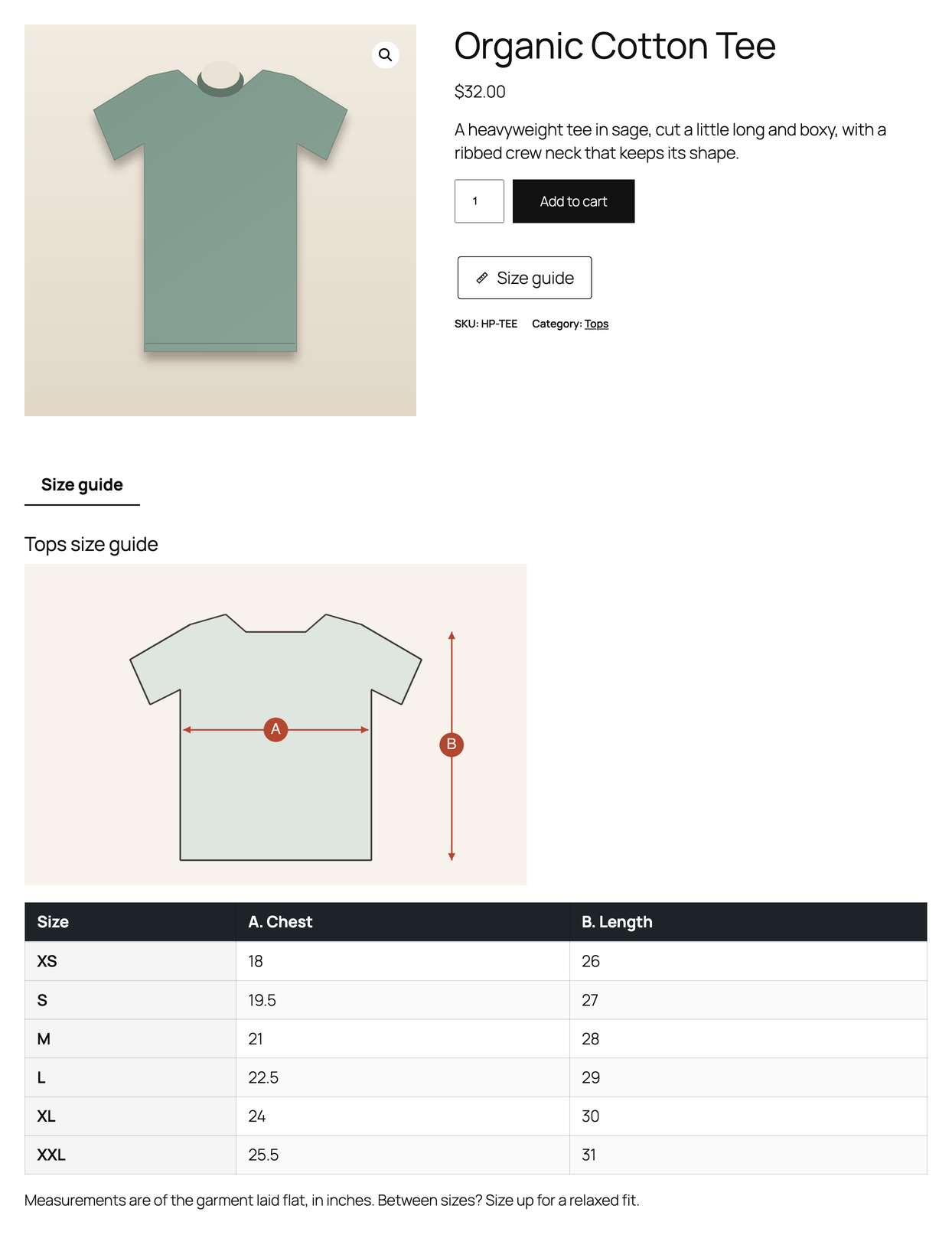
The size chart tab on a product page.
Size Charts for WooCommerce lets you build a size chart once and show it on every product it belongs to. Each chart is a table you type in, with an optional picture and notes. Assign it to products, categories or tags, or to the whole shop, and it appears on the product page as a button or text link that opens a popup, as a product tab, or both, and each chart can be limited to one of the two.
Watch the setup tutorial on YouTube:
There is no limit on the number of charts or products. A table can have up to 100 rows and 30 columns, and a cell up to 120 characters. The free version is permanent: it does not expire, needs no licence key, and never contacts PluginCity or anyone else.
The popup is built for keyboards. It is a real dialog: focus moves into it, Tab stays inside it, Escape closes it, and focus returns to the button you pressed. Tables have captions and row and column headings, and a wide table scrolls sideways without a mouse.
It works with classic themes and with block themes. The popup button is placed by the add to cart form in either, and the tab uses WooCommerce’s own product tabs, which the block theme’s Product Details block also draws.
What you get
- Unlimited size charts, each with a table, an optional picture and notes
- Charts assigned to products, to categories (including their sub-categories), to tags, or to every product
- A popup button on the product page, before or after the add to cart form
- A popup trigger that can be a button or a plain text link
- A size chart tab on the product page
- Tab, popup or both, chosen separately for each chart
- Each chart’s title can be shown or hidden, for one chart or for the whole shop
- Products and categories chosen from a searchable list
- An accessible popup with a focus trap, Escape to close and focus returned to the button
- A shortcode,
[szcwc_size_chart], and a block to put a chart anywhere - Chart import and export, so charts can be copied to another shop or kept as a backup
- One example chart to edit, made as a draft when the plugin is first activated
- Charts and settings kept when the plugin is deleted, unless you ask for them to be removed
- High-Performance Order Storage compatibility
Different customers sometimes need different charts. Pro adds charts by customer role or country, a chart for the chosen variation, colours for each chart, chart styling, style templates, and ready-made garment templates.
Pro’s Styling tab has seven style templates (Minimal, Classic, Bold header, Striped, Card, Dark and Boutique) with a live preview, style options for the table, the popup button or link, the popup and the title, and a style of its own for any single chart.
Pro is a separate paid version, sold by PluginCity. It is not included in this plugin, and nothing above depends on it. Your charts and settings carry over if you buy it. A note about Pro sits above the chart list; you can dismiss it. The Settings tab and the chart editor also describe Pro.
Configuration
- Go to WooCommerce Size Charts and choose Add size chart.
- Give the chart a name, then fill in the table. The first row is the heading row and the first column labels each row.
- Under Where this chart appears, choose products, categories or tags from the lists, or tick Every product.
- Under How this chart is shown, leave it on tab and popup, or choose tab only or popup only. Untick Show the chart title to print the table without a heading above it.
- Publish the chart. It now shows on the products it is assigned to.
- Open the Settings tab beside the chart list, at the top of WooCommerce Size Charts, to choose a popup button or text link, a tab, or both, and to change the wording.
A draft example chart, assigned to no product, is made the first time the plugin is activated. Edit it, delete it, or ignore it; it is only made once, and nothing shows to customers until you publish a chart.
Charts that apply to the same product are all shown, in the order set by the Order box on each chart and then by name. Inside the popup they appear as tabs.