
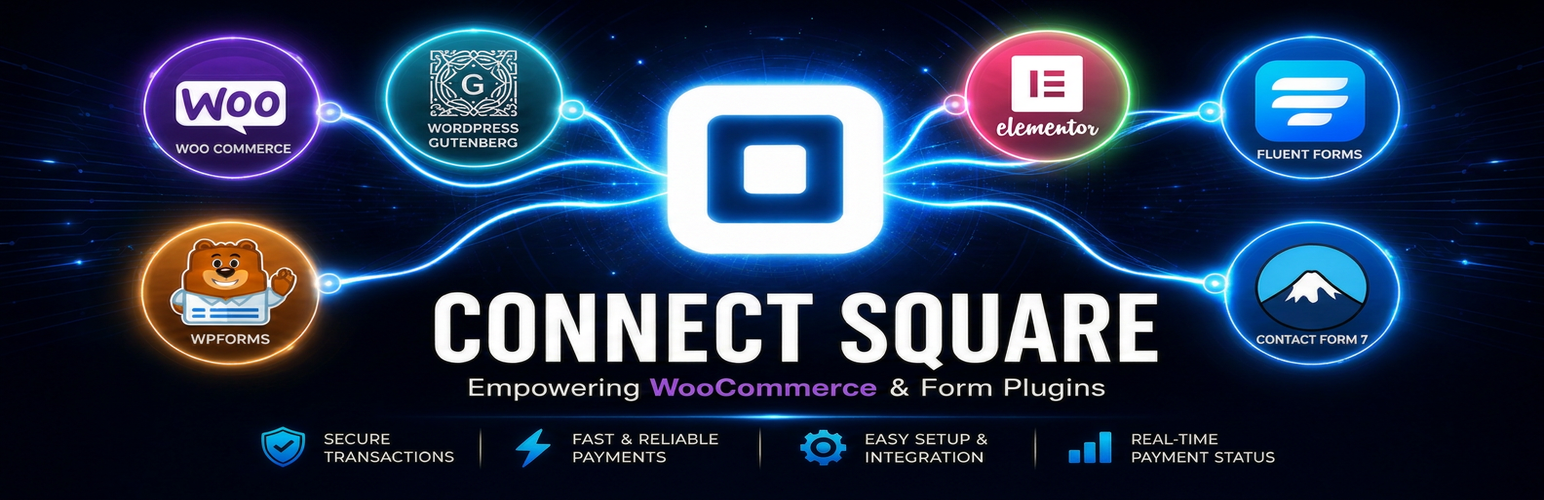

Connect Square Payments – WordPress Square Hosted Checkout for WooCommerce, Fluent Forms, CF7, WPForms, Pay Links & More

Connect Square once in wp-admin. WooCommerce and forms share this connection.
Connect Square Payments is the most reliable WooCommerce Square alternative that adds a professional Square payment gateway using Square Hosted Checkout.
- New — Connect Square Payments App (Android): Optional companion app — scan a QR code from the Mobile App admin screen to monitor today’s Square sales and connection status on your phone.
Send Customers to Square’s secure hosted payment page.
Connect Square once and accept payments across your entire WordPress site:
* WooCommerce Square gateway (classic and Blocks checkout)
* Paid Memberships Pro (recurring memberships without WooCommerce Subscriptions)
* Fluent Forms, Contact Form 7 (CF7), and WPForms
* Ninja Forms, Formidable Forms, MetForm, SureForms, and Forminator
* Square Payment Links (buttons for Gutenberg, Elementor, Beaver Builder, and shortcodes)
* Square Subscriptions for recurring billing
For WooCommerce stores that also sell in person on Square POS or Terminal. Web Online orders reach Square dashboard as real catalog items when SKUs match, so stock can fall on a web sale. Pro can Sync Square in-store payments into Woo as well and keep stock moving both ways. Two-way order status (shipped, cancelled, and the rest) is next…
Live demo · Documentation · Support
Multi Square Location stock sync demo
See Multi Square Location stock sync — link WooCommerce products to Square locations and update inventory from one screen:
Square Hosted Checkout demo
Watch Square Hosted Checkout with WooCommerce in action:
Elementor payment links demo
See Square Payment Links with Elementor — Pay Now buttons and Square Hosted Checkout on a WordPress page:
Why merchants choose this plugin:
If you searched for Square payment for WordPress, you have probably seen on-site card fields break after a theme update or plugin conflict. Connect Square Payments is a no-code integration: connect Square once, enable the gateway, and send customers to Square Hosted Checkout — no card form embedded in your theme.
- Skip the on-site Square card form that often fails at checkout. Customers pay on Square’s own secure page instead — so “payment failed” and Pay for Order errors are much less common.
- Digital wallets included: Apple Pay, Google Pay, Cash App Pay, and Afterpay / Clearpay (BNPL) supported on Square’s page.
- No extra platform fees: You pay Square’s normal processing rates only; no per-transaction plugin fee.
- Reliable Inventory Sync: Simple SKU-based stock sync updates Square On hand when WooCommerce orders are paid.
- POS orders in Woo (Pro): Bring Square in-person sales into WooCommerce as orders. Creates Woo products for new Square items, links them to the order, and reduces stock.
- Proactive Connection Alerts (Free): Daily token health checks plus email and wp-admin notices when Square OAuth refresh fails or API calls report an expired or revoked token — reconnect before checkout breaks.
Features
- Hosted checkout — customers pay on Square’s secure page and return to your store.
- Refunds from wp-admin — full or partial refunds directly on the WooCommerce order screen.
- Pay for Order links — email or copy a secure invoice payment link for unpaid orders.
- Payment sync — automatically check pending orders and mark them paid without needing complex webhooks.
- Customer sync — keep Square and WordPress customer directories in sync automatically.
- Square Loyalty Rewards — earn points on all paid orders (Free); redeem at checkout (Premium).
- Proactive connection alerts (Free) — email and wp-admin notice when Square OAuth renewal fails or tokens are rejected.
- Automatic OAuth token renewal — daily refresh cron keeps access tokens current.
- 24/7 Support — dedicated help via email, WhatsApp, and the WordPress.org forum.
Premium features
Upgrade under Payments Square Connect Pricing to unlock:
* Location stock — link products to specific Square locations for accurate inventory.
* Bulk Location stock admin — manage locations and stock levels for your entire catalog at once.
* Square gift cards at checkout.
* Loyalty reward redemption directly on the checkout page.
* Bi-directional inventory (Square WooCommerce) for real-time stock updates.
* Order import from Square (Pro) — optionally create WooCommerce orders when Square POS / Register payments complete.
* Dispute alerts (Plus) — email admin and show dashboard notices when Square chargebacks/disputes arrive.
* Payout reconciliation (Pro) — log payout webhooks and link recent WooCommerce orders.
* Refund sync (Pro) — Square Dashboard refunds create matching WooCommerce refunds with stock restoration.
* Terminal checkout sync (Pro) — complete or cancel WooCommerce orders when Square Terminal checkout status changes.
* And many more — see Payments Square Connect Pricing for the full Plus and Pro feature list.
Looking for Square on Odoo?
This plugin is for WordPress / WooCommerce. If you need a Square solution on Odoo instead — inventory sync, multi-location stock, Square Hosted Checkout, Google Pay, Apple Pay, Cash App Pay, Afterpay, and Square Terminal — use our free Odoo module Square Sync & Pay.
Same team (WPPayments). No module subscription fee — you only pay Square’s normal processing rates.