


Pix for WooCommerce
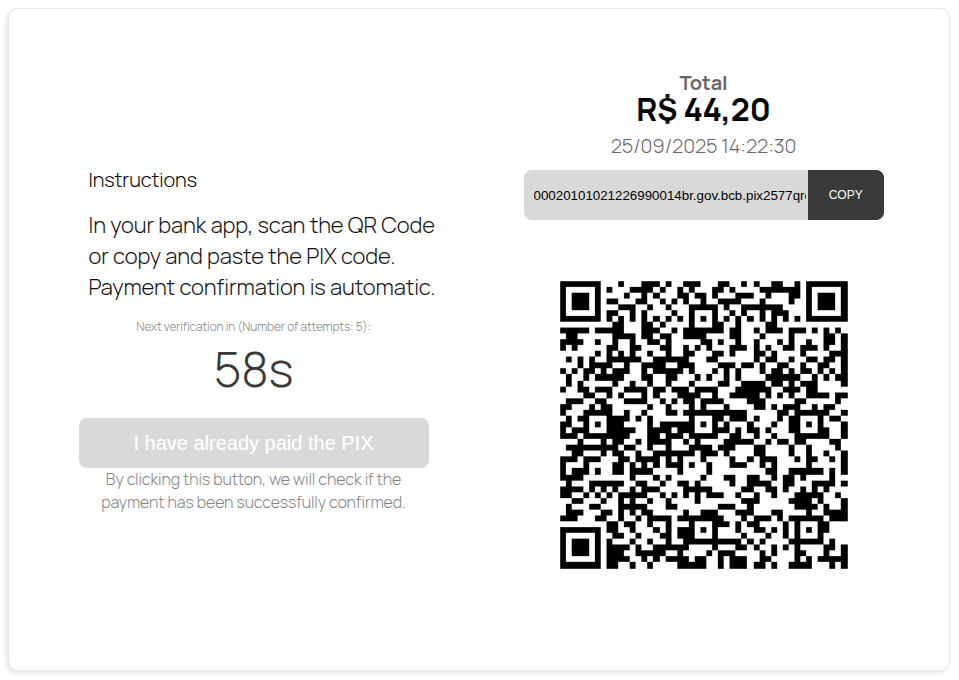
C6 Pix payment template on checkout.
Integrate Pix, Brazil’s revolutionary instant payment system, into your WooCommerce store with our powerful and flexible gateway plugin.
Offer your customers a fast, secure, and modern checkout experience. This plugin allows you to receive Pix payments through ten different methods, giving you the flexibility to choose what works best for your business:
- Direct Pix Key
- PagHiper Gateway
- C6 Bank Integration
- SICOOB Bank Integration
- Bradesco Bank Integration
- Cielo Pix Gateway
- Rede Pix Gateway
- Bank BB Integration – Banco do Brasil Pix API
- Asaas Pix Gateway
- Getnet Pix Gateway
Features
-
Ten Integration Modes: Choose the best way to receive Pix payments.
- Direct Pix Key: The simplest setup. Just enter your registered Pix key (CPF/CNPJ, E-mail, Phone, Randon Code) and you’re ready to sell. The plugin generates a “copy and paste” code and a QR Code for your customers.
- PagHiper Gateway: Automate your sales with PagHiper. This integration provides a robust gateway to generate charges and automatically confirm payments, giving you and your customers more security and convenience.
- C6 Bank Integration: Perfect for C6 Bank clients. Connect your account directly for seamless Pix charge generation and real-time automatic payment confirmation.
- SICOOB Bank Integration: Perfect for SICOOB Bank clients. Connect your account directly for seamless Pix charge generation and real-time automatic payment confirmation.
- Bradesco Bank Integration: Perfect for Bradesco Bank clients. Connect your account directly for seamless Pix charge generation and real-time automatic payment confirmation.
- Cielo Pix Gateway: Accept Pix payments through Cielo, one of Brazil’s largest payment processors, with automatic order confirmation.
- Rede Pix Gateway: Accept Pix payments through Rede (Itaú), with automatic order confirmation and robust integration.
- Banco do Brasil Bank Integration: Perfect for Banco do Brasil BB Bank clients. Connect your account directly for seamless Pix charge generation and real-time automatic payment confirmation.
- Asaas Pix Gateway: Accept Pix payments through Asaas, a Brazilian payments platform, with automatic order confirmation.
- Getnet Pix Gateway: Accept Pix payments through Getnet (Santander), with automatic order confirmation driven by the Getnet payment notification.
-
Automatic QR Code Generation: A dynamic QR Code is generated for every order.
- “Pix Copia e Cola” Button: A one-click button for customers on desktop to easily copy the payment code.
- Automatic Order Confirmation: Integrations with PagHiper, C6 Bank, SICOOB Bank, Bradesco Bank, Cielo, Rede, Asaas, and Getnet handle payment confirmation automatically, updating the order status in WooCommerce.
- Easy to Configure: A clean and intuitive settings panel to get you started in minutes.
Start selling with Pix today and boost your conversions in the Brazilian market!
Recommended Integrations
Please note that this plugin provides a direct integration for Pix Key, PagHiper, C6 Bank, SICOOB Bank, and Bradesco Bank. If you need to process Pix payments through other major Brazilian gateways, we recommend the following official plugins:
- Payment Method Discounts: To configure discounts based on payment methods, we recommend using the Link Invoice for WooCommerce plugin.
- Cielo: To accept Pix payments through the Cielo gateway, we recommend using the Cielo para WooCommerce plugin.
- eRede (Itaú): For processing Pix payments with the eRede (Itaú) gateway, we recommend the Rede para WooCommerce plugin.
Minimum Requirements
For this plugin to work correctly, you will need:
- WordPress version 5.0 or later.
- WooCommerce version 5.0 or later.
- PHP version 7.4 or later.
- An active SSL Certificate is highly recommended for secure transactions.
Usage
Configuring the plugin is straightforward. Follow these steps to set up your desired Pix payment method.
Activating the Payment Method
- In your WordPress admin area, go to WooCommerce > Settings.
- Click on the Payments tab.
- You will see a list of all available payment gateways. Locate the one you want to configure:
- Pix Key
- Pix with PagHiper
- Pix C6
- Pix SICOOB
- Pix Bradesco
- Enable your chosen method by using the toggle switch.
- Click the Manage button to enter its specific settings.
Configuration Details
After clicking Manage, you will need to fill in the required information for your chosen method:
-
For Pix Key:
- Enter a Title and Description that will be shown to your customer at checkout.
- Add your registered Pix Key (e.g., your e-mail, phone number, or CNPJ).
- Click Save changes.
-
For Pix with PagHiper:
- Enter the Title and Description.
- Input your PagHiper API Key and Token (found in your PagHiper dashboard).
- Configure any other available settings to your preference.
- Click Save changes.
-
For Pix C6:
- Enter the Title and Description.
- Input your C6 Bank API credentials: Client ID and Client Secret.
- Adjust additional settings as needed.
- Click Save changes.
-
For Pix SICOOB:
- Enter the Title and Description.
- Input your SICOOB Bank API credentials: Client ID and Access Token.
- Enter your registered Pix Key at SICOOB.
- Adjust additional settings as needed.
- Click Save changes.
-
For Pix Bradesco:
- Enter the Title and Description.
- Input your Bradesco Bank API credentials: Client ID and Client Secret.
- Upload your Bradesco mTLS certificates (.cert and .key files).
- Enter your registered Pix Key at Bradesco.
- Adjust additional settings as needed.
- Click Save changes.
-
For Cielo Pix Gateway:
- Enter the Title and Description.
- Input your Cielo Merchant Id and Merchant Key (found in your Cielo dashboard).
- Configure any other available settings to your preference.
- Click Save changes.
-
For Rede Pix Gateway:
- Enter the Title and Description.
- Input your Rede Pv and Token (found in your Rede dashboard).
- Configure any other available settings to your preference.
- Click Save changes.
Your configured Pix method will now be available for customers at checkout.
Enjoying the Plugin?
If you find the Pix Payment Gateway for WooCommerce plugin useful, please consider leaving a 5-star review on WordPress.org.
Your feedback is invaluable to us. It not only helps other store owners discover the plugin but also motivates us to continue developing and improving it. A positive review is the best way to show your support for our work.
Thank you for being a part of our community!
Support
If you need help or have questions, please post them in the support forum for the plugin on WordPress.org. We will be happy to assist you there.