

My Observer RAG Chat Assistant For WooCommerce
Main Settings: Configure provider, model, and storefront assistant behavior from one settings screen.
My Observer RAG Chat Assistant adds an AI-powered product assistant to your WooCommerce store using Retrieval-Augmented Generation (RAG).
The plugin builds a local product knowledge index from your catalog content and can also ingest supporting business documents through the Product Intelligence Engine. Linked document knowledge is searched alongside WooCommerce product data so shopper responses can use richer store context. You control provider settings, indexing, document uploads, and widget placement directly in WordPress.
This plugin is designed for merchants who want:
* Product-aware chat that can reference your catalog content
* Optional document-aware retrieval linked to WooCommerce products
* A simple setup flow inside wp-admin
* Local vector indexing for retrieval workflows
* Flexibility to use OpenAI or Claude-based configurations
How it works at a high level:
1. Product data is indexed from your WooCommerce catalog.
2. Optional TXT, CSV, DOCX, and text-based PDF files can be uploaded into the Product Intelligence Engine.
3. User questions are matched against relevant product and document context.
4. Your configured LLM provider generates the final response using retrieved context.
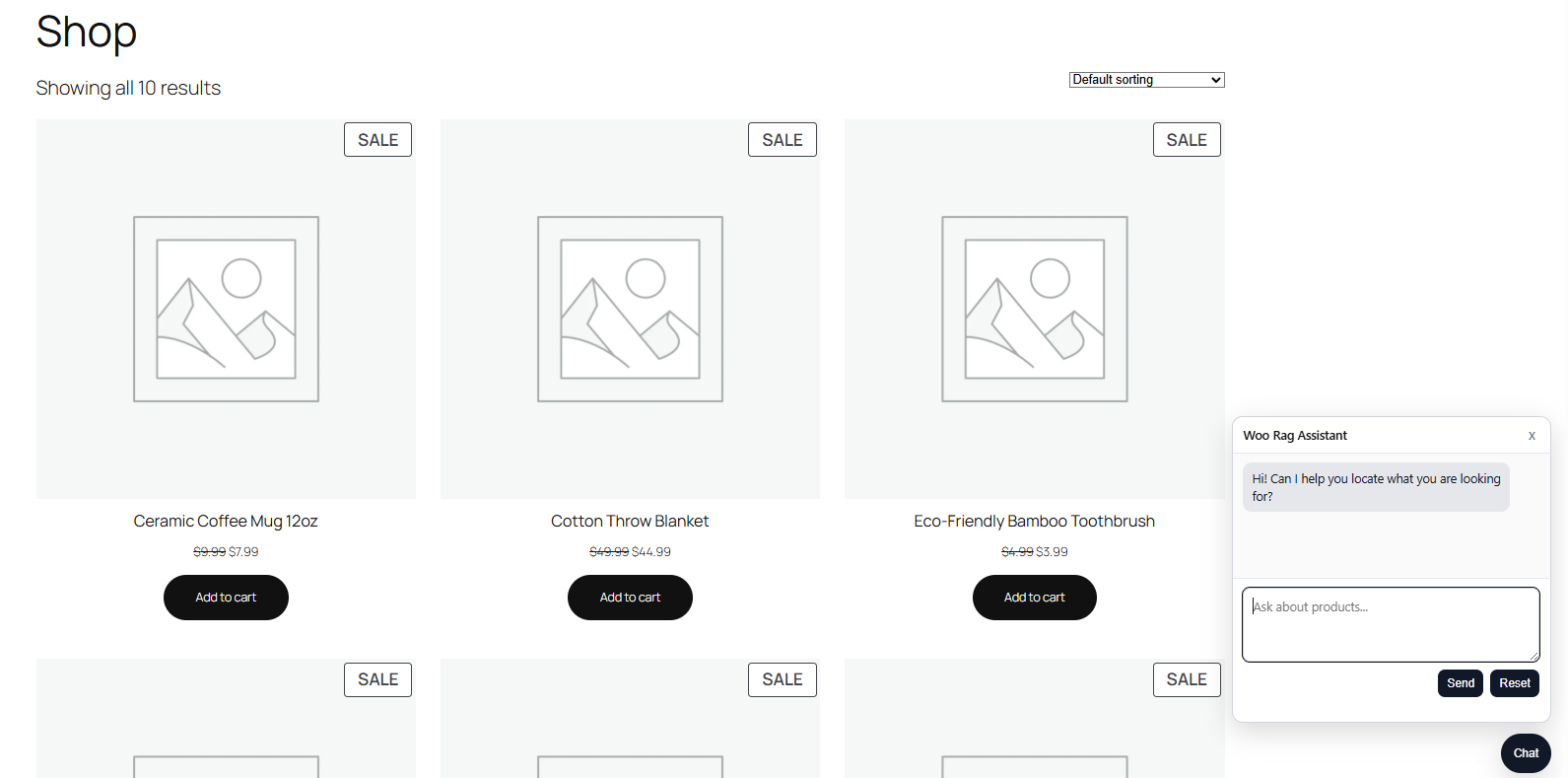
The storefront chat widget can be embedded with shortcode or auto-injected in the footer, and the admin experience includes a modern Angular-based settings UI for runtime configuration and document management.
Features
- Embedded storefront chat widget (
[myobserver_rag_widget]shortcode, legacy[rag_bot_widget], or footer auto-inject) - OpenAI or Claude provider support for chat and embeddings. Once your LLM API Key is entered it will select all models available provided to you by your key.
- Embedding model changes should be treated carefully because the stored vector index is built from a specific embedding family and dimension set. Switching families, or mixing models with different dimensions, can require a full reindex to keep retrieval accurate.
- Local vector storage and product indexing
- Angular-powered admin settings page for providers, API keys, model selection, and runtime controls
- Product Intelligence Engine for document uploads, document-product linking, reindexing, and queue review
- TXT, CSV, DOCX, and text-based PDF ingest support
- Manual “Index All Products” action in admin settings
Bundled build artifacts:
– This plugin ships compiled Angular assets in assets/settings-ui/browser/.
– Source repository (required for WordPress.org readability compliance): https://github.com/darrisb/woo-rag
– Build command example: npm ci && npm run build
Usage
Storefront widget:
* Add [myobserver_rag_widget] where you want chat to render.
* If Auto Inject is enabled, chat can render in wp_footer.
Indexing:
* Go to My Observer > Settings.
* In the Indexing section, click Index All Products to queue indexing jobs.
Documents:
* Go to My Observer > Settings.
* In the Product Intelligence Engine section, upload TXT, CSV, DOCX, or text-based PDF files.
* Review linked products, update links, and queue document reindexing as needed.
External services
This plugin can connect to third-party services based on your configuration.
- OpenAI API (
https://api.openai.com)
* Used for: embeddings and chat completions when OpenAI is selected.
* Data sent: product/query text needed to generate embeddings and responses.
* Terms of Use: https://openai.com/policies/terms-of-use/
* Privacy Policy: https://openai.com/policies/privacy-policy/
- Anthropic API (
https://api.anthropic.com)
* Used for: chat completions when Claude is selected.
* Data sent: prompt/context text needed to generate responses.
* Terms: https://www.anthropic.com/legal/commercial-terms
* Privacy Policy: https://www.anthropic.com/legal/privacy
- Custom Claude-compatible embeddings endpoint (
rag_bot_claude_embeddings_url)
* Used for: embeddings generation when a custom endpoint is configured.
* Data sent: product/query text used for embeddings.
* Terms/Privacy: managed by the configured endpoint provider.
Privacy
Review the included privacy policy template and update site policy text as needed for your deployment.