

MeltFlex AI Interior Design
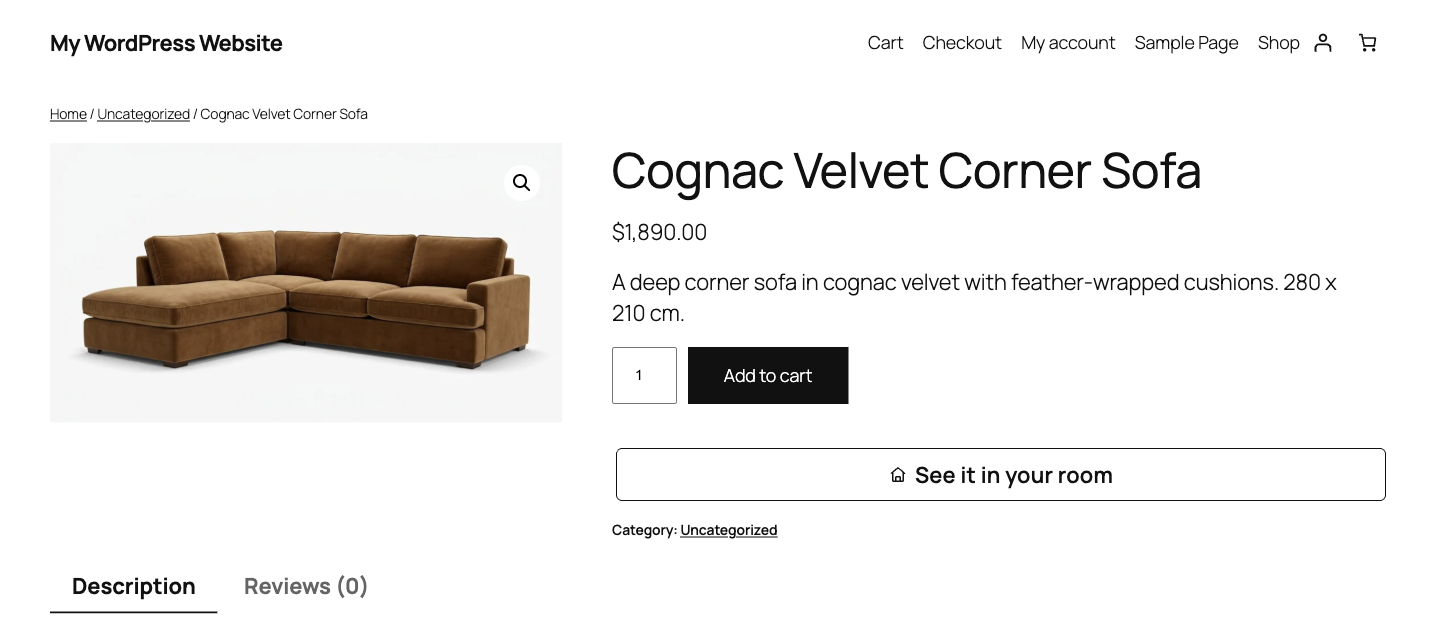
The "See it in your room" button on a WooCommerce product page.
MeltFlex AI Interior Design adds an AI room visualizer to your WooCommerce store. A shopper uploads a photo of their own room, picks one of your products, and sees it placed in the room in a few seconds. It is the “will this sofa fit my living room?” question, answered on your product page.
What you get
- “See it in your room” button on every WooCommerce product page, under Add to cart. It opens the tool in a full-screen dialog with that product ready to place. The tool loads only when the button is clicked, so your product pages stay as fast as before.
- AI Interior Design block and [meltflex] shortcode to put the full tool on any page: a “design your room” landing page, a lookbook, a blog post.
- Your own products, kept up to date. The plugin publishes your WooCommerce catalog to the tool: names, pictures, prices, stock, categories and colour variants. Products you add or change show up on their own.
- A settings page in WordPress with your plan, how many designs your shoppers made, the colour, the language (English, Spanish, German, French, Portuguese), a daily limit for the whole site and the product page button.
- Works without WooCommerce too. On a site with no shop, the block redesigns the whole room in a style the visitor picks: useful for interior designers, architects and home decor blogs.
How it works
- Install and activate the plugin.
- Open AI Interior Design in the WordPress admin and click Connect to MeltFlex. Sign in or create a free account on meltflexai.com.
- That’s it. The button is on your product pages, and the block is ready to add anywhere.
Free to try. Every MeltFlex account includes free designs, so you can try the tool on your live store before you pay anything. After that the tool runs on a MeltFlex Enterprise plan, which you can pick from the plugin’s settings page.
External services
This plugin connects your site to MeltFlex (https://www.meltflexai.com), the AI service that makes the room designs. Nothing is sent before you click Connect.
- When you connect: your browser opens meltflexai.com with your site address, the address of this admin page, your site name, your site language, whether WooCommerce is active and the plugin version. After you sign in, your site receives a one-time code and swaps it with meltflexai.com for its own access key.
- While connected: when you open the plugin’s settings page, your site asks the MeltFlex API (server to server, with your site’s access key) for your plan, credits, number of designs and tool settings, and shows them there; nothing from meltflexai.com is loaded into your admin. Saving the settings sends them to the same API. When you save a product, the plugin tells meltflexai.com that your products changed (no product data is sent in that call). MeltFlex servers then read your product feed at /?rest_route=/meltflex/v1/feed, which contains only what your store already shows publicly: product names, links, pictures, prices, stock, categories and colours.
- For your visitors: the button and the block load the tool from widget.meltflexai.com in an iframe. The tool loads when a visitor clicks the button (the block loads it with the page). Room photos that visitors upload, and the designs made from them, are processed and stored by MeltFlex.
- When you disconnect or uninstall: the plugin tells meltflexai.com, and the tool stops on your site.
MeltFlex terms of service: https://www.meltflexai.com/terms
MeltFlex privacy policy: https://www.meltflexai.com/privacy