
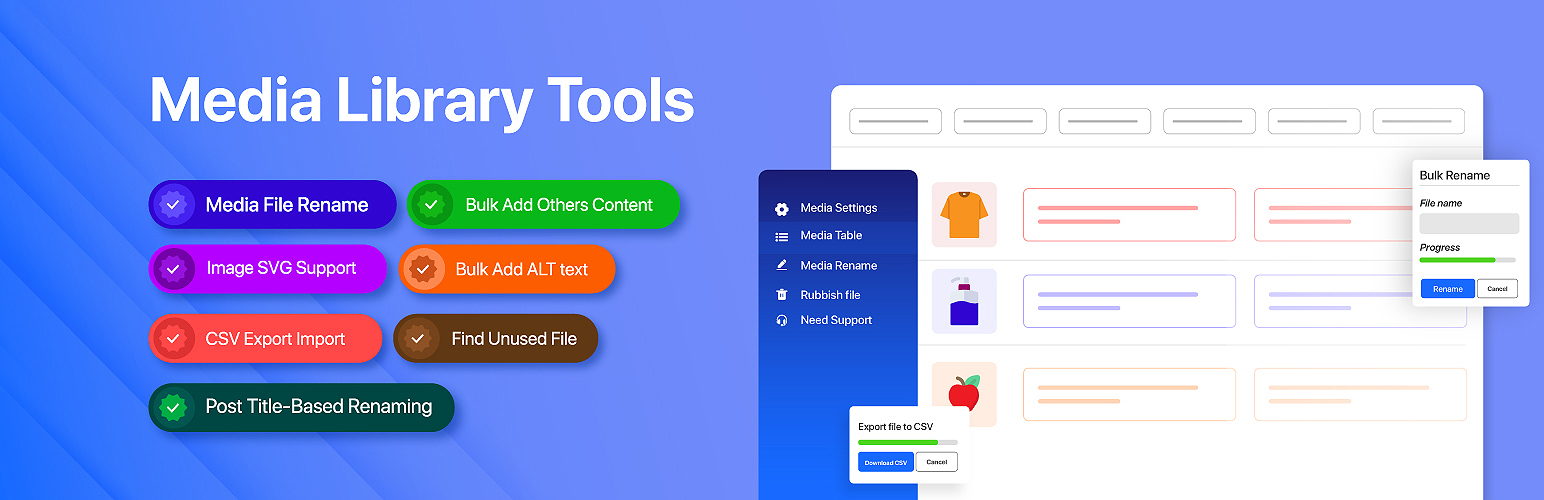

Media Library Tools – AI-Powered Rename, Clean & CSV Import/Export

Media Table — view, filter, sort, and inline-edit all media files
Media Library Tools is the most complete WordPress media management plugin available. It gives you full control over your media library — export your entire library to CSV, bulk-import metadata updates, rename files for better SEO, bulk edit alt text, compress JPEG, PNG, and WebP images and convert them to modern WebP/AVIF to speed up your site, find and remove duplicate images, clean up orphaned files, track where every image is used, and generate AI-powered metadata using ChatGPT, Gemini, or Claude.
Whether you run a blog, WooCommerce store, or content-heavy site, Media Library Tools helps you keep your media library clean, organized, and SEO-optimized.
👉 Documentation | Get Pro 👈
Why Media Library Tools?
Most WordPress sites accumulate hundreds or thousands of media files over time — poorly named, missing alt text, duplicated across posts, and cluttered with orphaned files that waste disk space. Media Library Tools solves all of this from a single, intuitive admin interface:
- SEO — Rename files to keyword-rich slugs, bulk-fill missing alt text, and generate AI-optimized metadata.
- Performance — Compress images and generate modern WebP/AVIF copies to cut page weight, and delete duplicate images, rubbish files, and unnecessary image sizes to reduce server storage.
- Organization — Group media, track image usage across posts and pages, and filter by any column.
- Automation — Auto-rename on upload, auto-compress new uploads, auto-fill metadata from post titles, and inject missing alt text on the frontend.
Free Features
Media Table
- View your entire media library in a fast, paginated, and filterable table
- Sort by filename, date, alt text, caption, and description
- Filter by date range, Group, status, or keyword search
- Inline single-item editing — title, alt text, caption, and description
- Bulk edit multiple items at once with a single save action
- Move selected images to trash or restore them; permanently delete when ready
- Copy file URL to clipboard with one click
AI Content Generator
- Generate SEO-optimized alt text, title, caption, description, and filename for any media file
- Supports three AI providers: ChatGPT (GPT-4o, GPT-5, and more), Google Gemini (2.0 Flash, 1.5 Pro), and Anthropic Claude (Haiku, Sonnet, Opus)
- AI considers your site name, tagline, existing metadata, and attached post context for accurate, relevant results
- Free plan includes 1 AI suggestion per field
Media File Renamer
- Rename individual media files with SEO-friendly slugs directly from the rename table
- Bulk rename selected files using a custom name
- See the attached post for each file to make informed rename decisions
- Inline AI filename suggestions in the rename table
- Prefix and suffix apply automatically during bulk rename (Pro)
Duplicate Image Finder
- Scan your entire media library for duplicate files using MD5 hash comparison
- View duplicate groups with file count, individual file size, and total wasted space
- See exactly where each duplicate is used — in posts, pages, featured images, and custom fields
- Batch scanning with a visual progress bar — no timeouts on large libraries
Rubbish File Finder (Media Library Cleaner)
- Scan your WordPress uploads directory for orphaned files not registered in the media library
- Identify leftover files from deleted plugins, failed uploads, or manual file operations
- Filter rubbish files by file extension
- Mark files as “ignored” to exclude known safe files from future scan results
- Re-scan specific directories or clear the full scan history
- Automated background scanning via WordPress cron
Image Usage Tracker (Used Where)
- Track exactly where every image is used across your WordPress site
- Detect images in post content, featured images, Elementor data, and custom meta fields
- Batch scan the full site or enable passive frontend tracking to capture usage automatically
- Filter media by “Used” vs “Unused” status to find images that can be safely removed
- View a per-image breakdown: how many posts use it, which post types, and direct links
Auto Metadata on Upload
- Automatically set alt text, caption, and description when a new image is uploaded
- Choose between using the image filename or a custom default text as the alt text source
SVG Upload Support
- Safely upload SVG files with automatic sanitization — removes XSS vectors, remote references, and other security risks
- Proper width and height metadata generation for SVG files
- Maximum SVG file size: 500KB (filterable via
tsmlt_upload_max_svg_file_size)
Disable Image Sizes
- Stop WordPress from generating unnecessary thumbnail sizes and save disk space
- Disable default sizes: Thumbnail, Medium, Large, Medium Large (768px), 1536×1536, 2048×2048, and the “Big” scaled size
- Works with sizes added by your theme or other plugins
Media Groups
- Organize your media library with a custom Groups taxonomy
- Assign media to Groups from the media table — per item in Edit Mode, or in bulk via Bulk Edit
- Choose whether a bulk assignment adds to, replaces, or removes the selected Groups
- Filter media by Group using the dropdown filter
- Import and export Group assignments with the
groupsCSV column - Groups appear as clickable links in the native WordPress media list view
Media Download Shortcode
- Add styled download buttons anywhere on your site using a simple shortcode:
[tsmlt_download_button id=’123′ text=’Download Now’ class=’my-btn’ /] - Also supports direct file URLs:
[tsmlt_download_button url=’https://example.com/file.pdf’ text=’Download PDF’ /] - Forces a browser download prompt — works with images, PDFs, documents, audio, video, archives, and more
Compress Images
- Compress JPEG, PNG, and WebP images from a dedicated Compress Images page — no external service or API key required
- See at a glance how many images your library has, how many are already compressed, and how many remain
- Choose a compression level and compress everything that is left in one click — progress is shown in real time
- Three compression presets: High Quality (smallest visual change), Balanced (recommended), and Maximum Compression (largest savings)
- Uses the image library already installed on your server — ImageMagick where available, otherwise GD
- Compress or restore an individual image straight from its row in the Media Table
- Results show the before and after size, the percentage saved, and the total disk space reclaimed
- Images that are already fully optimised are marked skipped rather than reported as failures — a file is never made larger
- Originals are never overwritten directly: each image is compressed to a temporary file that is validated before it replaces the original
- Compression runs on the server, so you can close the window and the job keeps going
- Free version compresses up to 20 images per run
Convert to WebP/AVIF
- Generate modern WebP copies of your JPEG and PNG images to cut page weight
- Converted files are saved alongside the originals —
image.jpgkeeps its place in the media library andimage.webpis created next to it - Your original images are never replaced, and the media library keeps one entry per image
- Detects what your server can actually produce and disables any format it cannot
- Uses the image library already installed on your server — ImageMagick where available, otherwise GD
- See how many images are convertible, how many are done, and how many remain
- Progress runs on the server, so you can close the window and the job keeps going
- Delete or regenerate the generated files at any time
- Free version converts up to 20 images per run
Regenerate Thumbnails
- Regenerate all registered image thumbnail sizes for every image in your media library in a single click
- Automatically detects and deletes orphaned thumbnail files for image sizes that are no longer registered — frees disk space without manual cleanup
- Processes images in batches of 10 to avoid server timeouts on large libraries
- Real-time progress bar with stats: total images, processed, succeeded, and errors
- Stop and restart at any time — the progress bar shows stopped, running, or completed state clearly
- Per-image error log with dismiss support so you can identify and track any failed regenerations
- After completion, jump directly to the Rubbish File Finder to clean up any remaining orphaned files
Empty Directories Cleanup
- Detects empty directories left behind in your WordPress uploads folder after files are deleted or moved
- View a full list of empty directories with their relative paths
- Delete directories one at a time or remove all empty directories at once with a single click
- Prevents confusion from stale folder structures and keeps your uploads directory tidy
- Accessible from within the Rubbish Files page
CSV Export
- Export Selected media items form “media table” library to a CSV file — IDs, slugs, URLs, titles, alt text, captions, descriptions, and custom meta fields
- Select which columns to include before exporting
Pro Features
All free features, plus:
CSV Import
- Upload a CSV file to bulk-update existing media metadata or create new attachments from external URLs
- Supported columns:
ID,slug,url,rename_to,title,caption,description,alt_text,post_parent,menu_order,groups,custom_meta:_key - Batch processing with progress tracking — handles large libraries without timeouts
- Rename files during import using the
rename_tocolumn - Assign media to Groups with the
groupscolumn (comma-separated group names; missing groups are created) - Set the attached post and sort order with the
post_parentandmenu_ordercolumns
Duplicate Merge
- Select which copy of a duplicate group to keep, then merge with one click
- All references to the deleted copies are automatically updated across:
- Post content and excerpts
- Featured images
- Elementor page builder data
- Custom post meta fields
- Keeps your site fully functional after cleanup — no broken image references
Rubbish File Pro Actions
- Bulk Delete — delete all selected rubbish files with a single confirmation
- Single Delete — delete individual rubbish files with confirmation
- Restore to Library — import a rubbish file back into the WordPress media library, generating proper thumbnails and metadata
- Ignore / Unignore — mark files as safe to keep and exclude them from future scan results
Bulk Rename by Post Title
- Rename all selected media files based on their attached post or page title
- Prefix and suffix are automatically applied
Bulk Rename by Product SKU
- Rename WooCommerce product images using the product’s SKU
- Ideal for WooCommerce stores managing large product catalogs
Bulk Rename by Alt Text
- Rename media files using their existing alt text as the new filename
- Keeps filenames and alt text consistent for stronger SEO alignment
Auto Rename on Upload
- Automatically rename uploaded files based on the attached post title
- Or set a custom global rename pattern for all uploads
Auto Metadata from Post Title
- Automatically set alt text, caption, and description from the attached post title at upload time
- No manual editing needed for images uploaded directly to a post
Rename Prefix & Suffix
- Prepend and append custom text to every renamed filename
- Applies to all bulk rename strategies: by post title, SKU, alt text, and CSV import
Auto Alt Text on Frontend
- Automatically inject missing alt text into image tags when WordPress renders frontend pages
- Fallback strategy: post title filename custom default text
- Improves accessibility (WCAG 2.1) and SEO without editing every image manually
Register Custom Image Sizes
- Define custom image sizes (width, height, crop) that WordPress generates on every upload
- Sizes are prefixed with
tsmlt_to avoid conflicts - Reduce storage waste by generating only the sizes your theme actually uses
Compress Images Pro
- Unlimited compression — compress your entire media library instead of 20 images per run
- Backup Original Images — keep a pristine copy of every original before it is replaced, stored inside your uploads folder with the same year/month structure
- Restore Original Images — put any original back with one click; restores the full-size image and every backed-up thumbnail
- Compress Generated Image Sizes — also compress thumbnails, medium, large, and any custom registered image size, for substantially larger savings
- Custom Compression Quality — set an exact quality value from 1 to 100 instead of using a preset
- Automatic Compression on Upload — newly uploaded images are compressed automatically, after WordPress has finished generating all image sizes
- Compression history — see each image’s original size, current size, percentage saved, engine used, quality, and compression date
- Backups are never deleted automatically, so a restore stays available for as long as you need it
Convert to WebP/AVIF Pro
- AVIF conversion — the smallest modern format, typically 20–30% below WebP
- Unlimited conversion — convert your whole library instead of 20 images per run
- Convert generated image sizes — also produce thumbnails and custom registered sizes in each format
- Custom quality per format — set WebP and AVIF quality independently
- Automatic conversion on upload — new uploads get their modern copies straight away
Enhanced AI Features
- Send the actual image to the AI provider for visual analysis — get far more accurate alt text and captions
- Up to 10 AI suggestions per field to choose from (vs. 1 in the free version)
AI Content Generator – Supported Models
ChatGPT
GPT-5.1, GPT-5 Mini, GPT-4o, GPT-4o Mini, GPT-4.1, and more
Google Gemini
Gemini 2.0 Flash, Gemini 2.0 Flash Lite, Gemini 1.5 Pro, Gemini 1.5 Flash
Anthropic Claude
Claude Haiku, Claude Sonnet, Claude Opus
What the AI generates:
- Title — 3 to 8 words, title case
- Alt Text — SEO-friendly, WCAG 2.1 accessible, maximum 125 characters
- Caption — 1 to 2 sentence engaging description
- Description — 2 to 4 sentence SEO-optimized description
- Filename — lowercase, hyphenated, maximum 50 characters
Media File Rename — SEO Benefits
Descriptive, keyword-rich filenames help search engines understand your images, improving rankings in Google Image Search and general web search. Well-named files also make your media library easier to navigate and audit over time.
Before renaming, we strongly recommend:
- Practice on a staging environment first
- Back up your database and files before any bulk rename operation
- Test renaming a single file before running bulk actions
- Clear your site and CDN cache after renaming to prevent broken references