

MailSentra: Email Logging & Diagnostics
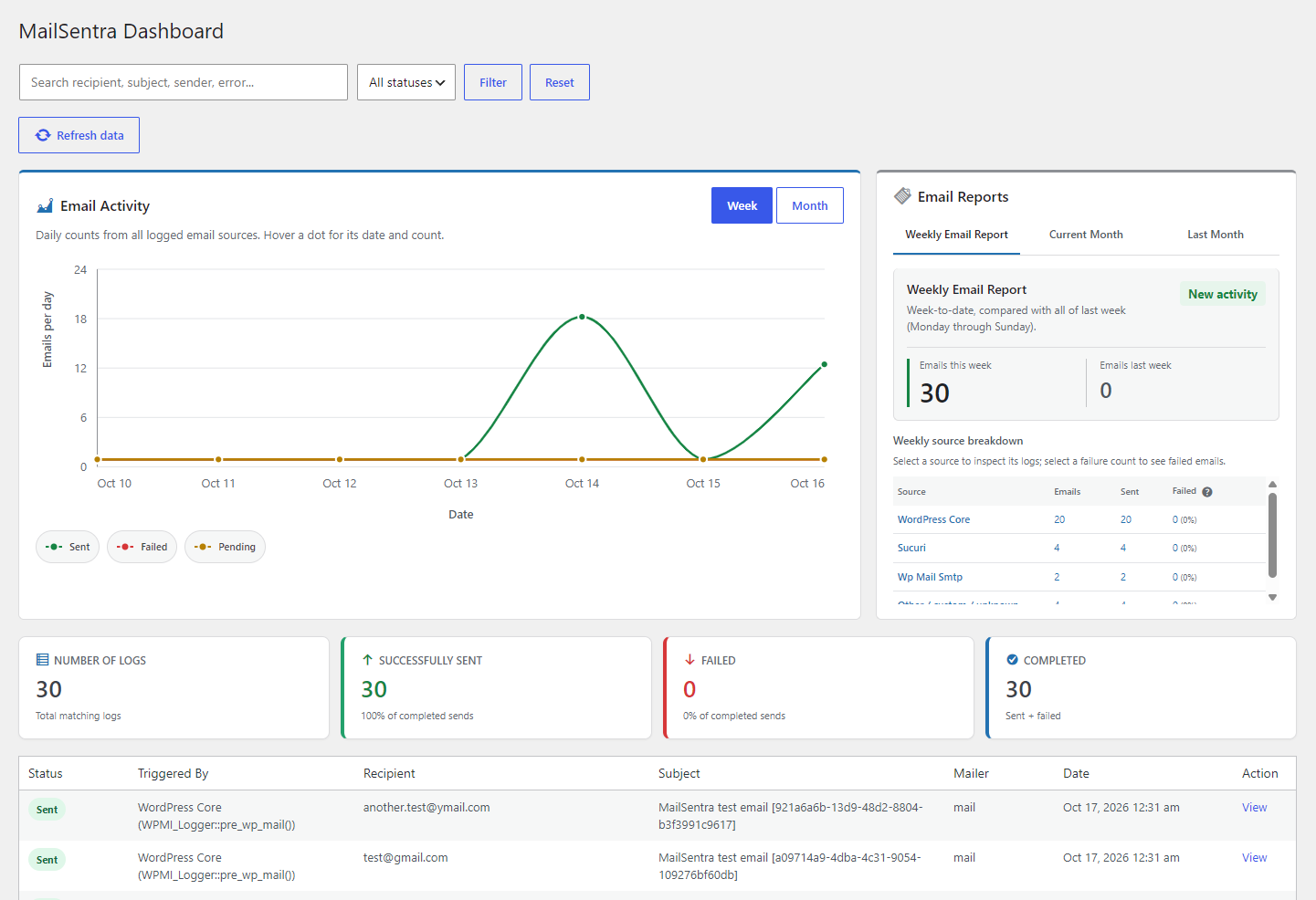
Dashboard showing email activity, reports, and email log statistics.
MailSentra logs WordPress email attempts and provides email statistics, weekly and monthly reports, source-based diagnostics, search and filtering, CSV export, configurable retention, and Standard, Privacy-focused, and Custom logging modes.
New to MailSentra? Follow the Getting Started guide to install the plugin, configure logging, and review your first email attempt.
On licensed MailSentra Pro sites, open tracking is automatic while MailSentra email logging is enabled. It adds a small image to outgoing HTML emails and records its first request. Email privacy proxies can request the image automatically, and some clients block images, so open counts are estimates rather than proof that a person read an email. Tracking does not store request IP addresses or user agents and should be disclosed in the site’s privacy policy.
Standard diagnostics records recipients, subject, the full email message, status, mailer, source label, call-stack details, associated WordPress user ID, and available mail error text. It does not record email headers, attachment paths/names, or request IP addresses. Custom mode lets Pro users choose which of these fields to record. MailSentra does not copy or store attached files. Logged data is stored in the site database and is not sent to an external service.
Standard diagnostics is the default and stores the full email message while omitting headers, attachment paths, and request IP addresses. Privacy-focused mode omits recipient and sender details, subject, message content, headers, attachment paths, error text, IP address, user ID, and call-stack details from new logs. Custom mode lets Pro users select which of these fields to record. All modes preserve status, mailer, source label, and timestamp. Changing modes does not alter existing logs. Use Delete All Logs on the dashboard to erase all existing log history.
A “Sent” status means WordPress reported the send attempt as completed without a mail exception. It does not confirm acceptance by the recipient mail server or delivery to the inbox. Check your SMTP provider or mail service for delivery and bounce status.
Features
Free Version
- Logs wp_mail() send attempts.
- Records sent/failed result from WordPress mail hooks.
- Dashboard statistics, weekly and monthly reports, and a seven-day activity chart.
- Search and status filtering, with detailed individual log views.
- Failure Insights report with recent failure rates, broad error categories, and suggested checks grouped by source. Category guidance is not a confirmed root-cause diagnosis.
- Manual resend as a new attempt from log details when the original message body was captured.
- CSV export.
- Standard diagnostics stores email bodies while omitting headers, attachment paths, and request IP addresses. Privacy-focused logging is also available.
- Configurable retention period and optional maximum log count.
- Optional database cleanup on uninstall.
Pro Version (requires an eligible license)
- Custom logging mode with per-field capture controls.
- Six-week email activity history with week-over-week changes and activity rates.
- Configurable failure alerts and weekly email health summaries, including recipient lists.
- Retry Queue for eligible failed email logs, with manual queueing and retries, optional automatic retries, attempt history, and cancellation. Configure the automatic retry interval from 5 to 60 minutes.
- Scheduled Email reports for WP-Cron and Action Scheduler activity.
- WooCommerce email reporting, including email types, order counts, and product quantities.
- Email open tracking for eligible HTML messages while MailSentra logging is enabled. Opens are estimates, not proof that a person read an email.
The Retry Queue helps recover eligible attempts recorded as Failed without creating a second full email log. It keeps a separate copy of the captured message payload needed for retries; that may include recipients, content, headers, and attachment paths, including data omitted by Privacy-focused logging. Automatic retries are optional, disabled by default, and use one shared WP-Cron worker with a configurable 5-to-60-minute interval and a per-run batch limit. Keep MailSentra logging enabled; WP-Cron needs site traffic unless a system cron is configured. Retry attempts and outcomes appear in the queue. When a retry succeeds, the original Email Logs entry changes to Sent, its retry payload is cleared, and the successful queue record is kept for one day. Cancelling also clears the retry payload. A transport timeout can have an ambiguous delivery outcome, so retrying may send a duplicate.
Important
A “Sent” status means WordPress invoked its mail-success hook or a pre-send integration returned true. WordPress invokes the mail-success hook after PHPMailer returns normally, even if its send result is false, so this status does not guarantee successful transport or final inbox delivery. Check your mail provider’s logs for delivery confirmation.
MailSentra writes each log to the WordPress database before the mail attempt and updates its status from WordPress mail hooks. If a log write fails, email sending continues and MailSentra records a generic diagnostic in the PHP error log. Logging depends on the site’s database being available; a database outage or interrupted request can still prevent a log from being stored or leave it pending.
Expired logs are scheduled for cleanup when the site receives traffic. Each WP-Cron run removes up to 500 rows and stops starting database work after about two seconds; an individual database query may take longer. Follow-up batches resume with the oldest remaining rows, without OFFSET scans. A nonblocking claim prevents overlapping cleanup runs, and failed work is retried with exponential backoff. An optional maximum log count removes the oldest records in these batches; new mail activity schedules a deduplicated follow-up check, but the limit is not enforced synchronously on each email send. WP-Cron requires site traffic unless a system cron is configured. Set retention days and maximum log count to 0 to disable both automatic deletion limits.