

Lightweight Accordion
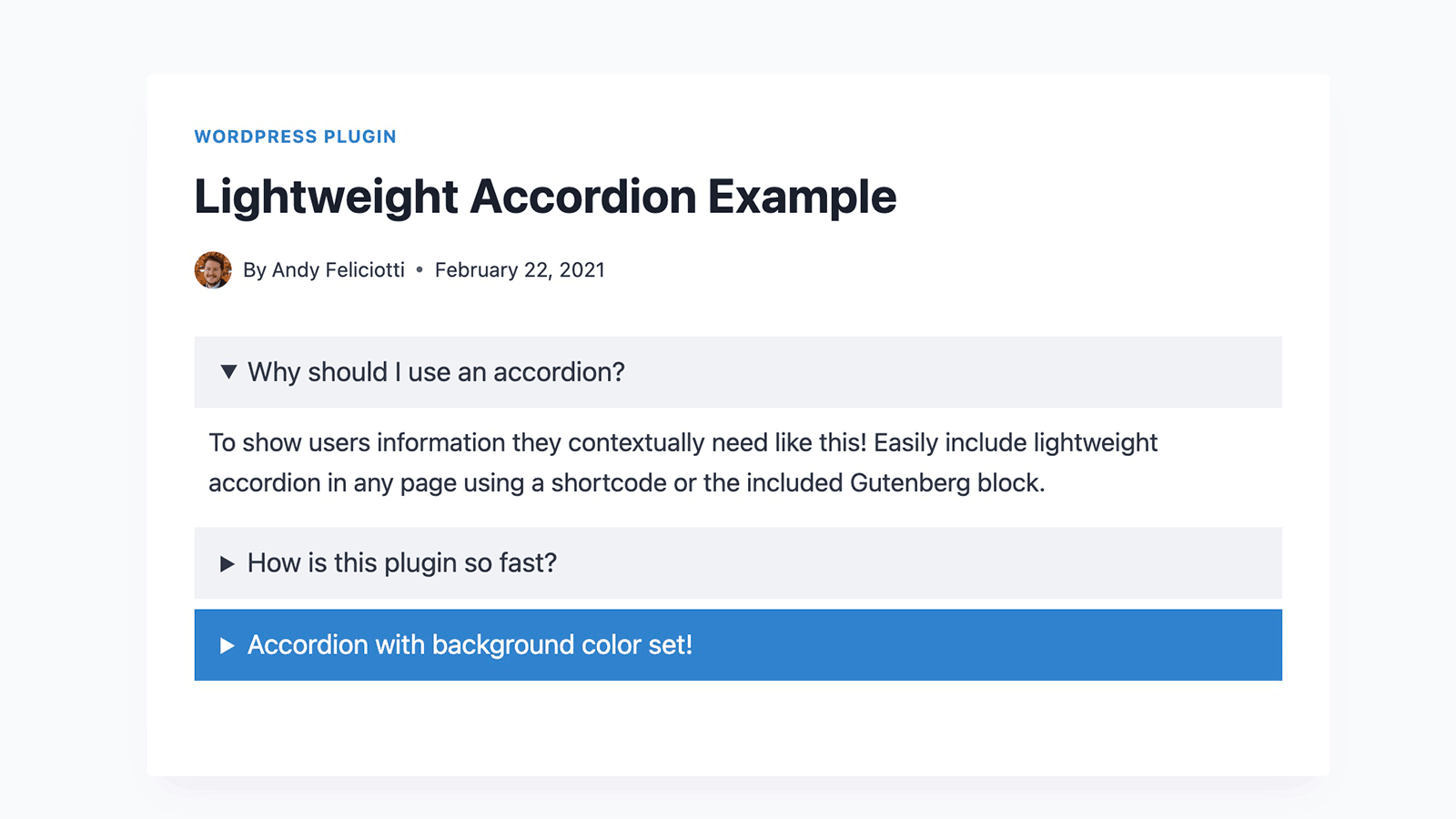
Example of the lightweight accordions on the front-end of the site.
Lightweight Accordion plugin for WordPress allows you to add collapse elements to posts using a Gutenberg block or a shortcode (via classic editor). By using the details HTML tag and a few lines of CSS this allows for a javascript-free accordion for minimum page load.
Extremely Lightweight (<1kb): Without using Javascript the plugin uses the native details HTML tag and a few lines of code for almost no impact on front-end.
Customizable: Options include customizing the HTML tag used for the accordion title, open by default, borders, colors, and accordion grouping (auto-close others when one opens).
Ready-made patterns: Insert an FAQ section (with FAQ schema), an accordion group that keeps one section open at a time, or bordered accordions from the Patterns tab of the block inserter, under Accordions.
Shortcode Usage examples
Here are a few examples of using the accordion plugin with shortcodes.
[lightweight-accordion title="My Accordion"]My Content[/lightweight-accordion]
Additionally you can display the accordion open on load with the accordion_open option.
[lightweight-accordion title="My Accordion" accordion_open=true]My Content[/lightweight-accordion]
You can also change the html tag wrapping the title of the accordion using the title_tag option.
[lightweight-accordion title="My Accordion" title_tag="h3"]My Content[/lightweight-accordion]
If you want to include FAQ schema you can add the schema option and set it to faq.
[lightweight-accordion title="What is your return policy?" schema="faq"]You have 1 week to return your items[/lightweight-accordion]
If you’d like put a border around the content of the accordion you can use the “bordered” attribute.
[lightweight-accordion title="Bordered Content" bordered=true]My Content[/lightweight-accordion]
If you want accordions to auto-close when another opens (exclusive accordion), use the “group” attribute with the same value on each accordion.
[lightweight-accordion title="Question 1" group="faq"]Answer 1[/lightweight-accordion]
[lightweight-accordion title="Question 2" group="faq"]Answer 2[/lightweight-accordion]
[lightweight-accordion title="Question 3" group="faq"]Answer 3[/lightweight-accordion]
If you’d like to swap the default triangle marker for a chevron or plus/minus icon (optionally on the right side of the title) use the “icon” and “icon_position” attributes.
[lightweight-accordion title="My Accordion" icon="chevron" icon_position="right"]My Content[/lightweight-accordion]
Shortcode Options
Here is the full listing of shortcode options. Additionally all of these options are accessible when using the Gutenberg block.
- title (Required Default: null) The title of your accordion will be displayed at the top for users to click. A good example would be to include a user’s question so they could click it for more details.
- content (Required Default: null) Content that will go into your accordion element.
- title_tag (Default: “span”) This sets the html tag that wraps the title in the accordion summary. Useful if you want to make it a heading tag for SEO purposes.
- accordion_open (Default: false) Set this to true if you want your accordion to be open by default.
- bordered (Default: false) Set this to true if you want a border around the accordion content.
- title_text_color (Default: false) Set this to a hex value or CSS color to change the color of the accordion title text.
- title_background_color (Default: false) Set this to a hex value or CSS color to change the color of the accordion title text.
- schema (Default: false) Set this to faq if you’d like FAQ schema to be included.
- class (Default: false) Used to add a custom class to the parent container of the accordion.
- anchor (Default: null) Adds the value as an ID to the accordion div as an anchor.
- autop (Default: true) By default the shortcode will wrap text in a ‘p’ tag. Set this to false if you’d like this disabled for the specific accordion.
- group (Default: false) Set this to a group name to make accordions with the same group auto-close when another opens. Uses the native HTML details name attribute for zero JavaScript overhead.
- icon (Default: false) Set this to “chevron”, “plus”, or “none” to replace the default triangle marker. The chevron rotates and the plus becomes a minus when the accordion opens.
- icon_position (Default: false) Set this to “right” to display the chevron or plus icon on the right side of the accordion title.
Additional Details
If you’d like to remove the “lightweight-accordion.css” from being enqueued on your site use the filter below. It’s recommend you style the accordion yourself if you use this filter.
add_filter('lightweight_accordion_include_frontend_stylesheet', '__return_false' );
If you’d like to remove the “lightweight-accordion/editor-styles.css” from being enqueued in the admin area of your site you can use the filter below.
add_filter('lightweight_accordion_include_admin_stylesheet', '__return_false' );
If you’d like to remove processing of shortcodes in accordion content you can use this filter.
add_filter('lightweight_accordion_process_shortcodes', '__return_false' );
If you’d like to use inline Microdata for FAQ schema you can use this filter. (Not recommended)
add_filter('lightweight_accordion_output_microdata', '__return_true' );
If you’d like to force “lightweight-accordion.css” to load on all of your site you can use this filter. By default the CSS only loads on pages that show an accordion (including accordions in widgets and page builders), so this is only needed for accordions added to the page some other way, for example with JavaScript.
add_filter('lightweight_accordion_always_include_frontend_stylesheet', '__return_true' );
When a page contains an accordion a tiny inline script is added to the footer that automatically opens accordions targeted by a URL hash (for example a link to an accordion’s anchor). If you’d like to disable this you can use the filter below.
add_filter('lightweight_accordion_anchor_script', '__return_false' );