


Insight Pricelist
0/5 (0 ratings) — active installs Updated Nov 3, 2026
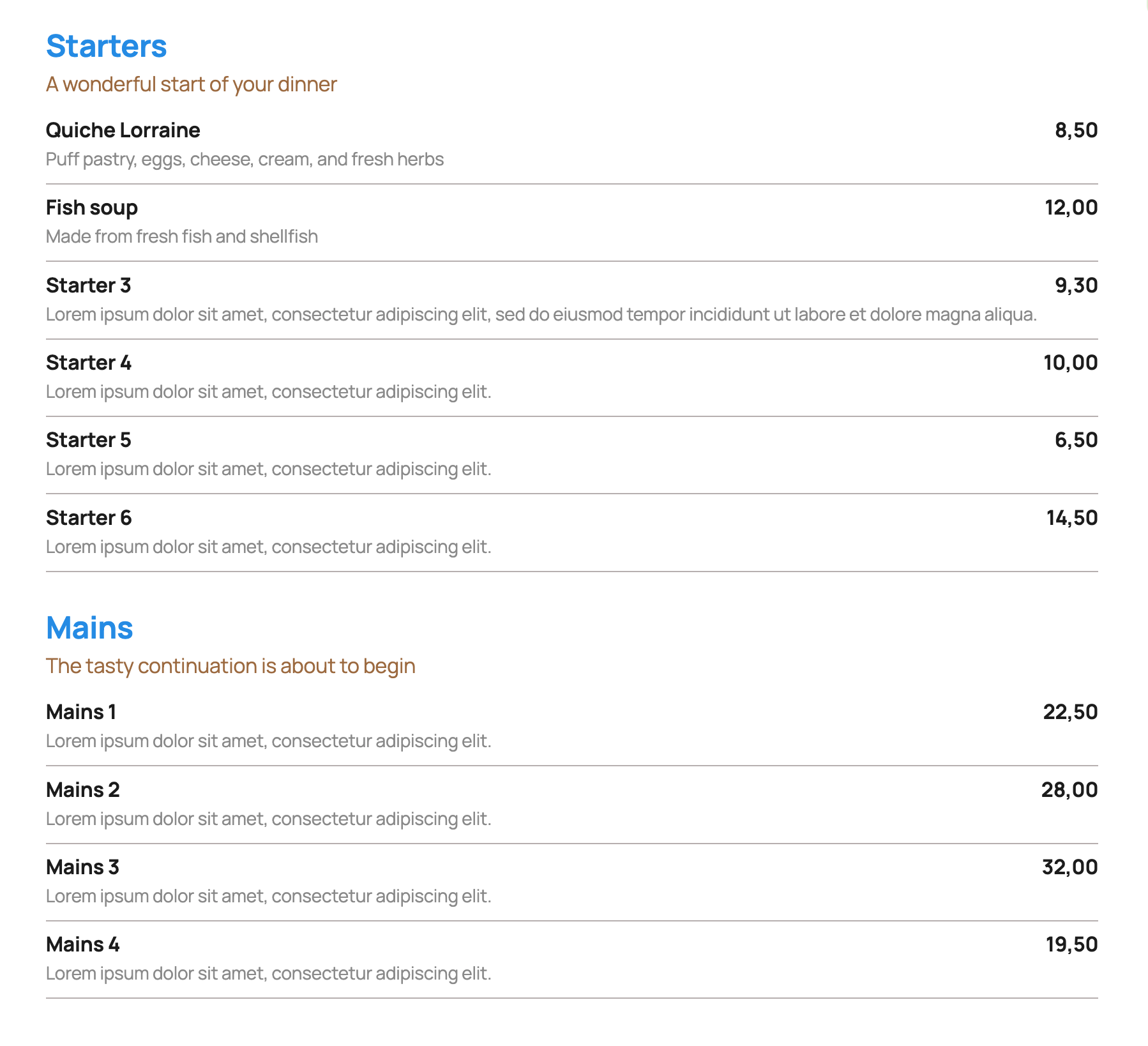
Frontend pricelist one column
Insight Pricelist stores each price list on its own. A list has sections. Each section has an optional slogan and products with a name, an optional description, and a price.
Add a published list to a page with:
[insight_pricelist id="your-list-slug"]
The id is the list slug, or the numeric id. The name insight_pricelist stays fixed. You can change the id. It selects the list and is saved as its slug. Leave it empty to keep the current slug.
- One column or two columns. Two columns stack on small screens. In two columns, the line under a row runs across both products.
- Show or hide the list name. It is hidden by default.
- Reorder sections, and reorder products inside a section.
- A line under each product, a dotted line between the name and the price, or no line. One color for both line styles.
- A currency symbol before or after the price. Leave the currency empty to show the amount only. The price itself is free text, and an empty price hides the currency.
- For the list name, section name, slogan, product name, description, and price: color, size, a CSS class, and a font the site already loads. The plugin does not add font files.
- Width follows the block the shortcode sits in, or uses the theme wide width.
- Duplicate a whole list, including its colors and content.
- In the editor, products stay collapsed until opened. Anyone who can edit the list can change its settings and publish it. Uninstall does not delete lists.
Do you need more
- Tab-style layout: sections as tabs, showing the products in that section only.
- Section and slogan left alignment or centered.
- Before each product: a photo, or one icon for the whole list.
- Client mode: edit settings with administrator privileges only.
- URLs (page or an external link) can be added to the product name or shown separately.
- Product Schema output.
- Separate class field for each section name (notranslate, target colors or any other need).
- Export (backup) and import.
- Import sections and products from pasted text.
- Show more: a fade after about five and a half products, and a button to open the rest.
- Export- and import your settings.
- Allergen icons per menu item (with a popup).
- PDF with allergen list (A4).
- A section or the whole pricelist can be printed to PDF (A4, products stay on one page).