

HiBuilder
Design WordPress Pages, Headers, and Footers with HiBuilder
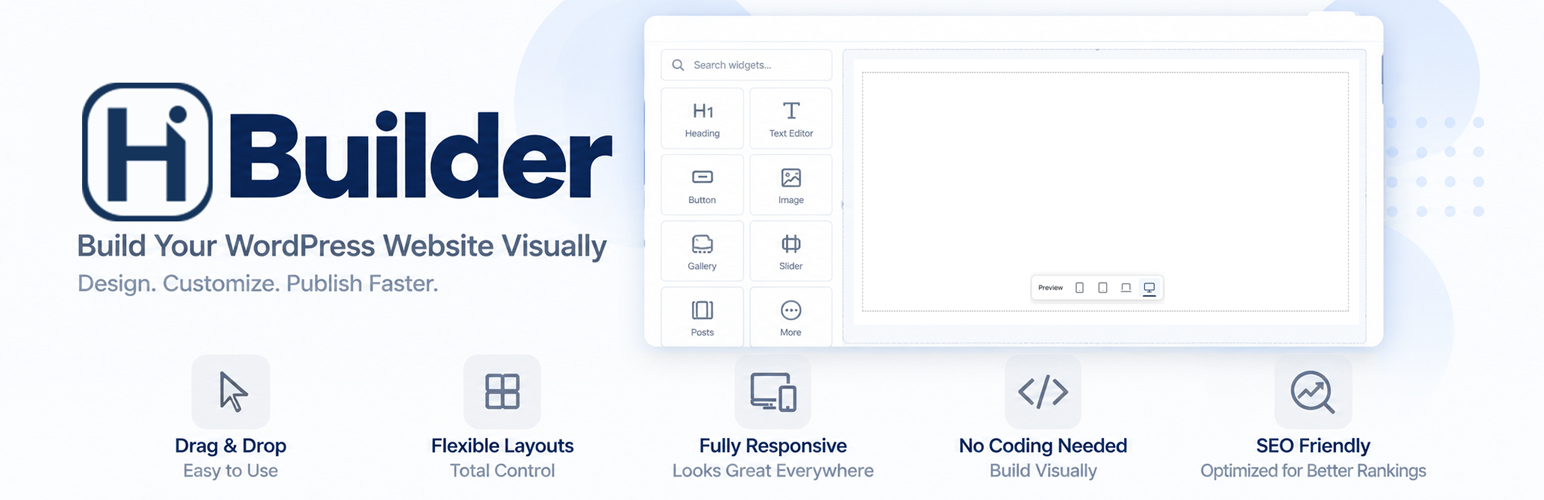
HiBuilder gives you a visual drag-and-drop workspace for creating landing pages, business websites, blog layouts, and WooCommerce content. Add widgets to a live canvas, arrange your columns, and fine-tune your design for desktop, laptop, tablet, and mobile devices.
Build with the included widgets and visual styling controls, then extend your design with custom CSS, HTML, and WordPress shortcodes when needed. HiBuilder includes its own editor, so no separate page-builder plugin is required.
Create Your Layout Visually
- Drag-and-drop editing: Add, move, duplicate, and remove widgets and columns directly on the canvas.
- Flexible columns: Build layouts with 1-12 columns, custom widths, and nested content.
- Responsive design: Preview four device sizes and adjust device-specific styles and visibility.
- Design controls: Customize typography, colors, backgrounds, borders, spacing, sizing, alignment, and entrance animations.
- Editing tools: Use undo, redo, and keyboard shortcuts while refining your layout.
- Page layouts: Choose full-width, boxed, or custom-width content and control page title visibility.
Key Features
- Header and Footer Builder: Create reusable templates and select where they appear across your website.
- WooCommerce widgets: Add product listings, an individual product, a shop, cart, checkout, and customer account content.
- Forms: Configure fields, email delivery, success messages, redirects, optional reCAPTCHA, and submission rate limits.
- Custom styling: Add sanitized Global CSS in Page Settings and widget-specific Custom CSS in the Advanced tab.
- Custom code: Add header, body, and footer code through HiBuilder settings.
- Page SEO settings: Set meta titles, descriptions, canonical URLs, noindex preferences, and schema markup.
- HiCanvas templates: Choose HiCanvas Full Width or HiCanvas with Sidebar as a starting layout for your page.
- Font choices: Use optional Google Fonts support to expand the available typography.
Content and Design Widgets
- Heading and Text Editor: Add headings and formatted text.
- Button: Create styled links and calls to action.
- Image: Display images with sizing, Default, Absolute, and Fixed positioning, and Z-Index controls.
- Image Plus: Add images with hover content and styling.
- Banner: Combine images, headings, and text in a featured section.
- Gallery: Arrange images in grid, masonry, or slider layouts.
- Slider and Carousel: Present visual content in sliding layouts.
- Columns: Organize widgets into flexible layouts.
- Accordions: Build expandable content with nested widgets, heading HTML tags, and heading border styles. Choose Accordion or Plain Title when adding an item.
- List: Present structured content with customizable headings and link options. Item links apply to the heading.
- Video: Embed supported video services or use self-hosted videos.
- HTML and Shortcode: Add custom markup or supported WordPress shortcode output.
Website and Navigation Widgets
- Site Logo: Add your site’s branding to a layout.
- Menu: Display WordPress navigation menus with styling and mobile menu controls.
- Search: Add a search form for your website’s content.
- Posts: Display WordPress posts with grid, slider, and pagination options.
- Form: Build forms with configurable fields and submission settings.
- Map: Embed a Google Map for a selected location.
- Social Media: Add links to your social profiles.
- Reviews: Display reviews, with optional Google Places review retrieval.
WooCommerce Widgets
Connect HiBuilder layouts to your WooCommerce store with dedicated widgets:
- WooCommerce Products: Display a collection of products.
- Single Product: Feature an individual product in your layout.
- WooCommerce Shop: Add shop content to a page.
- Cart Icon: Add a cart shortcut to your navigation or layout.
- WooCommerce Cart: Display the shopping cart.
- WooCommerce Checkout: Add the checkout experience.
- WooCommerce My Account: Display customer account content.
WooCommerce must be active to display live store content. Cart, Checkout, and My Account use sample content in editor previews.
Build Headers and Footers for Your Site
Create templates under HiBuilder > Header & Footer and design them with the visual builder. Combine your logo, navigation, search, cart icon, and other widgets to create a consistent site layout.
Choose a display condition for each template:
- Entire website.
- Homepage.
- All posts and pages.
- Archives and search results.
- Selected post or page IDs.
Enable or disable templates individually as your site changes.
More Control over Your Design
HiBuilder 2.0.48 adds image positioning and Z-Index controls, expands Accordion heading and item options, reorganizes List settings, and introduces the Single Product widget. These tools give you more control over layered images, structured content, and featured products.
HiBuilder is independently developed by Hi Classic. It is not affiliated with, endorsed by, or sponsored by any third-party brands or services mentioned in this readme.
External Services
HiBuilder can connect to the following optional external services when their features are configured. Each provider handles data under its terms and privacy policy.
Google Fonts
Google Fonts is disabled by default. When a site administrator enables it under HiBuilder > Settings, HiBuilder requests the Google Fonts metadata endpoint while an authorized user opens the builder so that the font selector can list available families. The response is cached for one week. When a Google Font is selected in published HiBuilder content, a stylesheet is loaded from Google Fonts in visitors’ browsers; this sends the visitor’s IP address and standard browser request information to Google.
Service information: https://developers.google.com/fonts/faq/privacy
Google Terms of Service: https://policies.google.com/terms
Google Privacy Policy: https://policies.google.com/privacy
Google Places API
The Reviews widget connects to the Google Places API only when an authorized editor supplies an API key and requests reviews for a business. HiBuilder sends the entered business name, location, or Place ID to Google and stores the returned review content in the page layout. Use of this feature requires a Google API key.
Google Maps Platform Terms: https://cloud.google.com/maps-platform/terms
Google Privacy Policy: https://policies.google.com/privacy
Google reCAPTCHA
When a site administrator saves reCAPTCHA keys under HiBuilder > Settings, HiBuilder loads Google reCAPTCHA on pages containing HiBuilder forms. Form submissions send the reCAPTCHA token and visitor IP address to Google for spam verification.
Google Terms of Service: https://policies.google.com/terms
Google Privacy Policy: https://policies.google.com/privacy
Google Maps embeds
Adding a Map widget embeds Google Maps for the selected location. The editor and visitors viewing that widget connect to Google, sending the location query, IP address, and standard browser request information. Google may use cookies according to its privacy policy.
Terms: https://cloud.google.com/maps-platform/terms
Privacy: https://policies.google.com/privacy
Video embeds
The Video widget supports YouTube, Vimeo, and Dailymotion. Adding or configuring an external video embeds the selected provider’s player. The editor and visitors viewing the widget send the video identifier, IP address, and standard browser request information to that provider, which may use cookies. YouTube privacy mode uses youtube-nocookie.com but still connects to YouTube. Self-hosted videos do not require these providers.
YouTube Terms: https://www.youtube.com/t/terms
YouTube Privacy: https://policies.google.com/privacy
Vimeo Terms: https://vimeo.com/terms
Vimeo Privacy: https://vimeo.com/privacy
Dailymotion Terms: https://legal.dailymotion.com/en/terms-of-use/
Dailymotion Privacy: https://legal.dailymotion.com/en/privacy-policy/
Source Code
All plugin source is included in this package. The readable files in assets/js/ and assets/css/ are used directly by WordPress. There are no compiled bundles, minified JavaScript assets, or required build steps. Edit these source files directly; no npm, webpack, or other build tool is needed.
Shortcode output is filtered to the HTML supported by HiBuilder. Shortcodes that return inline scripts or styles must enqueue their assets through WordPress instead.
Third-party Credits
Inline icons include Lucide (ISC license) and Feather (MIT license). Copyright and full license notices are included in licenses/lucide-feather-LICENSE.txt.
Lucide source: https://github.com/lucide-icons/lucide
Feather source: https://github.com/feathericons/feather
Usage
WooCommerce Setup
- Install and activate WooCommerce, then configure your store and add products.
- Use Products, Single Product, or Shop widgets to add store content to a HiBuilder layout.
- Add one Cart, Checkout, or My Account widget to its respective page.
- Assign those pages under WooCommerce > Settings > Advanced.
- Save your layouts and check the published pages with live store content.
Cart and Checkout use WooCommerce blocks and require a WooCommerce version that provides those blocks. Editor previews use sample cart, checkout, and account content.