

Logo Slider – Logo Showcase, Logo Carousel, Logo Gallery and Client Logo Presentation
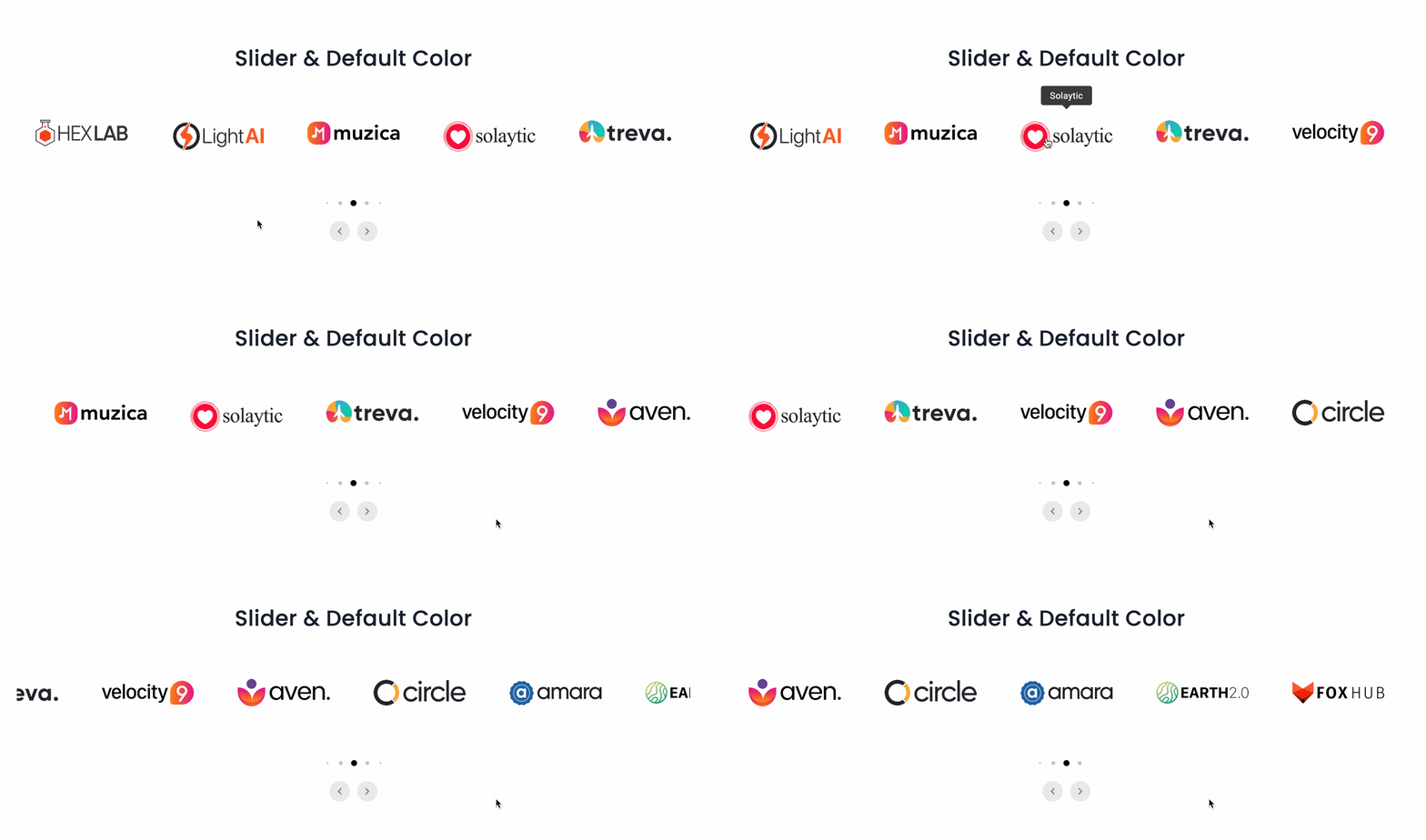
Default Color.
GS Logo Slider is a WordPress plugin that simplifies showcasing your partners, clients, brands, and sponsors. It allows you to create a logo slideshow quickly and easily. Featuring logos of respected companies on your website builds trust and credibility, while also boosting brand awareness for your partners, leading to stronger collaborations.
The plugin is user-friendly, creating a dedicated logo post type and offering a user-friendly Shortcode generator for easy embedding. Its responsive design ensures that responsive sliders look great on all devices, and the lightweight plugin keeps your site running smoothly. Focus on what matters with GS Logo Slider.
🎬 Live Demo ⬆️ Upgrade to PRO 📚 Documentation 🙋♂️ Support
Why are logo sliders useful for businesses?
Logo sliders help businesses show their partners and clients, building trust and credibility. They save space on the website while highlighting important relationships. Not only it boosts brand recognition but can lead to more collaborations as well.
What Sets GS Logo Slider Apart?
- Responsive Across All Screen Sizes: This responsive logo slider effortlessly adjusts to any screen dimension, maintaining a polished look on desktops, tablets, and smartphones. Your logo display holds its visual appeal on all devices.
- Comprehensive Documentation: The plugin includes thorough documentation that assists users with installation, configuration, and advanced customization options. It enables even those with limited technical skills to utilize it effectively.
- Regular Updates: GS Logo Slider receives frequent updates to integrate the latest advanced features and security improvements. This ensures the plugin stays reliable and compatible with the newest WordPress versions.
- High Performance: Engineered for speed and efficiency, GS Logo Slider delivers rapid loading times and smooth functionality. Its high performance enhances user experience and minimizes bounce rates.
Plugin Features – Logo Carousel
GS Logo Slider is a powerful plugin with a rich array of functionalities. Here’s its huge features list:
- Versatile Layouts: Choose from a variety of layouts including Grid, List, Table, Filter, Live Filter, Full Width Slider, Center Mode, Variable Width Slider, Vertical Center Slider, Vertical Ticker Up, Vertical Ticker Down, and 2 Rows Slider.
- 24 Different Themes: Choose from a variety of pre-designed themes.
- Image Size Control: Select logo image sizes from Thumbnail, Medium, Large, or other registered sources.
- Template Override: Override default templates for a personalized touch.
- Drag & Drop Reorder: Easily reorder logos as needed.
- Gutenberg Blocks: Insert a saved shortcode with GS Logo Shortcodes, or build a slider, grid, list, or table inline with the GS Logo Slider Builder block.
- Logo Shortcode Ready: Easily insert logos using Shortcodes.
- Tooltip Option: Add informative tooltip descriptions to logos.
- Multiple Sliders on Same Page: Display sliders from different categories on the same page.
- Advanced Settings Panel: Comprehensive slider settings panel with all necessary options.
- Slider Customization: There are customizable options such as adjusting slider carousel speed, slider autoplay pause, navigation, pagination, drag-and-drop feature, and color settings.
- Directional Control: Logos can move Right to Left (default) or Left to Right for Slider & Ticker Theme.
- Display Options: Display logos horizontally or vertically.
- Infinite Loop: Enable or disable infinite loop.
- Ticker Mode: Slide in ticker mode, similar to a news scroll.
- Grayscale Feature: Option to display logos in grayscale.
- Hover Control: Stop sliding on hover.
- Title Display: Display logos with or without titles.
- Link Target Specification: Specify the target for logo links to open in a new tab or same window.
- Transition Control: Set the number of logos to move during transition effects.
- Shortcode Parameters: tons of Shortcode parameters for customization.
- Category-wise Logos: Display logos based on categories.
- Lightweight and Plug-and-Play: Simple installation with no configuration or extra code required.
- Custom Post Type for Logo Posting: Dedicated post type for managing logos.
- Compatibility: Works with all WordPress themes.
- User-Friendly: It has an easy-to-use user interface for managing, editing, creating, and deleting logos without new knowledge.
- Developer Friendly: Simple to customize and extend its functionalities using Hooks.
- Priority Email Support: Get assistance via priority email support.
- Free Installation Help: Free installation service if needed.
- Continuous Updates: Stay updated with new features and improvements.
- Auto Update: Receive notifications for updates and easily update the plugin from your dashboard.
- Well-Documented: Comprehensive documentation and support.
The plugin is advanced, feature-rich and is designed to provide a powerful, user-friendly, and customizable solution for displaying logos on your WordPress site.
Available Fields While Adding a Logo
Adding logos using this responsive carousel slider is very simple. There are only four fields to enter data into. They’re as follows:
- Company Name: Write the name of the brand of the logo that you’re going to enter here.
- Logo: Upload the brand logo image here.
- Company URL: Enter the website’s URL here.
- Logo Categories: Add new categories for the logo or choose from existing categories (if any).
General Settings
Go to GS Logos > Logo Shortcode. Here, you can either create a new Shortcode or edit the existing ones. Once inside, you’ll see the General Settings page.
- Name of the Shortcode: Decide on a unique name for your Shortcode.
- Style & Theming: Choose a style or theme for your Shortcode.
- Image Size: Select the image size for the logos from options such as medium, large and custom.
- Sliding Speed: Control the slider speed.
- Autoplay: Turn auto sliding of the logos on or off.
- Autoplay Delay: Set how long to delay the auto sliding.
- Pause on hover: Specify if autoplay should cease when the user hovers on a logo.
- Infinite Loop: Specify whether clicking the next button on the last slide logo will loop back to the first slide, and clicking the previous button on the first slide will loop to the last slide.
- Reverse Direction: Set logo sliding direction from right to left (default is left to right)
- Slider Navs: Activate/deactivate logo sliding buttons.
- Navs Position: Determine the position of the navigation arrows. Options for setting arrow icons are bottom nav, inside/outside the slider component.
- Slider Dots: Show or hide the dots under the slider. They make the navigation of the logos easier.
- Logo Title: Opt to display logos with titles or without.
- Logo Category: Select whether logos should be shown with accompanying titles.
- Secondary Image: Show different images when hovering on the logos.
- Tooltip: Decide whether to show tooltips when hovering on images or not.
Style Settings
Go to GS Logos > Logo Shortcode. In the second tab you’ll see the Style Settings Page.
- Logo style: Select whether logos will show in color or in grayscale.
- Adjustable Spacing: Set the margin between logos in pixel values.
- Desktop Logos: Set the number of logos to show on desktop screens.
- Tablet Logos: Choose how many logos to display on tablet screens.
- Mobile Logos: Configure the list of logos visible on mobile screens.
- Clickable Logos: Set whether clicking on a logo opens its link on a new page or in the current page.
Query Settings
Go to GS Logos > Logo Shortcode. In the third tab, after the General Settings and the Style Settings tab, you’ll see the Query Settings tab.
- Logos: Set the number of logos you want to show. Default value is -1, and it means all the logos will be shown.
- Order: Specify the order in which you want your logos to show. The criteria for ordering can be set from the Order By field.
- Order By: Choose whether to order your logos by name, id, date of adding or you can select a custom order of your choice. Also, you can randomize the logo sequence on every page refresh.
- Categories: Select a specific logo category to display logos from that category. You can select multiple categories here.
Preferences
Go to GS Logos > Logo Shortcode. On the top right navigation bar, click on Preferences. You’ll see the following fields:
- Disable Lazy Load: Disable or enable lazy loading of the logo images.
- Anchor Tag rel: Choose the value for the Anchor tag’s rel attribute to enhance security and SEO. By default, the value is set to dofollow.
- Custom CSS: Easily add your own custom CSS to the WordPress logo slider plugin for complete control over the appearance and styling of your logo displays.
Page Builder Support
- Gutenberg
- Elementor
- WPBakery
- Divi Builders
- Genesis Framework
- Beaver Builder
- Oxygen Builder
- UX Builder – Flatsome
- TagDiv – Newspaper
Shortcode Usage
Basic Usage –
From Version 3.0.0, shortcode generator was added with a preview. Select theme & other parameters. Shortcode will generate with id like [gslogo id=1]
Use the following shortcode to display logos for partners, clients, or sponsors.
[gslogo id=1]
Shortcode PHP Usage
<?php echo do_shortcode( '[gslogo id=1]' ); ?>
Documentation
If you have any questions regarding the WordPress Logo Carousel plugin and how to work with it, We recommend referring to our comprehensive online documentation. It provides detailed information and instructions to assist you in navigating and utilizing the plugin effectively. You can find the Documentation here.
Quick Support & Bug Reporting
If you encounter any problems or discover bugs, please post them in our Support channel. We aim to respond as soon as possible (excluding holidays).
Pro users are requested to contact our support channel for dedicated assistance.
🙋♂️ Alternatively, you can reach out to us through our Support or WordPress.org support forum.
Development Team
Crafted and Developed with Passion by GS Plugins
Confused?
🎬 View live Demos »
📚 Documentation »
🔥 More Essential Plugins You Want To Get From GS Plugins
⭐ Solid Testimonials – Showcase client reviews, recommendations, and quotes creatively across pages and widgets for maximum impact.
💼 Filterable Portfolio – Showcase your work with clean, responsive layouts, including Grid, Slider, Filter, Masonry, and Popup.
👥 Team Members – Create attractive team sections highlighting members, roles, expertise, and professional strengths.
🎁 Project Showcase – Display projects as a portfolio with complete details, including URL, client reviews & ratings, gallery & videos.
📚 Books Showcase – Display books with authors, dates, reviews, ratings, galleries, and helpful details with 35+ designs.
👨🏫 Coaches – Showcase coaches’ skills, experience, certifications, reviews, ratings, and professional expertise clearly.
⊞ Posts Grid – Display recent WordPress posts in elegant 50+ styles for faster browsing and seamless navigation.
🎯 WooCommerce Plugins
🛒 WooCommerce Products Slider – Display WooCommerce products in smooth sliders, helping shoppers browse items more easily.
🛍️ WooCommerce Variation Swatches – Replace product dropdowns with attractive swatches for easier and faster variation selection.
💎 WooCommerce Brands – Add brand taxonomy for organizing, displaying, and filtering WooCommerce products efficiently.
📣 Social Plugins
📌 Pinterest Portfolio – Showcase Pinterest pins on WordPress, increasing engagement, visibility, and profile traffic.
▶️ YouTube Gallery – Feature YouTube channel or playlist videos in attractive galleries for easier visitor viewing.
🏆 Branding Plugin
⚡ PowerUp – Improve WordPress security and convenience with redirects, restrictions, admin controls and many more.