

Lightbox & Modal Popup WordPress Plugin – FooBox
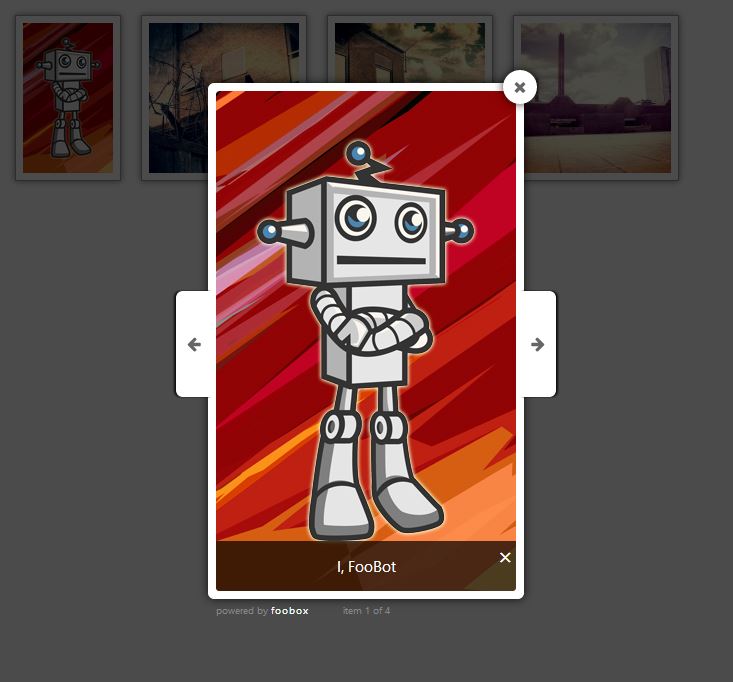
Frontend example
FooBox adds a lightbox to your WordPress site, so images are loaded in a modal or popup instead of redirecting your visitors away from your site.
Some people often refer to a lightbox as an “Image Zoom” effect. It’s really just a modal overlay or popup that showcases your images.
FooBox was the first lightbox to take responsive layout seriously. Not only does it scale images to look better on phones, but it rearranges it’s button controls to look great in both portrait or landscape orientation.
Add a modal popup to your website images with no setup. FooBox will automatically add modals to WordPress galleries, WordPress images with captions, and attachment images.
NEW: Auto Link Existing Images
Have older posts with images that do not open in FooBox? That is probably because those images were inserted without linking to the full-size media file.
Enable Auto Link Existing Images and FooBox will automatically wrap unlinked WordPress attachment images on the frontend, so visitors can open them in the lightbox without you editing old content.
Works with most image gallery plugins, but works best with our FooGallery Gallery WordPress Plugin.
FULL GUTENBERG SUPPORT
FooBox adds native block-editor controls to core Button, Image, Gallery, and Group blocks:
- Image blocks support media linking, captions, style, theme, gallery grouping, maximum dimensions, large-image panning, and opening effects in FooBox Pro.
- Gallery blocks share style, theme, modern gallery grouping, and FooBox Pro opening effects with their child Image blocks.
- Button blocks can open images and auto-detected image URLs. FooBox Pro adds video, iframe, and hidden HTML targets, plus video-poster controls.
- Group blocks can become hidden inline content that a FooBox Pro Button opens in a modal.
- An opt-in compatibility setting lets FooBox take over Image and Gallery blocks using WordPress’s own “Open in lightbox” option.
FooBox Pro is required for HTML, iframe, and video content handlers and for all opening effects. These controls remain available in the block editor so content can be configured before upgrading without being rebuilt.
FooBox Image Lightbox Features:
- Responsive lightbox design
- Modern lightbox design
- Zero configuration!
- Works with WordPress galleries
- Works with WordPress captioned images
- Auto links older unlinked WordPress attachment images
- Control when to exclude / include FooBox JS & CSS assets
Includes a 7-day free trial of FooBox Pro Lightbox!
You can try the PRO version for free for 7 days.
FooBox PRO Features:
- Social sharing (10+ networks)
- Video lightbox support
- HTML lightbox support
- iFrame support
- Deeplinking
- Fullscreen and slideshow modes
- Glass lightbox theme (including custom color pickers)
- Metro lightbox theme
- Flat lightbox theme
- 5 color schemes, 12 button icons and 11 loader icons
- 12 animation effects
- 85+ settings to customize
FooBox PRO Works With:
- The Best Image Gallery Plugin for WordPress
- NextGen
- Justified Image Grid
- Envira Gallery
- WooCommerce product images (Works with WooCommerce v3+)
- JetPack Tiled Gallery
- AutOptimize
Check out the full feature comparison.
Complete FooBox Asset Control
By default, FooBox lightbox includes javascript and stylesheet assets into all your pages. We do this, because we do not know if the page content contains media or not.
If you want more control over when FooBox assets are included, you can now exclude the assets by default, by enabling a setting. Then on each page, you can choose to include them when required.
Alternatively, you can leave the setting disabled, and then choose to exclude the FooBox assets from particular pages. A new metabox is now available when editing your pages or posts.
This new feature was only available in the PRO version beforehand, but we feel control over your website performance is something you should not have to pay for. Enjoy!
Translations
Block Editor Usage
FooBox adds a “FooBox” panel to supported core blocks in the WordPress block editor. Select a Button, Image, Gallery, or Group block, then open the block inspector sidebar to configure FooBox for that block.
For a quick reference inside WordPress, open FooBox > Getting Started > Block Editor. This help tab includes the common Image, Gallery, Button, and hidden-content workflows, plus a control reference and troubleshooting tips.
Images
- Add or select an Image block.
- Open the FooBox panel and enable FooBox.
- Use “Link image to media file” if the image is not already linked to the full media file.
- Optionally set a style, theme, gallery group, caption title, caption description, max size, or large-image panning. Opening effects require FooBox Pro.
Galleries
- Add or select a Gallery block.
- Open the FooBox panel and enable FooBox.
- Use “Link gallery images to media files” so each image opens in FooBox.
- Set an optional gallery group, style, or theme. FooBox mirrors gallery settings to the child Image blocks and groups them without relying on legacy
relattributes. Opening effects require FooBox Pro.
Buttons
- Add or select a Button block.
- Open the FooBox panel and enable FooBox.
- Choose auto-detect or image for image targets. HTML content, iframe, and video targets require FooBox Pro.
- Enter a Lightbox URL or target. Use “Select from media library” to choose an image or media file and fill the URL automatically.
- Optionally set width, height, captions, style, theme, or gallery group. Opening effects and video poster images require FooBox Pro.
- With FooBox Pro, hidden inline content can point to a target id such as
#demo-hidden-form.
Hidden HTML Content (FooBox Pro)
Opening a Group block as hidden inline content requires FooBox Pro.
- Add a Group block and build the content inside it using normal blocks.
- Select the Group block and enable “Use as hidden FooBox content”.
- Set an HTML id or generate one from the FooBox panel.
- Leave “Hide on front end” enabled when the content should only appear inside FooBox.
- Create a Button block, enable FooBox, set the content type to HTML content, and point the Lightbox URL or target field to the Group id.
WordPress Lightbox Compatibility
FooBox can take over Image and Gallery blocks that use WordPress’s own “Open in lightbox” option. Enable this under FooBox Settings > General > Compatibility > WordPress Lightbox. This setting is off by default for upgrade safety.
The Compatibility settings also include “Default Image Link” for setting WordPress’s default image link behavior and “Auto Link Existing Images” for older attachment images that were inserted without media-file links.