


Extnify Fee Rules for WooCommerce
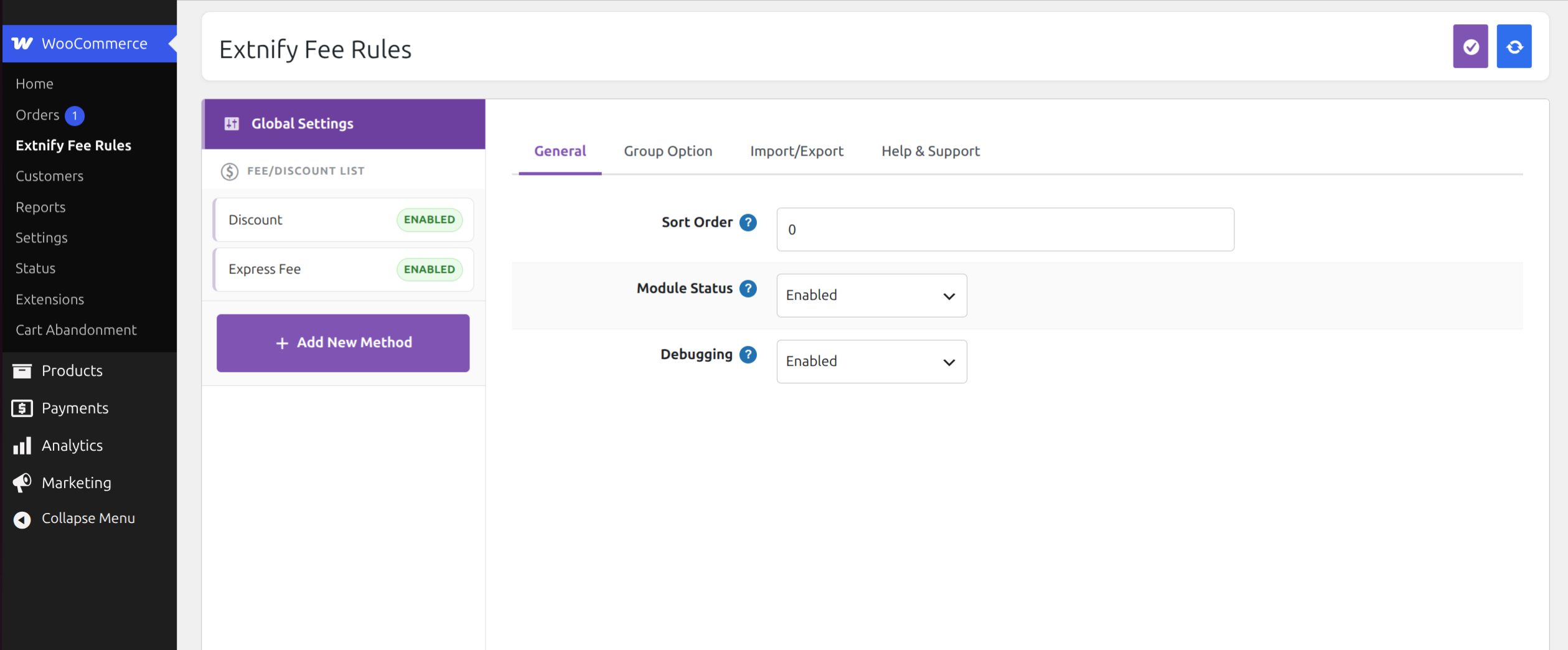
Global settings and your list of fees.
Extnify Fee Rules lets you add your own fees — or discounts — to the WooCommerce cart and checkout, and applies them automatically when the cart matches. There’s no code for the customer to type: a matching fee simply appears on the totals.
Create as many fees as you need, set each one as a flat amount or a percentage of the subtotal, and limit when it applies by shipping zone, payment method and shipping method. A positive amount adds a fee; a negative amount shows as a discount. Everything is managed from one simple screen, and a built-in live log shows you exactly why a fee did or didn’t apply.
Read the documentation » | Try the live demo »
See it in action:
What you can do with Extnify Fee Rules
- Charge a processing, handling or service fee on every order.
- Add a surcharge only for Cash on Delivery (or any chosen payment method).
- Apply a fee only in a certain shipping zone — or only with a certain shipping method.
- Give an automatic discount by entering a negative amount — no coupon code needed.
- Charge a flat amount ($5) or a percentage of the subtotal (10%).
- Run several fees at once — each one checks its own rules independently.
Add fees or discounts
One form creates both. Enter 5 for a $5 fee, or -5 for a $5 discount. Enter 10% for ten percent of the subtotal, or -10% to take ten percent off. A positive amount is added to the totals as a fee; a negative amount shows as a reduction. Every matching fee applies on its own — the customer doesn’t choose anything.
Conditional rules
Each fee only applies when the cart matches the rules you set, combined with AND. Leave any rule at “For any” to ignore it. The free version gates fees by:
- Shipping zone — the WooCommerce zone the destination falls in.
- Payment method — the gateway the customer chose at checkout.
- Shipping method — the shipping option chosen (if you also run Extnify Shipping Rules, its methods are listed here individually).
Flat or percentage amounts
Set a fixed value, or add a trailing % to make it a percentage of the cart subtotal. No currency sign needed — just the number. Tiered (range-based) amounts and extra percentage bases are available in Pro.
Tax handling
Pick a tax class per fee, or set it to None for a non-taxable fee. Fee tax follows your WooCommerce tax settings.
Easy management
Create, enable, disable, copy, delete and bulk-save all your fees from one screen, and set the order they’re applied in. New fees appear in the sidebar instantly and are written to the database when you save.
Live debugging
When a fee doesn’t show up and you’re not sure why, turn on the built-in debug log. For each fee it reports whether its rules passed or failed, the resolved amount, and whether it was applied or skipped — so you can see exactly which rule filtered it out. The log is stored in your own database (never a file, never sent anywhere) and can be cleared with one click.
Works everywhere WooCommerce does
Fees are applied server-side through WooCommerce’s standard fee system, so the totals are correct on both the classic and the block cart and checkout.
Built for speed and privacy
- No external requests and no tracking — every rule and calculation runs on your own store.
- Lightweight — no bloat, no third-party libraries pulled in on your storefront.
- Translation-ready — ships with a
.potfile and a cleanextnify-feetext domain. - Clean uninstall — deleting the plugin removes its table, option and log; nothing is left behind.
Need more? Extnify Fee Rules Pro
Extnify Fee Rules Pro adds:
- Product, category and brand targeting, plus date/time, location, coupon and customer conditions.
- Tiered (range-based) amounts with min/max caps.
- More percentage bases (grand total, weight, quantity and more).
- Fee grouping and tax-inclusive fees.
- CSV import/export.
Your free fees carry over automatically — Pro shares the same data.
More plugins by Extnify
- Extnify Shipping Rules — build your own conditional WooCommerce shipping methods and rates.
- Extnify Offer Rules — let customers pick selectable discounts or add-ons at checkout.
Extnify Fee Rules is built by Extnify, the team behind the X-FeePro extension for OpenCart.