
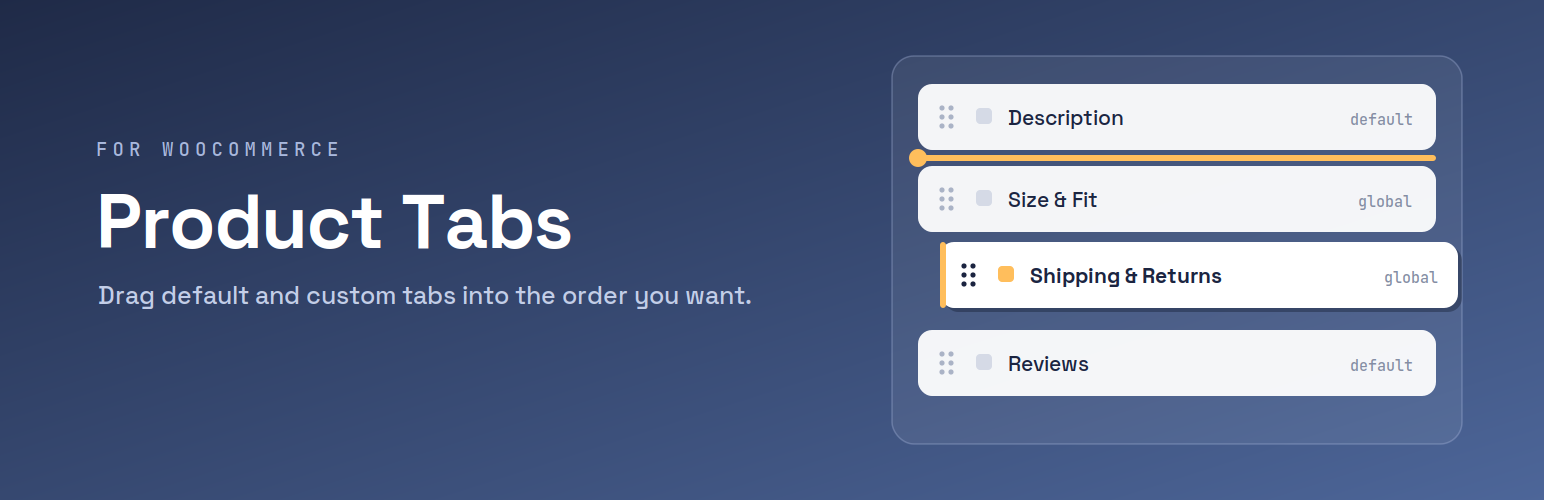

Product Tabs for WooCommerce

Product Tabs list screen for managing reusable tabs
Product Tabs for WooCommerce helps store owners organize product information in a clear, consistent way—without duplicating content across products.
If you manage more than a handful of products, keeping tabs like Shipping, Returns, Size Guides, Warranty, or Ingredients in sync quickly becomes frustrating. This plugin solves that by letting you create reusable product tabs and decide exactly where, when, and how they appear.
Why this plugin?
- Create tabs once and reuse them across your catalog
- Show tabs only on specific products, categories, tags, or brands
- Override or hide a global tab on a single product when needed
- Control the final tab order—including default WooCommerce tabs
- Add icons and switch between tabs or accordion layout
- Keep everything manageable from familiar WooCommerce screens
Unlike many alternatives, these features are available without locking core functionality behind a paywall.
Built for real WooCommerce stores
Tabs support normal WordPress content, so shortcodes, embeds, HTML, and blocks work as expected. Icons can be added using Dashicons or the bundled Font Awesome set to make tab headings easier to scan.
For mobile-friendly layouts, tabs can be displayed as an accordion with one setting—ideal for long product pages.
The plugin is designed to integrate cleanly with WooCommerce. It declares compatibility with High Performance Order Storage (HPOS), Cart & Checkout Blocks, and supports WooCommerce Brands when that taxonomy is available.
How it works
- Go to Products Product Tabs to create reusable (global) tabs
- Add a title, content, and optional icon
- Assign categories, tags, or brands to control where the tab appears
- Leave assignments empty to show the tab on all products
When editing an individual product, you can:
- Add product-specific tabs that apply only to that product
- Hide a global tab for that product
- Override a global tab’s content while keeping its title and icon
To control the order, open Products Product Tabs Reorder and drag default WooCommerce tabs and global tabs into the exact sequence you want. Product-specific tabs appear afterward in their own order.
What you can do
- Create reusable WooCommerce product tabs
- Add custom tabs to individual products
- Target tabs by category, tag, or brand
- Override or hide global tabs per product
- Rename or hide default WooCommerce tabs
- Reorder all tabs from one screen
- Add icons to tab headings
- Display tabs as an accordion layout
- Use shortcodes, embeds, and HTML in tab content
Real-world examples
- Fashion stores add a “Size & Fit” tab across all apparel, while showing “Care Instructions” only for certain materials
- Electronics shops reuse a “Warranty” tab, but override the content for premium models
- Food and cosmetics display “Ingredients & Allergens” only where required
- Multi-brand stores show a “Brand Story” tab only on products from that brand
- Policy content like “Shipping & Returns” is managed once and reused consistently
Instead of copying content into every product, you manage it centrally and adjust only when a product truly needs something different.
Compatibility
Works with WordPress 6.0+ and WooCommerce 6.0+ (tested up to WooCommerce 10.3.0). Compatible with HPOS, Cart & Checkout Blocks, and WooCommerce Brands when available.
Privacy
This plugin does not collect or transmit personal data. All settings and content are stored locally in your WordPress database.