

Coywolf Video Manager
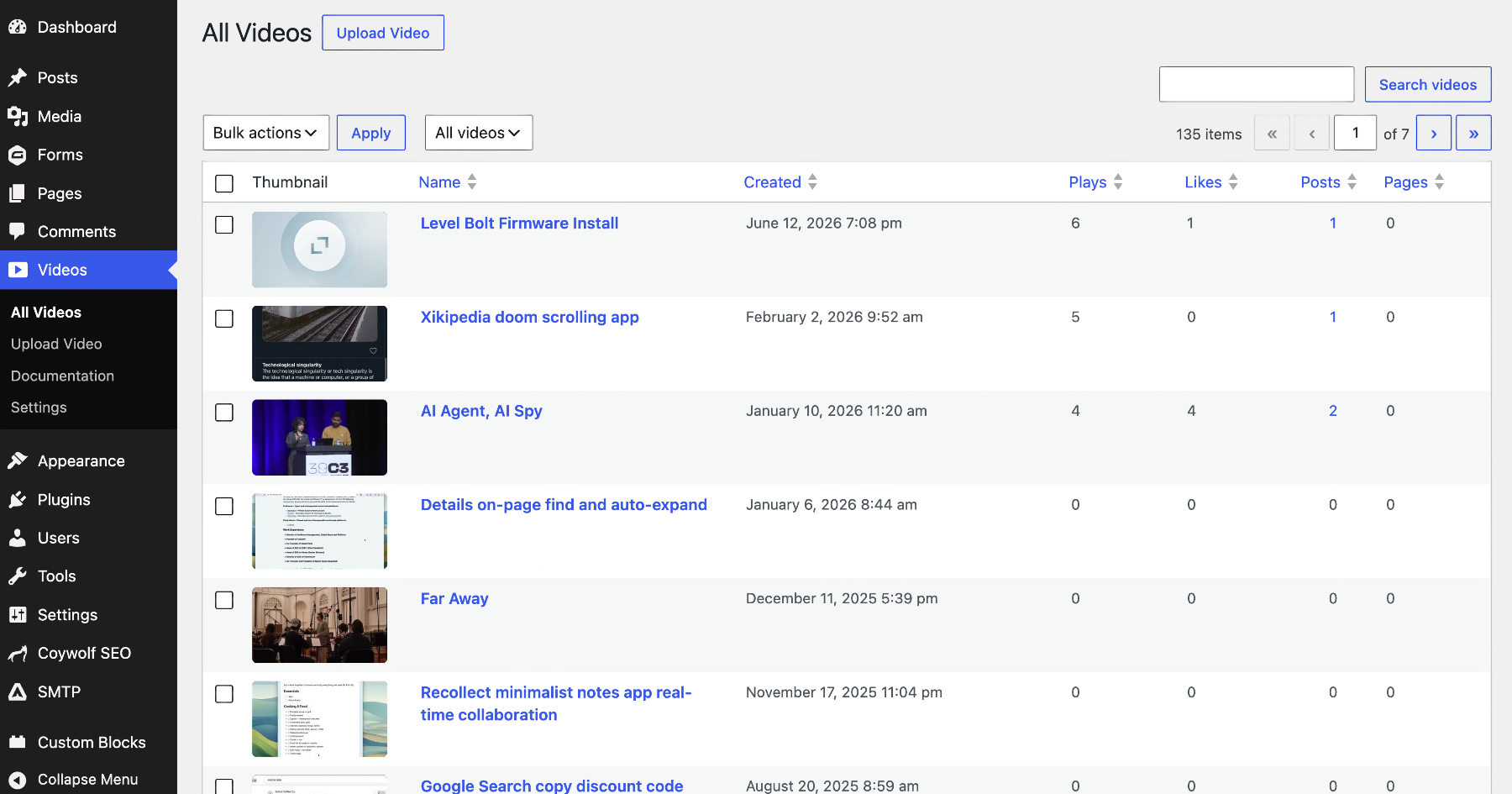
The All Videos library with sortable columns for plays, likes, posts, and pages, plus bulk actions, filtering, and search.
Coywolf Video Manager turns the WordPress admin into a control panel for your Cloudflare Stream account. Connect it with a Cloudflare API token and you can browse, search, edit, and upload videos, then embed them anywhere with a block — no trips to the Cloudflare dashboard.
Features:
- Video block — search your entire Stream library and embed a responsive video in a figure/figcaption, or upload a new video to Cloudflare without leaving the editor. Per-block control over size (responsive or max-width), poster (by timestamp or Media Library), start time, and playback options (controls, autoplay, loop, preload, mute, lazy-load).
- Cloudflare Stream player — the official Stream player, with an optional play-button accent color and a player background color (transparent by default, so letterboxing blends into your page).
- Likes, views & upload date — a YouTube-style row under each video. Cloudflare’s API does not expose likes or views, so the plugin records them locally in WordPress. Displayed likes never exceed the view count.
- Video schema — automatic VideoObject JSON-LD with a large (1200px) thumbnail, description, duration, upload date, and optional view/like interaction counts. Videos with captions also get a full plain-text transcript and a downloadable caption VTT track (linked straight from Cloudflare, or mirrored into the uploads folder when Cloudflare doesn’t serve it publicly).
- All Videos screen — a table of every video with views, likes, tags, and how many posts and pages embed each one.
- Tags — organize your library with tags. Add them when uploading or editing a video, or in the block; set default tags in Settings that apply automatically to every upload; and bulk-add tags to selected videos. Tags show as #tag chips in the All Videos table — click one (or type #tag in the search box) to filter the list to that tag.
- Edit Video screen — rename, add tags and a description (used in schema + the sitemap), set the creator, manage allowed origins, choose the poster (a timestamp with a live preview, or a Media Library image at the recommended size), copy the video ID, and add or AI-generate captions.
- Upload to Cloudflare — upload videos straight from WordPress on the Upload Video screen, or from the block itself when adding a video, then jump to the Edit screen when processing finishes.
- Video XML sitemap — optionally serve /coywolf-video-sitemap.xml (named to avoid clashing with Yoast SEO) listing every page and post that embeds a video, with full Google video tags (thumbnail, title, description, content and player URLs, duration, publication date, view count).
- Safe deletes — deleting a video removes its block from any post or page that used it. And if a video was deleted in the Cloudflare dashboard instead, the All Videos screen flags any posts still embedding it and offers a one-click, re-verified cleanup.
Cloudflare API access
Settings are locked until you connect a Cloudflare account. You need your Account ID (in the Cloudflare dashboard sidebar) and an API token created at My Profile > API Tokens with the “Account > Stream > Edit” permission. Paste both into Videos > Settings and click Test connection. The token is stored server-side and never exposed to the browser. For better security you can instead define COYWOLF_CVM_API_TOKEN and COYWOLF_CVM_ACCOUNT_ID in wp-config.php (or set matching environment variables) to keep the credentials out of the database. A value saved in Settings takes precedence over the constant; leave the field empty (or use Remove on the token) to fall back to the wp-config.php value.
Privacy & third-party services
Privacy-first: this plugin includes no analytics, no tracking, and no data gathering — nothing about you, your site, or your visitors is ever collected. Its only outside connection is the service it exists to manage. The plugin connects WordPress to Cloudflare Stream on your behalf. The WordPress server calls the Cloudflare API (api.cloudflare.com) using your API token to list, edit, and manage videos, and to upload video files you choose (from the Upload Video screen or the block). On the front end, the Cloudflare Stream player SDK loads from embed.cloudflarestream.com and video streams from cloudflarestream.com / videodelivery.net. See Cloudflare’s terms of service at https://www.cloudflare.com/website-terms/ and privacy policy at https://www.cloudflare.com/privacypolicy/.
Styling with CSS
Style the on-post UI from Videos > Settings > Appearance (with a live preview and a hex color picker), or override it in your theme’s CSS — or both. The block exposes CSS custom properties on the .coywolf-cvm wrapper: –cvm-title-color (default inherit), –cvm-title-size (1rem; name & description), –cvm-title-weight (700; name), –cvm-desc-weight (400; description), –cvm-align (left; aligns the name & description), –cvm-meta-align (left; aligns the like/views/date row), –cvm-like-color (#0f0f0f; icon/text unclicked, also used on hover), –cvm-like-bg (#f2f2f2; background unclicked/hover, empty in Settings = none), –cvm-like-active (icon/text clicked), –cvm-like-active-bg (background clicked), –cvm-meta-color (#606060), –cvm-meta-size (0.9rem), –cvm-radius (0; player corner radius), –cvm-border-width (0; player border width), –cvm-border-color (#eee; player border color), –cvm-player-bg (transparent; player background behind the letterboxing). Example: .coywolf-cvm { –cvm-like-bg:#000; –cvm-like-color:#fff; } Useful classes: .coywolf-cvm, .coywolf-cvm-title, .coywolf-cvm-like, .coywolf-cvm-thumb, .coywolf-cvm-views, .coywolf-cvm-date. An optional light/dark scheme adds .coywolf-cvm-scheme-dark or .coywolf-cvm-scheme-auto. The plugin’s CSS avoids !important so your theme can override it.