

Coupon Creator
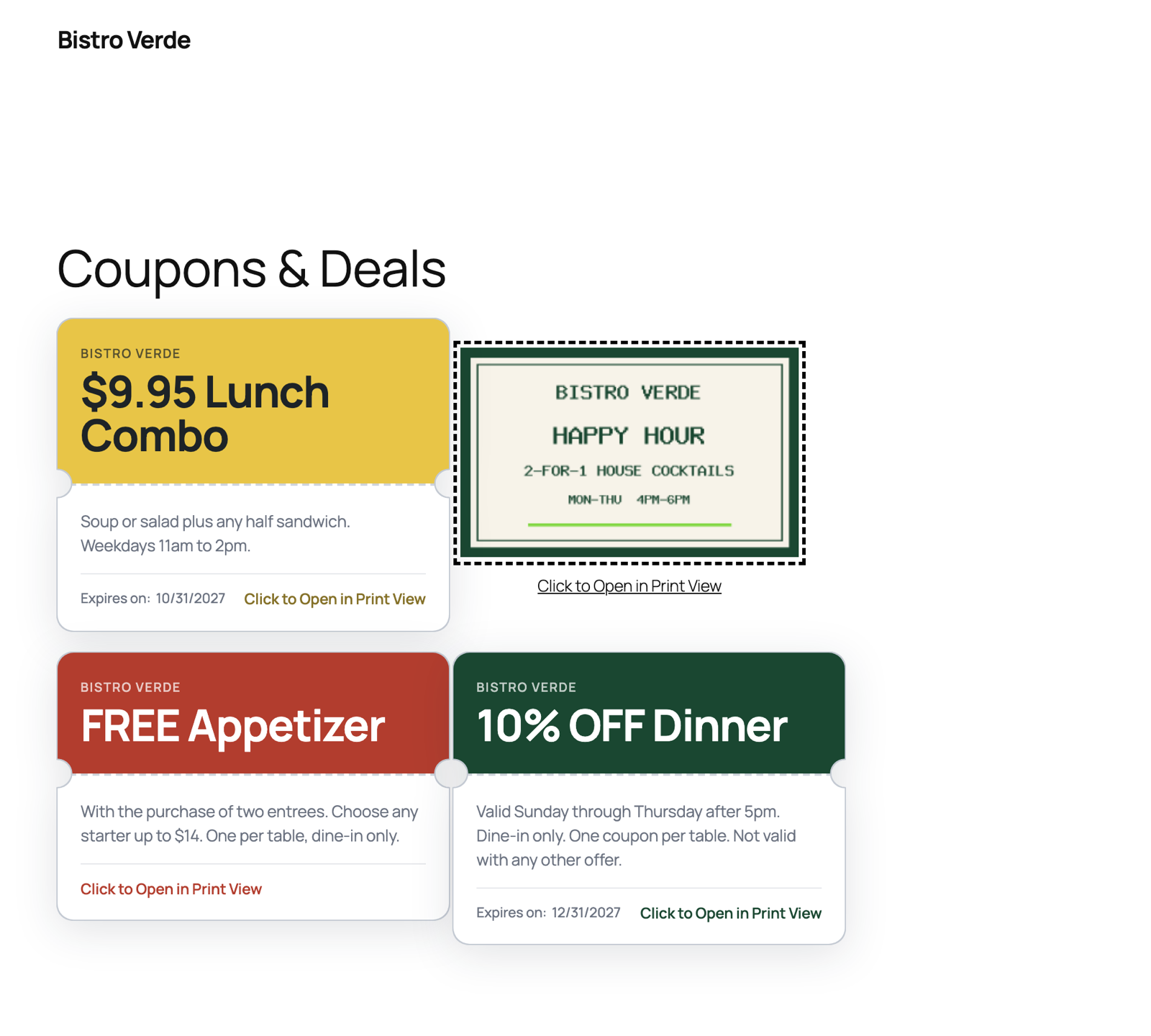
Coupons displayed on a page
Coupon Creator makes designed, printable coupons you can drop on any page with a block or a shortcode. Build one in WordPress or upload your own image. Maintained on WordPress since 2012.
Maintained and shipping on WordPress since 2012.
Support on WordPress.org is for troubleshooting bugs and related issues. The forums are monitored and replied to within one week’s time.
If you are looking for direct support please check out Coupon Creator Pro
Put a real coupon on your site.
Create a designed coupon in WordPress or upload your own image, then display it with the Coupon Creator block or shortcode.
What Coupon Creator does: it makes designed, printable promotional coupons. Build one in WordPress with your own text, colors, and borders — or upload an image of a coupon you already have, like a newspaper ad, and give it an expiration date. Drop it on any page with the Coupon Block or a shortcode, let visitors print it, and with the Add-ons let them click to reveal or copy a code.
What it does not do: Coupon Creator does not create or apply discount codes in your store’s checkout by itself. If you need a code that changes prices in a WooCommerce cart, that code lives in WooCommerce — and Coupon Creator Add-ons connects the two: create the matching WooCommerce coupon from the same editor, keep both expiration dates in sync, and show your visitors a designed coupon whose code actually works at checkout.
Check out a demo gallery of Coupon Creator Features!
Watch this quick video to see the Coupon Creator in Action:
Coupon Creator Add-ons 3.5 Features Include: (included with Pro Business and higher license levels)
- Email Delivery — send coupons directly to visitors via email with templates for all 7 coupon types
- Email Gate — require an email address to view a coupon, building your list while distributing deals
- Email logging with GDPR-compliant anonymization, configurable retention, and deliverability health checks (SPF, blacklist, SMTP)
- Multiprint to select multiple coupons to print all at once
- Block Editor Support for couponloop with Vendor and Location Taxonomies
- Reveal Code & Dynamic Code Feature
- Vendor and Location Taxonomies
- Modern, Highlight, Lower Third, and Two-Column Advanced Templates
- Create and Display WooCommerce Coupons from the Coupon Creator Editor
Coupon Creator Pro 3.5 Features Include:
- Block Editor support for couponloop shortcode and all of its attributes
- [couponloop] shortcode, filter bar, and template system, to give you control over customizations without losing changes on updates
- Order the filter bar filters and hide any filter per shortcode
- Quick and Bulk edits for the expiration and counter fields
- Border themes, Dotted Border, Stitched Border, Saw Tooth Border (modern browsers and IE 10+), and None Option
- Recurring Expiration; set an expiration for the end of the month and have it automatically change to the end of the next month
- X Days expiration to set a period to redeem a coupon from the day of printing it
- Range expiration to display a start and end date for the coupon to be valid such as valid 11/11/17 thru 12/11/17
- Ability to insert columns and rows into the content editor. Options include, two column combinations, three column combinations, four columns, and rows
- Pro Inserter has the ability to search coupons and categories in the dropdown
- Visual editor to easily style the term’s content on your site
- Display the Print View in a Popup for any coupons and print directly from the Popup
- Use the View Shortcodes to display content in the Shortcode View or the Print View only
- Set a Counter per coupon to expire the coupon after a limit has been reached or use as an unlimited counter
- Change “Expires on:”, “Click to Open in Print View”, and “Print the Coupon” for all coupons
- Set coupon size for the Shortcode View and the Print View for all coupons including the Image Coupon
- Override “Click to Open in Print View” text and link per coupon
- Override “Print the Coupon” text and link per coupon
- Disable the Print View per coupon
- Add your Google Analytics Code to the Print Template from the Coupon Options
- Print Only Text and Images, they show only once a single coupon is printed.
How to Create a Coupon
Create a coupon by going to the coupon custom post type and filling in all the settings in the custom meta box.
Insert the coupon into a post or page using the shortcode inserter above the content editor.
Coupon displays until the expiration date that is chosen by you or you can check the Ignore Expiration Checkbox and the coupon will display on the site past the expiration date or with no date at all.
Coupon Creator Shortcode
The Coupon Shortcode:
[coupon couponid=”xx” category=”Category Name(optional)” coupon_align=”cctor_aligncenter” name=”Coupon Name”]
Manually replace fields in shortcode:
couponid – replace xx with ID of Coupon custom post
couponalign – align coupon options: cctor_aligncenter, cctor_alignnone, cctor_alignleft, and cctor_alignright
name -optional and for your reference only
Coupon Loop
Set couponid to “loop” to display all coupons. (couponid=”loop”)
All the coupons in the loop will use the same couponalign.
Coupon Categories
Assign categories to a coupon using the loop option only to display coupons from a specific category.
category – add the category name to display coupons only from it
For example, if you have a category called “Coupon Home Page”, call it by:
category=”Coupon Home Page”
Coupon Shortcode Inserter
Above the post editor, click the “Add Coupon” button to open the inserter.
Select an individual coupon or coupon loop.
If you select the coupon loop, an option will appear to select a coupon category for the loop or you can leave it blank for all coupons (default).
The third option to select is the couponalign.
Once you have all the options selected, press “Insert Coupon” to insert the shortcode into the editor.
Examples
Find examples of coupons on the Coupon Creator Home Page
Coupons in Text Widgets
Coupons will work in Sidebar Text Widgets, but you must add
add_filter(‘widget_text’, ‘do_shortcode’);
To your theme’s function.php
Coupon Options
On the options page set default colors for new coupons.
Another option for nofollow on the links and templates along with an option to hide the click to print link.
You can add custom css in the options and it will modify both the shortcode coupon and the print template.