

CompactForm – Drag & Drop Form Builder for Contact Form 7

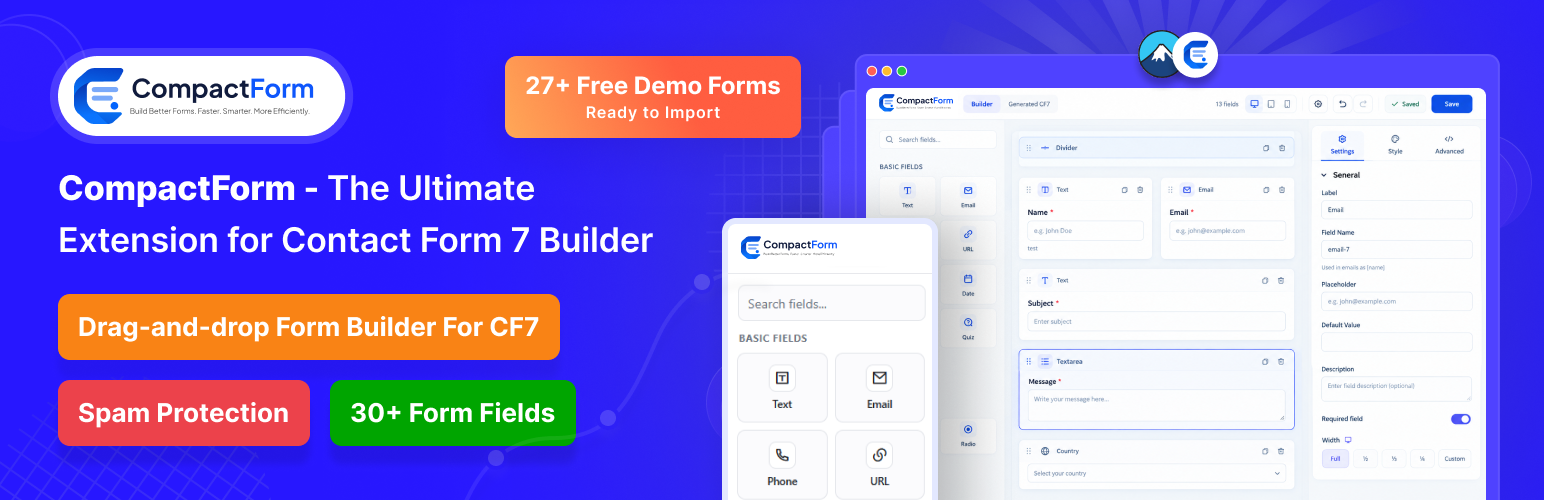
Drag-and-drop builder canvas with the field palette.
CompactForm – Drag & Drop Form Builder for Contact Form 7 adds a visual form builder to Contact Form 7. You drag fields onto a canvas, arrange them the way you want, style them, and save. You never have to write or remember a CF7 shortcode.
We love Contact Form 7. It’s reliable and it works with almost everything. But once a form gets past a few fields, you end up typing tags by hand and checking the front end to see if it looks right. We built CompactForm to fix that.
Your forms stay real Contact Form 7 forms. They use the same shortcode, the same submission process, and they keep working with the CF7 addons you already use. CompactForm simply gives you a better way to build them.
Live Demos | Setup Guide & Video | Documentations | Form Templates | Pro Addons
Stop Writing Form Code by Hand
With Contact Form 7 on its own, you write two things by hand for every form: the form itself and the email it sends.
1. The form markup
Even a simple two-column contact form means typing something like this:
<div class="cf-row">
  <div class="cf-col">
    <label>Your Name [text* your-name]</label>
  </div>
  <div class="cf-col">
    <label>Your Email [email* your-email]</label>
  </div>
</div>
<label>Your Message [textarea* your-message]</label>
[submit "Send Message"]
And that’s only the markup. You still have to write CSS to make the columns work, fix the spacing, and match your theme.
2. The email
Next, on the Mail tab, you fill in To, From, Subject, and a Reply-To header yourself, then list every mail tag in the message body. Out of the box, that gives you a plain-text email. If you want a clean, branded email that also reads well on phones, you have to hand-code table-based HTML with inline styles, one row for each field:
<table role="presentation" width="100%" style="background:#f1f5f9;">
  <tr>
    <td style="background:#0091fa;padding:28px 32px;">
      New Submission: Contact Form
    </td>
  </tr>
  <tr>
    <td>Your Name</td>
    <td>[your-name]</td>
  </tr>
  <!-- ...and another row for every field -->
</table>
Add a field to the form later, and you have to update the email by hand again.
How CompactForm Handles It
Drag the fields in, set them up in the side panel, and CompactForm builds the form layout and the email for you. Here’s what changes:
- Layout: No more wrapping fields in HTML and writing CSS for columns. Drop fields into a Container and they line up side by side, then stack neatly on mobile.
- Field settings: No need to remember tag syntax like
min:10orfiletypes:pdf|jpg. Required fields, placeholders, limits, and allowed file types are all simple options in the panel. - Styling: No custom CSS in your theme. Change fonts, colors, spacing, borders, and width for each field and see it update right away.
- Conditional logic: No extra plugin and no rule code to write. Pick a field, pick a condition, and choose what to show or hide.
- Email template: Every form gets a ready-made, responsive HTML email with a header showing the form’s name and a neat row for each field. It’s selected in the Template dropdown as the default, and you can still edit the HTML in the built-in code editor.
- Autofill for mail settings: To, From, Subject, Additional Headers, and Message Body each have their own Autofill link. One click fills in your site’s admin email and title, sets Reply-To to the visitor’s email field, and adds every form field to the template. Changed your fields? Click Autofill on the message body again.
- Advanced fields: No hunting for separate plugins to add star ratings, signatures, date pickers, or sliders. They are already in the builder.
The result is still a normal Contact Form 7 form. You just don’t have to write it yourself.
Why people use it
- No code needed: Build on a live canvas and see changes as you make them.
- 30 free field types: Everything from simple text inputs to star ratings, signatures, sliders, and a country list.
- Style each field: Change fonts, colors, spacing, borders, and width right in the builder.
- Checked on the server: Validation, conditional logic, and spam checks run on your server, so turning off JavaScript won’t get around them.
- Light on your site: Turn off the fields you don’t use. Scripts and styles only load on pages that have a form.
- Your old forms are safe: Nothing changes until you open a form in the builder. You can also import existing CF7 forms.
- Cross form copy/paste: Copy a field, a container, or a whole selection in one form and paste it into another. Styles and settings come along, so a layout you built once gets reused instead of rebuilt.
Key Features
Drag & Drop Builder
Drag fields onto the canvas, move them around, and group them into columns. You see the result as you work. The builder is turned on per form, so any form you wrote by hand stays exactly as it is until you decide to switch it over.
31 Free Field Types
All of these come free with the plugin:
Layout
- Container: Put fields side by side in rows and columns.
- Heading: Add a title or break the form into sections.
- Icon: Add an icon anywhere you want to make form look beautiful.
- Divider: Add a line or shape between sections.
- Raw HTML: Drop in your own HTML wherever you need it.
Basic Inputs
- Text Field: For short answers like a name or subject.
- Email Field: Collects an email address and checks the format.
- Phone Field: Collects a phone number.
- URL Field: Collects a website link and checks that it’s valid.
- Number Field: Accepts numbers only, with optional minimum and maximum values.
- Date Field: Uses the browser’s built-in date input.
- Textarea Field: For longer messages, comments, or feedback.
- Hidden Field: Sends a value along with the form without showing it to the visitor.
Choices
- Dropdown: Visitors pick one option from a list.
- Radio Button: Visitors choose exactly one option.
- Checkbox: Visitors can tick one or more options.
- Acceptance: Visitors must agree to your terms or privacy policy before they can submit.
- Country Dropdown: A ready-made list of countries. It can also pre-select the visitor’s country for them.
Advanced
- Star Rating: Let visitors rate something with stars. Great for reviews and feedback.
- Date Picker: A calendar popup for choosing a date.
- Time Picker: A simple way to choose a time.
- Date & Time Picker: Choose a date and a time in one field.
- Digital Signature: Visitors sign with a mouse or finger.
- Range Slider: Visitors drag a slider to pick a value.
- Quiz: Ask a question with a fixed answer. Handy as a quick human check.
- File Upload: Visitors can attach files. You decide which file types and sizes are allowed.
Protection
- Spam Protection: Stops bots using a hidden honeypot field, a minimum time to fill out the form, and blocked words.
- Google reCAPTCHA: Adds Google reCAPTCHA v3 to check that a real person is submitting.
Action
- Submit Button: Sends the form. You can change its text and style.
Style Each Field
Every field has its own style settings for fonts, colors, spacing, borders, and width on different screen sizes. You won’t need to write custom CSS.
Conditional Logic
Show or hide fields based on what visitors choose in other fields. The rules are checked again on the server, so no one can skip them by turning off JavaScript.
Spam Protection
Use reCAPTCHA v3, a honeypot field, a minimum fill time, and blocked words together to keep bots out. All of these checks run on the server.
Server-Side Validation
Every submission is checked on the server against your form’s settings. The checks in the browser are only there to help visitors fill out the form correctly. They are not what keeps your form secure.
27 Free Form Templates
Start from one of 27 ready-made form templates instead of a blank canvas. Import a template in one click, then change the fields, layout, and style to fit your site.
Import Your CF7 Forms
Already have Contact Form 7 forms? Bring them into the builder and keep editing them visually.
Export & Import Between Sites
Save any form as a JSON file with its fields, styles, and logic included. Import it on another site that runs CompactForm and the form is ready to use. This is useful if you build sites for clients or reuse the same forms often.
Email Templates & Autofill
Every form comes with a clean HTML email template that’s built to look good on desktop and mobile. Your form fields are added to it automatically, so notification emails work from the first submission.
Each mail setting on the Mail tab has an Autofill link:
- To, From, and Subject: Filled with sensible defaults like your site’s admin email and title.
- Additional Headers: Adds a Reply-To using your form’s email field, so you can reply straight to the person who wrote in.
- Message Body: Adds every form field to the HTML template in one click. Use it again any time you add or change fields.
Pick a template from the Template dropdown, edit the HTML in the built-in code editor, or leave the default as it is.
Live Email Preview
The Mail tab shows how your email will look while you edit it. You don’t need to send test submissions to check it.
Webhook Integration
Send each submission to another app or service by adding its URL.
One Dashboard for Everything
Manage addons, reCAPTCHA keys, webhooks, and which fields show up in the builder, all from one place. Turn off anything you don’t need.
Admin Bar Shortcut
While you’re browsing your site, open a form in the builder straight from the WordPress admin bar.
Works With Contact Form 7 Addons
Forms built with CompactForm are still Contact Form 7 forms, so the CF7 addons and setup you already have keep working.
Want More? Try CompactForm Pro
CompactForm Pro adds 22 addons on top of the free builder:
- Multistep Forms: Split a long form into smaller steps so it feels quicker and easier to fill out.
- Save & Continue: Visitors can save a half-finished form and come back later to complete it, without losing what they already entered.
- Slot Picker: Let visitors choose an available date and time slot for bookings and appointments.
- Dynamic Calculator: Show live totals and calculations based on what visitors enter, like prices or quotes.
- Stripe Payment: Take secure card payments right inside your form.
- Woo Product Selector: Let visitors pick WooCommerce products in the form and go straight to checkout.
- Repeatable Group Field: Let visitors add the same set of fields again and again, for example to list several team members or guests.
- Drag & Drop Upload: A modern upload area where visitors can drag files in instead of browsing for them.
- Rich Text: Give visitors a text editor with formatting like bold, lists, and links.
- Global Field: Build a field once and reuse it across all your forms. Update it in one place and every form changes.
- Taxonomy & Category: Show your WordPress categories, tags, or custom taxonomies as form options.
- Conditional Redirect: Send visitors to different pages after they submit, based on their answers.
- Custom Form Action: Send form data to an external service or your own endpoint.
- Database Entries: Save every submission in your WordPress dashboard so nothing gets lost if an email fails.
- Post Submission Form: Let visitors submit content that gets published as a WordPress post.
- Email Sync: Read and follow up on email replies from inside your dashboard.
- Slack Integration: Get new submissions posted to a Slack channel.
- Telegram Integration: Get new submissions sent to Telegram.
- Google Sheets Integration: Add every submission to a Google Sheet automatically.
- 15 Pro Form Templates: Import one of 15 extra ready-made forms and adjust it to fit your needs.
- Prebuilt Email Templates: Choose from ready-made email designs for your notifications.
You don’t need Pro to use CompactForm. The free plugin works fully on its own.
External services
This plugin connects to two third-party services. Both are optional and disabled by default.
ipapi.co
Used by the Country Dropdown field to pre-select the visitor’s country automatically.
This service is only contacted when a form author enables the “IP auto-complete” option on a Country Dropdown field. The option is off by default. When it is enabled, the visitor’s browser sends a request to https://ipapi.co/country/ each time a page containing that form is loaded. The request is made directly by the visitor’s browser, so ipapi.co receives the visitor’s IP address. Only the two-letter country code is returned, and no data from the request is stored by this plugin.
Service provided by ipapi.
Terms of service: https://ipapi.co/terms/
Privacy policy: https://ipapi.co/privacy/
Google reCAPTCHA
Used by the Google reCAPTCHA field to detect automated form submissions.
This service is only contacted when a site administrator enters their own reCAPTCHA site key and secret key in the CompactForm dashboard and adds a reCAPTCHA field to a form. No keys are configured by default. When it is configured, two requests occur: the visitor’s browser loads https://www.google.com/recaptcha/api.js on any page containing that form, and on submission the site sends the reCAPTCHA response token together with the site’s secret key from the server to https://www.google.com/recaptcha/api/siteverify for verification. Google receives the visitor’s IP address and browser interaction data as part of its bot-detection process.
Service provided by Google.
Terms of service: https://policies.google.com/terms
Privacy policy: https://policies.google.com/privacy
Author
Designed and Developed with ♥ by RSTheme
Requirements
- WordPress 6.4 or newer
- PHP 7.4 or newer
- Contact Form 7 installed and activated
Our Plugins
- Ultimate Data Table Addon For Elementor
- Ultimate Coming Soon Page, Maintenance Mode & Under Construction – Gutenberg Block Builder & Landing Page
- RS Template Builder For Elementor – Complete Control Over Headers, Footers & More
- Fancy Post Grid – Ultimate Post Grid Builder
- Shortcodes for Elementor
- Elentix Addons for Elementor — Widgets, Extensions & Effects