
Claraeliz Team Notes
Claraeliz Team Notes lets admins and editors leave draggable sticky notes directly on the frontend of any WordPress page. Notes are anchored to the nearest semantic HTML element so they stay in the right position across different screen sizes and viewport widths.
Features:
* Add notes directly from the admin bar on any page — no page reload required
* Notes are anchored to the nearest semantic element using the rendered text bounding box (getClientRects()), not the container width
* Position is saved as an offset from the actual text edge — so notes stay next to the right word even when text reflows across viewport widths
* Notes reposition automatically when the layout changes (window resize, orientation change)
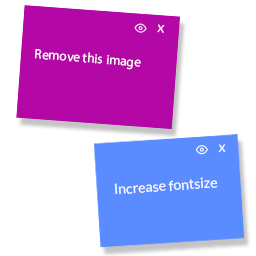
* Role-based note colors: neon pink for admins, neon blue for editors/authors/contributors
* Share notes with specific users using the visibility (eye) icon on each note
* Only the note author can drag, edit, delete, or share their notes
* Other logged-in users can view notes that have been shared with them
* Manage and bulk-delete your notes from the My Notes dashboard in the admin panel
* Works with Gutenberg, Elementor, and standard PHP templates
* Hidden on screens smaller than 1280px
Note colors by role:
* Administrator — neon pink (#b408a6)
* Editor, Author, Contributor — neon blue (#5b8cff)
* Text is always white on both colors for readability
Who can add notes:
* Administrator — can create, edit, drag, delete, and share notes
* Editor, Author, Contributor — can create, edit, drag, delete, and share notes
* Other roles (Subscriber, etc.) — can only view notes that have been shared with them; cannot create notes
Sharing notes:
Click the eye icon (👁) on any note you own to open the sharing popover. Check the users you want to share the note with — the selection is saved automatically. Shared users will see the note on the same page the next time they visit it while logged in.
Managing notes:
Visit My Notes in the WordPress admin sidebar to see a list of all notes you have created. You can delete notes individually or use the bulk action to delete multiple notes at once. Each user only sees their own notes in this dashboard.