
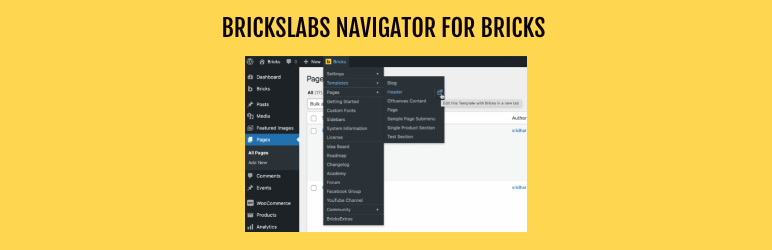

Bricks Navigator
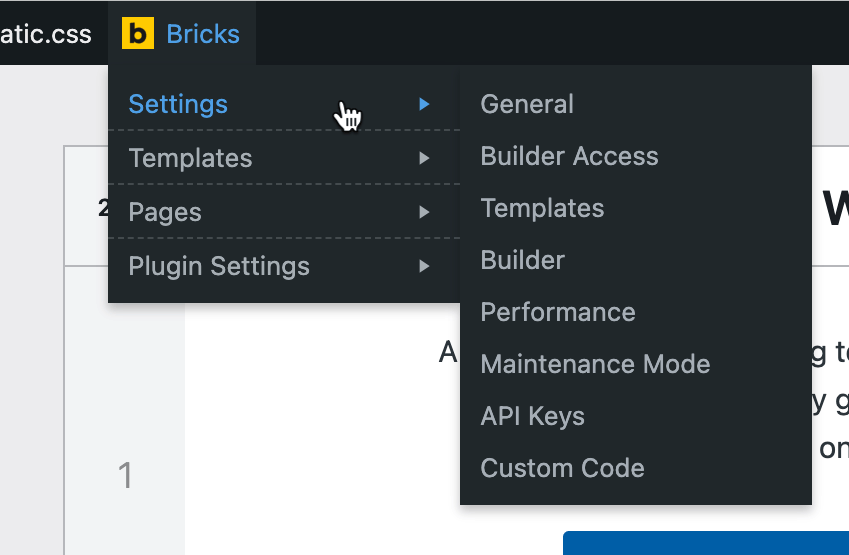
Screenshot showing the sub menu of Settings.
Adds quick links in the WordPress admin bar for users of Bricks theme.
Main function
This plugin adds a handy “Bricks” menu item in the WP admin bar for directly editing Pages and Templates with Bricks, as well as quickly navigating to various areas within the site and external sites relevant for the users of Bricks Builder theme.
A very useful feature is being able to directly view the list of all Templates and Pages and edit any of them with Bricks directly with a single click without going to Templates and Pages list screens first.
The admin bar can also be enabled in Bricks editor pages via the plugin’s settings page at Bricks Bricks Navigator.
Links to Bricks-specific plugins’ settings page are also provided.
Links to community sites, internal and external Bricks links can be enabled in the plugin’s settings page.
A “new tab” icon is provided for site-specific menu items added by the plugin to open that menu item in a new tab.
All external links open in a new tab.
Built for the Bricks community by Sridhar Katakam of BricksLabs.
Performance Notice: The free version loads all templates and pages in the menu and works best for smaller sites (up to ~20 templates and ~50 pages). For larger sites with extensive content, consider upgrading to our upcoming Pro version for better performance. Note that this only applies for admins and other logged-in users for whom the WP toolbar shows.
Grouped Templates & Bricks-only Pages
The Templates submenu can be grouped by Bricks template type – Header, Footer, Single, Section, Popup, Archive, Search results and so on – instead of one long alphabetical list, and each group links to that type’s filtered list in the Templates screen. The Pages submenu can be limited to pages that actually have Bricks content, so you never open an empty canvas by mistake. Both are toggles on the settings page.
BEM Classes (Beta)
A BEM class action on each structure panel layer to assign global classes in BEM format with a checkbox to move ID styles to the class.
CSS Variables Context Menu (Beta)
Right-click any CSS value input in the Bricks editor to insert a CSS variable from your registered custom properties – with live preview on hover.
Class Tooltip (Beta)
Hold Shift or Cmd/Ctrl while hovering over any element in the Bricks structure panel to see a tooltip listing all active CSS global classes applied to that element. Saves time when writing custom CSS — no need to click elements one by one just to check which classes are applied.
Keyboard Shortcuts
Adding common elements in Bricks editor is now a single key-press away.
- S: Section
- C: Container
- B: Block
- H: Heading
- T: Basic Text
- I: Image
- L: Text Link
- W: Wrap with Block
- R: Rich Text
- D: Div
Alt + H: Toggle :hover
Settings
The plugin can be configured at Bricks Bricks Navigator. Three settings are enabled out of the box:
- Bricks Menu – show the Bricks menu in the WordPress admin bar. Turning this off hides the whole menu.
- Plugin Settings – list the settings pages of whichever supported Bricks plugins are active.
- Group Templates by Type – group the Templates submenu by Bricks template type.
Everything else is off until you turn it on: Admin bar in Bricks Editor, Community Menu, Internal Bricks Links, External Bricks Links, Only Pages Built With Bricks, and the editor enhancements (Keyboard Shortcuts, BEM Classes, CSS Variable Context Menu and Class Tooltip).
Defaults only apply while a setting has never been saved. Saving the settings page writes a stored value for every toggle, including the unchecked ones, so a later change to a default will not alter a site that has already saved its settings.
Automatic Installation
Search for bricks navigator from within your WordPress plugins’ Add New page and install.
Manual Installation
- Click on the
Downloadbutton to download the plugin. - Upload the entire
brickslabs-bricks-navigatorfolder to the/wp-content/plugins/directory. - Activate the plugin through the
Pluginsmenu in WordPress.
Developers
Add-ons can extend the menus and the settings page through these hooks.
Filters:
brickslabs_bricks_navigator_templates_results–( mixed $results, array $query_args ). Replace the set of templates listed in the menu, for example with a cached or limited query. Return post IDs, WP_Post objects, or any objects exposing an ID property; the result is normalised before use.brickslabs_bricks_navigator_pages_results–( mixed $results, array $query_args ). The same, for the Pages menu.
Actions:
brickslabs_bricks_navigator_loaded–( Plugin $plugin ). Fires onplugins_loadedonce the plugin’s services exist. Use it to bootstrap an add-on rather than checking for the plugin yourself.brickslabs_bricks_navigator_after_templates_menu–( WP_Admin_Bar $bar, int[] $ids ). Fires once the Templates menu has been built, with the IDs that were added.brickslabs_bricks_navigator_after_pages_menu–( WP_Admin_Bar $bar, int[] $ids ). The same, for the Pages menu.brickslabs_bricks_navigator_register_pro_settings– fires onadmin_initafter this plugin registers its own settings. Add sections and fields usingbrickslabs-bricks-navigatoras both the page slug and the option group.brickslabs_bricks_navigator_show_upgrade_notices– fires near the top of the settings page, above the form, for licensing or upgrade notices.