

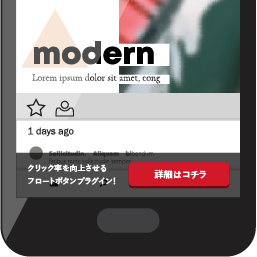
Blog Floating Button
5/5 (1 ratings) 9K+ active installs Updated Jul 31, 2026

Floating button demo
Blog Floating Button (BFB) makes it easy to add floating buttons to your WordPress site. Use them to guide visitors to landing pages, such as product or contact pages, and encourage purchases or inquiries.
From the WordPress admin area, you can change the button text and choose from four button styles and five colors. This makes it easy to create a prominent floating button that matches your site’s design.
How to Use
General Settings
Configure the settings shared by all floating buttons.
- Development mode: Select “Show only to administrators” to display floating buttons only to users logged in as administrators. This is useful during initial setup. Select “Show to everyone” when you are ready to display them to all visitors.
- Desktop button design: Choose the button design shown to visitors using desktop computers.
- Mobile button design: Choose the button design shown to visitors using mobile devices.
- Homepage display: Choose how floating buttons appear on the homepage.
- Excluded post IDs: Floating buttons are hidden on posts and pages with the specified IDs. Enter the IDs of pages where you do not want a button to appear, such as a contact page.
- Auto-hide: Automatically hide floating buttons when a visitor scrolls the page. Select “Always show” to turn off auto-hide.
- Enable click tracking: Choose whether to track button clicks.
- Exclude administrators from click tracking: Choose whether to track clicks from users logged in as administrators. For more accurate data, excluding administrators is recommended except during testing.
- PRO version license key: Enter a paid PRO version license key to unlock additional features.
Button Settings
Configure each floating button individually.
- Button type: Choose the button shape.
- Button color: Change the button color.
- Button text: Set the text displayed on the button.
- Destination URL: Set the URL that opens when a visitor clicks the button.
- Link behavior: Choose how the link opens. Select “New tab” to open it in a separate browser tab.
- Background color: Change the color of the bar behind the button.
This plugin bundles the Montserrat font (SIL Open Font License 1.1).
See css/fonts/OFL.txt for the full license text.