


AutoListicle: Automatically Update Numbered List Articles
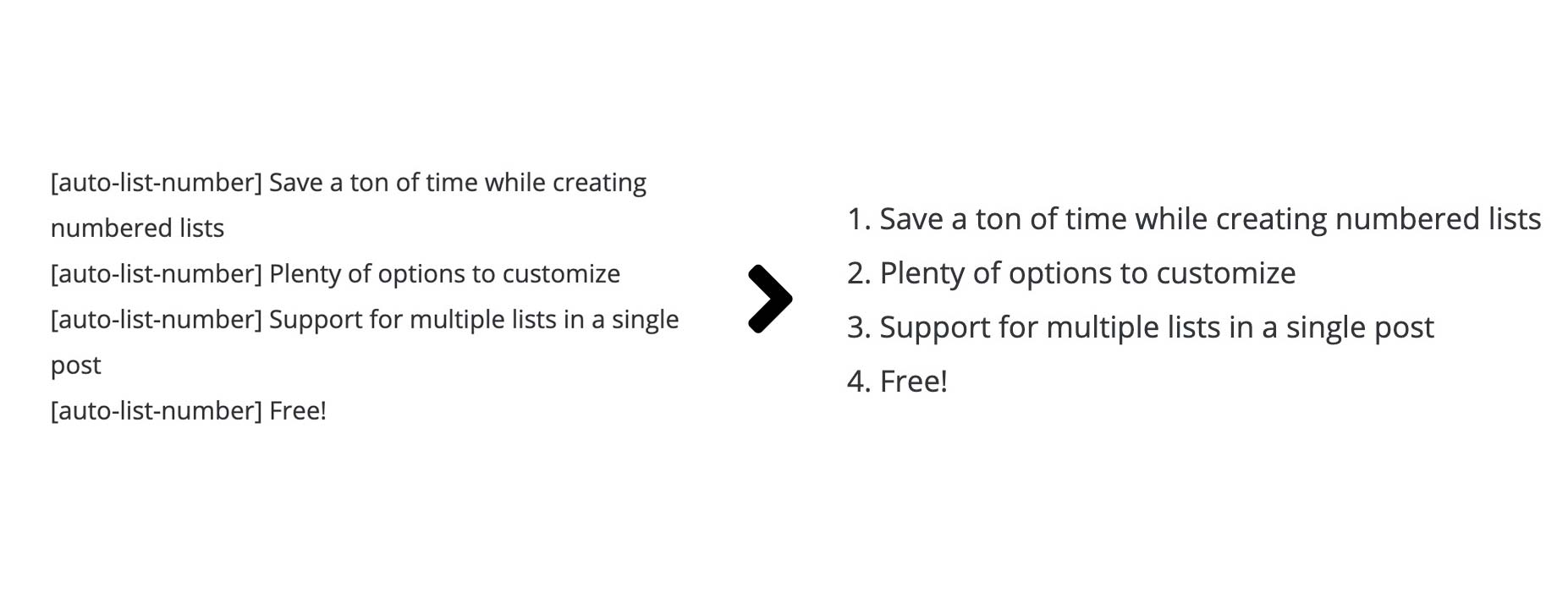
Example of what the shortcode does.
Easily keep your listicles with numbered lists updated correctly by using this plugin’s shortcode [auto-list-number]. This will display the number 1 and increment with every use. Perfect if you write blog posts with steps or “top 10 lists”. This will allow you to easily add items to your lists or move elements around without worrying about updating headings with the correct numbers.
New in 1.4: put [auto-list-number-headings] at the top of a post and every heading after it is numbered automatically, no shortcode per heading needed.
Number headings automatically
Add this once, above your list, and every H2 that follows gets a number in front of it:
[auto-list-number-headings]
It takes the same options as the item shortcode, plus level to pick the heading tag:
[auto-list-number-headings level="h3" display="countdown" before="#" after=""]
Numbers are wrapped in a span with the class “auto-list-number” so you can style them (set wrapper=”none” to skip the span). Headings above the shortcode are left alone, and a second [auto-list-number-headings] starts a new count from where it sits.
Shortcode Usage examples
Basic usage
[auto-list-number] Item one.
[auto-list-number] Item two.
[auto-list-number] Item three.
Countdown example (for “Top 10” style lists)
[auto-list-number display="countdown"] Best item (displays 3)
[auto-list-number display="countdown"] Second best (displays 2)
[auto-list-number display="countdown"] Third best (displays 1)
Position display example
[auto-list-number display="position"] First item (displays "1 of 3")
[auto-list-number display="position"] Second item (displays "2 of 3")
[auto-list-number display="position"] Third item (displays "3 of 3")
Custom start number (for multi-part articles)
[auto-list-number start="11"] This displays 11
[auto-list-number] This displays 12
[auto-list-number] This displays 13
Number formats
[auto-list-number format="roman"] Displays I, II, III, IV...
[auto-list-number format="alpha"] Displays A, B, C, D...
[auto-list-number format="padded"] Displays 01, 02, 03...
Before and after text
[auto-list-number before="#" after=":"] Displays "#1:"
[auto-list-number before="Step " after=" -"] Displays "Step 2 -"
Spaces inside the quotes are kept. An underscore also works as a space (before=”Step_”), which older versions required.
Extended example using all shortcode functions.
Here is my list of [auto-list-number display="total"] items.

[auto-list-number] Here is the first item in the list.
[auto-list-number] Make long listicles with ease.
[auto-list-number] You can even have multiple lists in one article.
 [auto-list-number name="my-new-list" after=":" wrapper="span"] My new list (this will start at number one).
 [auto-list-number name="my-new-list" after=":" wrapper="span"] This will be a second item.
[auto-list-number] This item will be number 4.
Shortcode Options
- name (Default: “default”) If your article has multiple lists this will keep track of multiple numbers. If a name isn’t set it will just use the list name of “default”. But if you have multiple numbered lists you want to keep track of you can use a unique name for each list in your article.
- wrapper (Default: none) Wrap each number in an HTML tag such as span, div, strong, em, small, sup, li or a heading tag. The wrapper always gets the class “auto-list-number” plus “auto-list-number-3” for the third item, which is helpful if you want to style list numbers separately from your headings. Other tags fall back to span.
- before (Default: “”) Text to display before the number, for prefixes like “#” or “Step “.
- after (Default: “.”) Text to display after the number. Set it to “” to show the bare number.
- start (Default: 1) Set a custom starting number. Perfect for multi-part articles where Part 2 should start at number 11 instead of 1. Only the first item of a list needs it.
- format (Default: none) Change the number format. Options:
- “roman” – Roman numerals (I, II, III, IV, V…)
- “alpha” – Alphabetic letters (A, B, C, D… Z, AA, AB…)
- “padded” – Zero-padded numbers (01, 02, 03…)
- display (Default: “increase”) Controls how the number is displayed. Options:
- “increase” – Default behavior, counts up (1, 2, 3…)
- “countdown” – Counts down from total (10, 9, 8…) – perfect for “Top 10” style lists
- “total” – Displays the total count of items
- “position” – Displays “X of Y” format (e.g., “3 of 10”)
[auto-list-number-headings] accepts wrapper, before, after, start, format and display (increase or countdown), plus level (Default: “h2”) for the heading tag to number.
Troubleshooting
If you are having trouble with a table of contents plugin you can use the [auto-list-number-force-reset] shortcode to reset your post’s numbers. So ideally if your table of contents was at the top of your post you can put [auto-list-number-force-reset] below it so that all headings are reset to start at 1 again. This way the ToC plugin will loop through 1-4 for example then reset then the headlines can display 1-4 again.
Developers can allow extra wrapper tags with the auto_list_number_wrapper_tags filter.