

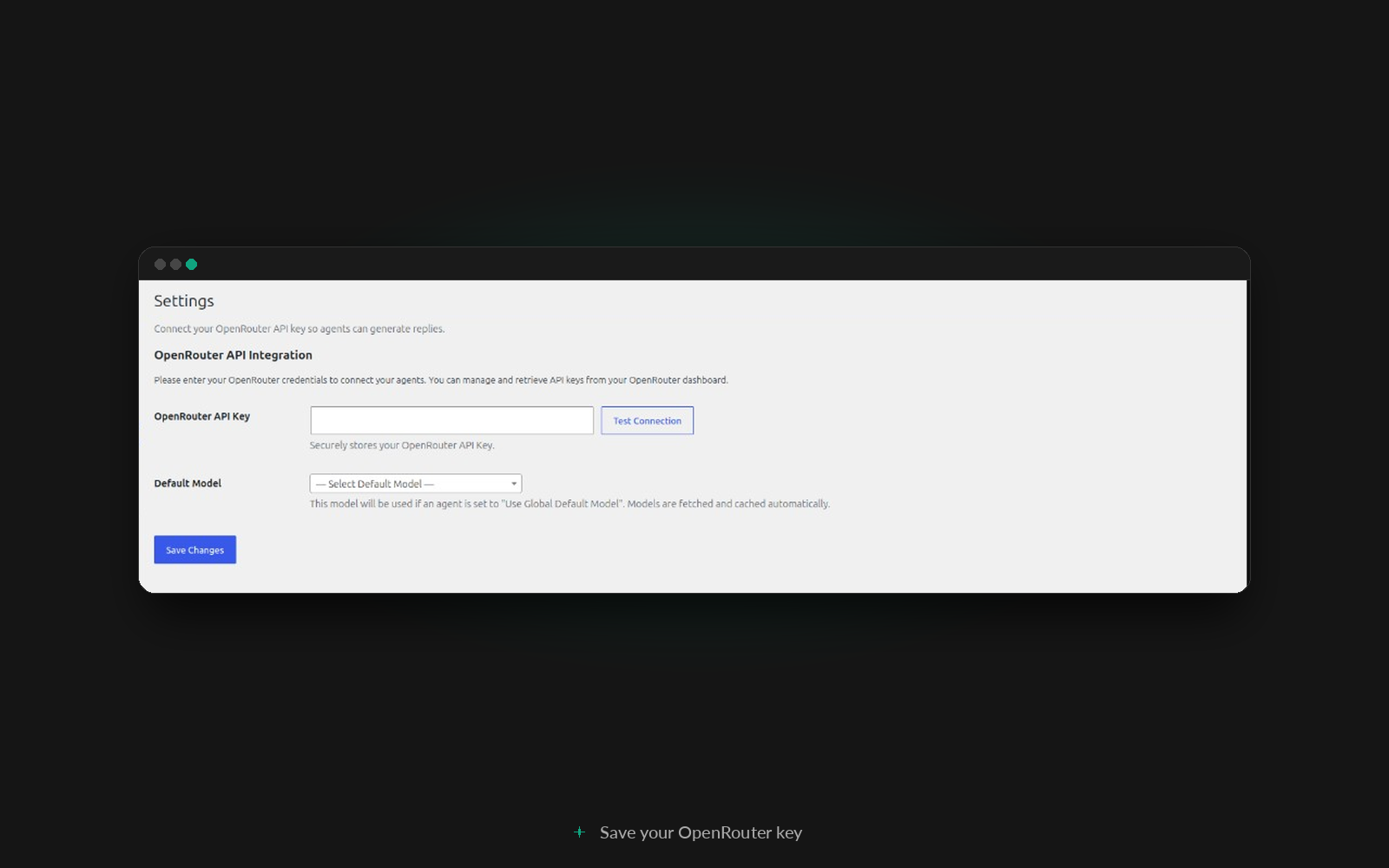
Settings, where you save the OpenRouter key and choose a default model.
ARWP Agents adds a chat to a page or post. You create an agent, write how it should behave, and paste its shortcode. Visitors type in the chat. The reply is written by a model on OpenRouter and charged to the API key you save in the plugin.
The chat lives on your site. Each conversation is stored in your database, and you can read or delete it later.
Connect OpenRouter
Go to ARWP Agents Settings. Paste your API key, choose a default model, and use Test Connection. The key is encrypted in the database. You can instead set it in wp-config.php with define( ‘ARWP_OPENROUTER_API_KEY’, ‘…’ ); and that value is the one the plugin uses. A working key loads the model list from your OpenRouter account. That list is kept for a week.
The same screen has Show names and contact details in Chats. Leave it off to hide account names and replace emails, phone numbers, and IP addresses in chat titles and messages.
You can create a key at https://openrouter.ai/
Create an agent
Go to ARWP Agents Add Agent. Name it, then set the fields under Agent & Model.
- System prompt. The instruction the model follows. A new agent starts with “You are a helpful and professional AI assistant.”
- Model. Use the site default, or pick a different model.
- Temperature, from 0 to 2. Lower answers vary less. The starting value is 0.7.
- Max tokens. The longest reply the model may write. The starting value is 1000.
- Cooldown. How many seconds someone must wait between messages in the same chat. It starts at 5. Set it to 0 to turn the wait off.
- Who can use this chat. Anyone who can view the page, logged-in visitors, or specific roles. People who can edit the agent can always open it.
- Messages per visitor, per hour. Counted by IP address. It starts at 30. Set it to 0 for no cap.
- Messages per logged-in visitor, per hour. Each account has its own count. It starts at 0, which means no cap. Guests are not counted.
- Messages per role, per hour. Everyone with that role shares one count. 0 means that role has no extra cap.
- Messages for this agent, per hour. Shared by everyone using that agent. It starts at 200. Set it to 0 for no cap.
- History. How many earlier messages are included with each new one. Leave it empty to send the last 40. A longer history costs more.
Message checks are separate from the prompt.
- Blocked phrases. One phrase per line. A message that contains one is rejected and is not stored.
- Blocked patterns. One regular expression per line. A pattern that is not valid is not saved.
Chat Appearance is separate from the prompt.
- Light or dark. Dark is the default.
- The title shown in the header. If you clear it, the agent name is used. Otherwise it starts as “AI Assistant”.
- A greeting, shown only when the chat has no messages yet. It starts as “Hello! How can I help you today?”
- The placeholder in the message box.
- A color for the send button and the visitor’s messages. It starts as blue.
- A featured image, used as the avatar.
- A short description under the title.
- A header logo beside the avatar.
- Suggested messages, shown when the chat is empty. Choosing one sends it.
- A disclaimer under the message box. It is shown as plain text.
Publish the agent. The shortcode is in the sidebar, and again in the agents list:
[arwp id="123"]
Use the ID shown for that agent. Paste the shortcode into any page or post. A draft is shown only to people who can edit it.
What people see
The greeting appears first. Replies arrive as they are written, and a visitor can stop one that is still coming in. Messages can include Markdown. There is a copy button on the agent’s replies, and a button to open the chat full screen. One message can be up to 8,000 characters.
The browser stores a token for that chat, so the same visitor on the same device picks up the conversation later. By default anyone who can open the page can write a message, including people who are not logged in. An agent can instead require a logged-in visitor or a specific role.
Read the chats
ARWP Agents Chats lists each conversation, the agent, whether the visitor was a guest or a logged-in visitor, the number of messages, and the tokens used. Open a row to read it, or delete it. Names and contact details stay hidden until an administrator turns that on in Settings.
Only administrators can create agents, change the API key, or open Chats.
What leaves your site
A message is sent to OpenRouter so the chosen model can reply. The request includes that message, the agent’s system prompt, the recent messages from the same chat, and the model settings for that agent. Nothing is sent until someone uses a published shortcode.
OpenRouter’s terms are at https://openrouter.ai/terms and its privacy policy is at https://openrouter.ai/privacy.
If a reply fails, visitors see a short note that the assistant is unavailable. An administrator who is logged in sees the actual error.