
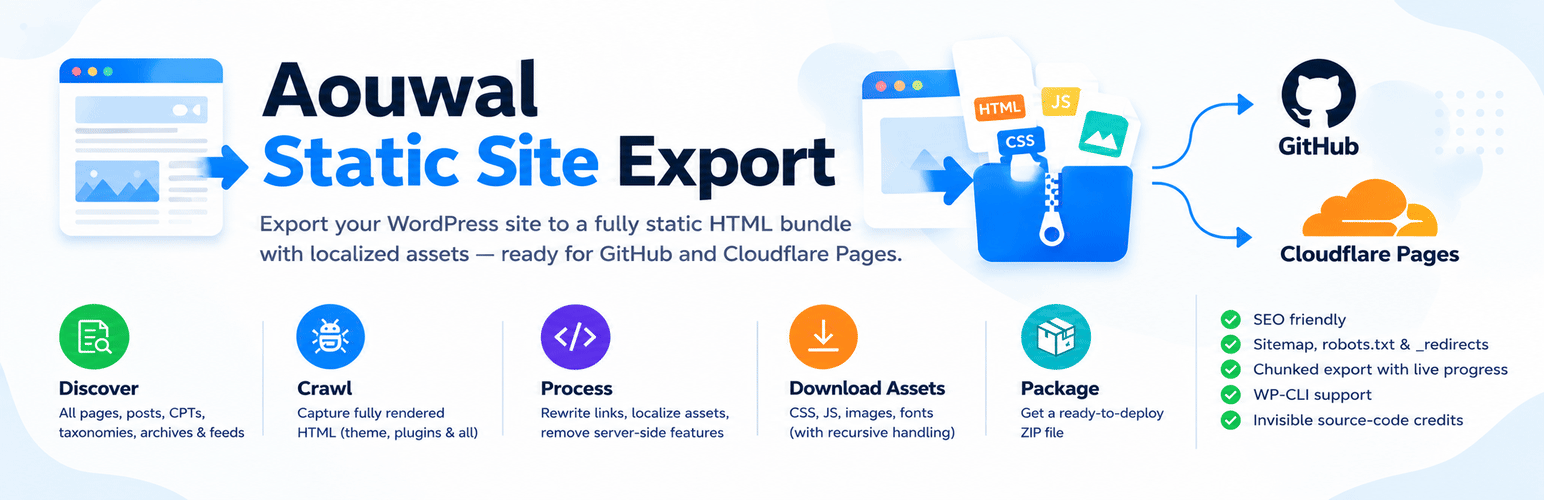

Aouwal Static Site Export – Static Site Generator
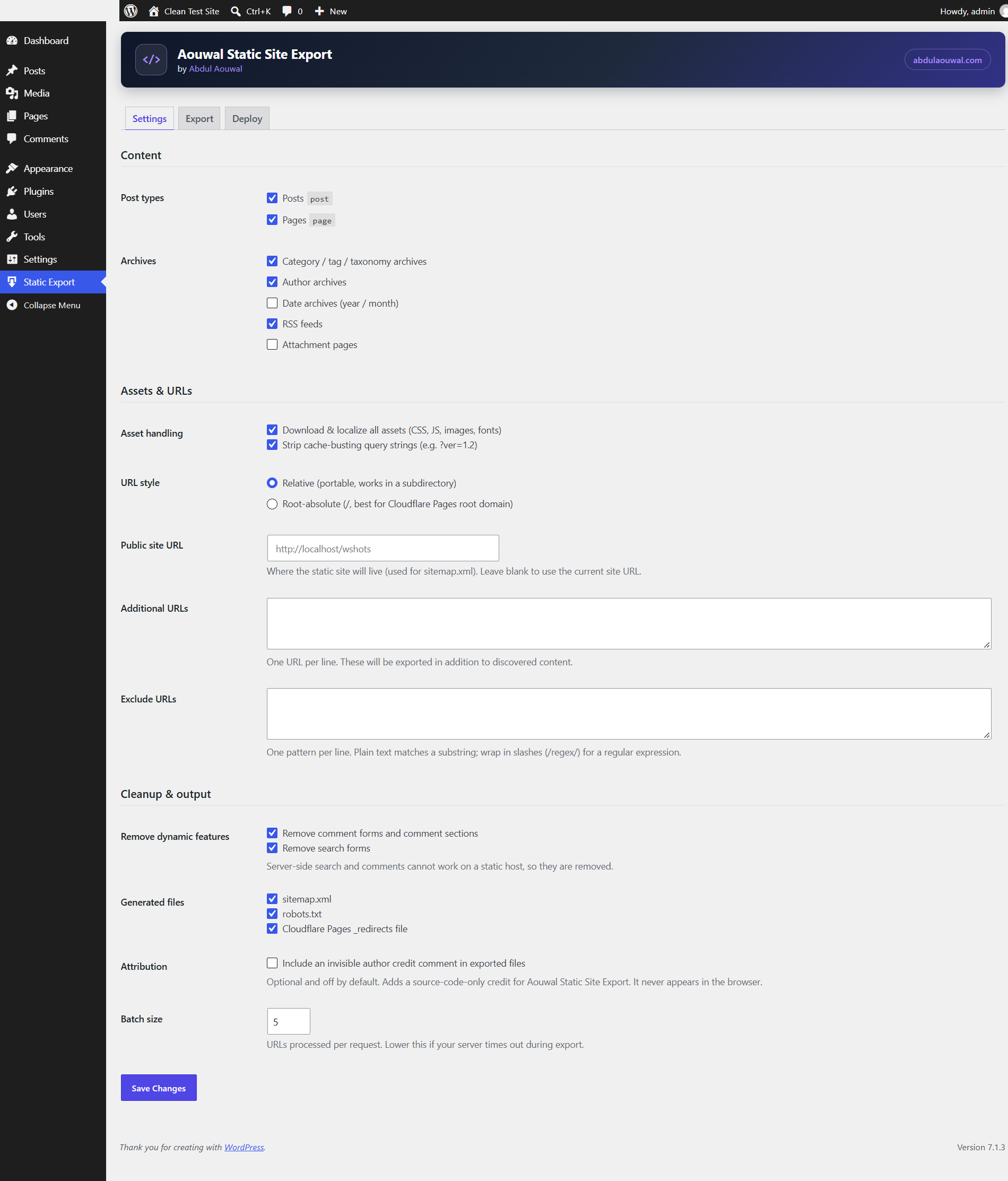
Configure what to export: post types, archives, asset handling, URL style, cleanup options and generated files.
Aouwal Static Site Export is a WordPress Static Site Generator that converts dynamic WordPress websites into static HTML websites. Export complete websites including CSS, JavaScript, images, fonts, sitemap.xml and robots.txt for deployment on Cloudflare Pages, GitHub Pages, Netlify or any static web server.
The export is a plain folder of HTML files and assets. You can commit it to GitHub and deploy it on Cloudflare Pages, or host it on any static host or CDN. No WordPress, PHP or database is needed to serve it.
Author: Abdul Aouwal, Technical SEO Consultant.
Export WordPress to static HTML
The plugin turns your published WordPress pages into plain static HTML files. It works in six steps:
- It discovers every public URL on your site.
- It requests each URL through the WordPress HTTP API and keeps the fully rendered HTML.
- It downloads and localizes every asset, including recursive CSS
url()and@importreferences. - It rewrites internal links to portable relative or root-absolute URLs, keeping
<picture>,<source>,<track>,<template>and custom-element markup intact. - It removes server-side features that cannot run on a static host.
- It packages everything into one ZIP file you can download.
You can export:
- Posts, pages and custom post types.
- Category, tag and custom taxonomy archives, author archives and date archives, including page 2 and later.
- RSS feeds.
- A
404.htmlpage, plussitemap.xmlandrobots.txt. - Cloudflare Pages
_redirectsand_headersfiles, both on by default.
WordPress static site generator features
- Chunked export with a live progress log, so large sites do not hit PHP timeouts.
- Every page is fetched as WordPress renders it, so theme templates, shortcodes and plugin output are included.
- Images, CSS, JavaScript and fonts are downloaded and localized, including
srcsetand<picture>sources. - Internal links become relative or root-absolute URLs, so the static site works on any domain and in any subfolder.
- HTML5 markup stays valid:
<picture>,<source>,<video>,<track>,<template>and custom elements survive the export. - The Maximum asset size setting (25 MB by default) skips oversized files instead of exhausting memory.
- Every write is checked. Pages or assets that cannot be written are reported in the log instead of being marked as done.
- The crawler fetches only public URLs. Every redirect hop and both A and AAAA records are validated.
- Network controls for awkward hosting: request timeout, delay between requests, custom crawl origin, TLS verification modes and optional HTTP Basic Auth.
- Optional path rewrite: move /wp-content/uploads/ to a shorter folder such as /uploads/ or /media/ in the export. Off by default; changes URLs only and does not remove other WordPress fingerprints.
- Pause, resume and cancel controls, so a long export can be stopped without losing progress and a wrong export can be aborted and cleaned up.
- Optional changed-only export: reuse the last export and re-export only pages, archives and assets that changed. Full export stays the default.
- Optional WP-CLI command:
wp aouwal-static-export run. - Optional, invisible author credit. It is off by default and can be enabled in Settings.
Deploy to Cloudflare Pages
Cloudflare Pages is the fastest path to a live static site. The export already includes the _redirects and _headers files Cloudflare Pages expects, and the Deploy tab walks you through creating a GitHub repository and connecting it to Cloudflare Pages. Once the repository is connected, every push redeploys the site automatically.
Export to GitHub Pages
The same export folder works on GitHub Pages. Commit the exported files to a repository, enable Pages for the branch or folder you pushed, and GitHub serves the static HTML. Relative links work as they are, so no extra configuration is needed.
Netlify, Jamstack and any static host
The output is a plain folder of HTML files and assets, which makes it a good fit for any Jamstack workflow. Upload it to Netlify (which also reads _redirects and _headers), Amazon S3, Vercel, a CDN, or any static hosting account. No WordPress, PHP or database is needed to serve it.
Automate exports with WP-CLI and cron
Aouwal Static Site Export writes a ZIP and a local folder. It does not schedule exports, and it does not push to Netlify, Cloudflare Pages, S3 or any other host by itself. For hands-off deployments, run the export from WP-CLI on a schedule and let cron and your Git host do the rest.
-
Create a cron job that runs the export and unzips the result into the repository your host watches. The command prints the ZIP path when it finishes, and the last line has the
Success: Export complete:prefix:ZIP=$(wp aouwal-static-export run –batch=10 | tail -n 1 | sed ‘s/^Success: Export complete: //’)
unzip -o “$ZIP” -d /var/www/static-repo -
Commit and push the updated files:
cd /var/www/static-repo && git add -A && git commit -m “Static export” && git push
-
Cloudflare Pages, Netlify and Vercel redeploy on every push, so the new static site is live a few minutes after the cron job runs.
The command exits with 0 on a clean run, or 1 when some items failed, so your script can stop before pushing a broken build. The ZIP keeps the site structure (path/index.html), so unzip it as a folder, not as a flat file list. Machine-readable output and a custom output path are planned.
Pause, resume or cancel an export
The Export screen has three controls next to the Start button, so a long crawl no longer has to be left running or killed by closing the tab.
- Pause stops the export at the end of the current batch. Every page and asset already exported stays on disk, and the queue keeps its place.
- Resume continues from the next pending URL and finishes the export with the pages written before the pause still in place.
- Cancel stops the export and deletes the partial output folder and any ZIP, so a failed or wrong export leaves nothing behind. The log keeps a line naming the last URL that was processed.
Pausing and cancelling take effect between batches, which is one request. A batch that is already running finishes first, so a cancel can take a few seconds to report back on a slow host. Nothing is lost in the meantime: the next request repeats the cleanup.
The state is stored on the server, so reloading the screen shows a paused export with its Resume and Cancel buttons. The loop never restarts on its own, because two open tabs would both drive the same queue.
WP-CLI has the same controls for a crawl started from the command line:
wp aouwal-static-export status
wp aouwal-static-export cancel
wp aouwal-static-export resume --batch=10

status prints the phase, the processed and pending counts and the last URL, which is handy in a cron log. `cancel` exits with 1 so a script stops before pushing a partial build.
Changed-only export for large sites
By default every export re-crawls every page and re-downloads every asset. Settings > Export mode adds a second mode for sites where that takes too long.
- Full export is the default and the previous behavior: every URL is fetched and rewritten on every run.
- Changed-only export starts from the last export, copies its files into the new output folder, and then re-exports only what changed.
What a changed-only run re-exports:
- A post or page whose
post_modifiedtime changed, plus every taxonomy, author and date archive that contains it, plus the homepage, the posts page and their pagination. - Assets whose
ETagorLast-Modifiedresponse header no longer matches the stored value. The plugin sends a conditional request (If-None-Match/If-Modified-Since) and keeps the copied file when the server answers 304 Not Modified. - Feeds, additional URLs, the sitemap, robots.txt,
_redirects,_headersand 404.html are always rebuilt.
Unchanged pages are not even requested: their stored fingerprint matches, so the copied file is kept as is.
The mode falls back to a full export on its own when the previous files cannot be trusted: a different plugin or WordPress version, a different theme, a different permalink structure or site URL, or any setting that changes the output (post types, archive toggles, URL style, uploads path, stripping options, credit). It also falls back when the previous output folder is missing, or when copying it fails.
Files for content that was deleted are removed from the new export, and the log names how many were dropped. A URL that failed keeps its old file and is retried on the next run.
Run it once from the command line without changing the saved setting:
wp aouwal-static-export run --changed-only --batch=10
wp aouwal-static-export run --full
Data stored: one row per page and asset in a custom table ({prefix}aouwal_export_state) holding the URL hash, fingerprint, ETag, Last-Modified, size and the last export that confirmed it. The table is removed when the plugin is uninstalled.
Crawl through proxies, staging sites and Basic Auth
The Network settings section controls how the export talks to your server. Defaults reproduce the previous behavior exactly, so nothing changes until you edit them.
- Request timeout: how long one request may take, in seconds. The default is 60, the range is 1 to 120. Raise it when slow pages or large files time out on shared hosting.
- Delay between requests: a pause in milliseconds between two crawl requests (0 to 3000, default 0). Use it when your host rate-limits the export.
- Batch size (concurrency): how many URLs are processed per request (1 to 50, default 5). Lower it when PHP execution time is short.
- Custom crawl origin: send crawl requests to another URL, such as an internal container name (
http://wordpress:8080) or a reverse-proxied host, while links in the export keep using the site URL. The origin host is trusted like the site host, but link-local and cloud metadata addresses such as 169.254.169.254 are still refused. - TLS verification: verify certificates everywhere, verify except on local development hosts (default), or verify against a custom CA bundle path. An unreadable CA path falls back to the system bundle.
- HTTP Basic Auth: optional username and password for a protected staging site. The header is sent only to the site’s own hosts, never to external asset hosts and never after a redirect to another domain. The password is encrypted at rest, never rendered back into the form, and never written to the export log.
WP-CLI accepts the same timeout, delay and origin for a single run without saving them:
wp aouwal-static-export run --timeout=90 --delay=250 --origin=http://wordpress:8080
Basic Auth stays in the settings screen on purpose, so a password never lands in shell history or a cron file.
Why use a static WordPress website
A static website is faster and safer than a dynamic one. There is no PHP to execute and no database to query, so pages are served as small HTML files, usually from a CDN close to the visitor. There is also much less to attack: no login page, no plugin endpoints and no database on the public server. You keep WordPress for writing and publishing, and export a fresh static copy whenever the content changes.
What the export cleans up
- Removes comment forms, comment sections and comment feeds (on by default).
- Removes search forms (on by default).
- Strips WordPress version tags.
- Strips staging “noindex” robots meta so the exported site stays indexable.
Not suitable for
A static site has no PHP and no database, so features that need a server stop working after the export:
- E-commerce stores. Cart, checkout, payment and order confirmation need WooCommerce and a database.
- Membership sites and sites that require user logins. A static host has no sessions, accounts or password reset.
- Real-time data, such as live stock levels, prices, dashboards or feeds that change by the minute.
- Heavy AJAX functionality, including live search, AJAX filtering, infinite scroll endpoints and form submissions.
- Built-in forms, site search, comments and “add to cart” buttons. They need a server to receive and store the result.
If you need those features, keep the dynamic WordPress site, or replace them with third-party services before you go static: a hosted form service, a static search service, and a hosted checkout. Static export works best for content sites such as blogs, documentation, portfolios, marketing pages and company websites.