


Aftersweep – After-Hack Checklist
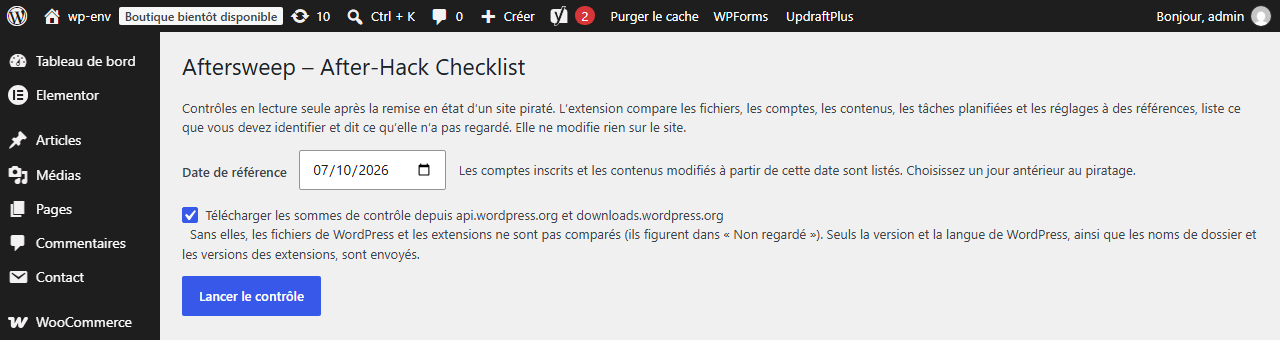
Tools > Aftersweep before the first check: reference date, checksum download checkbox with what it sends, and the "Run the check" button.
Your site was hacked. You ran a scanner, deleted what it reported, and now you wonder what else to look at. Aftersweep – After-Hack Checklist goes through ten places where a hack usually leaves traces and tells you, item by item, what it found and what it compared it to. It also tells you what it did not look at.
It never says “your site is fine”. It lists findings, each with a level:
- Anomaly: a proven difference from a reference (a core file whose checksum differs from WordPress.org’s, a PHP file in the uploads folder).
- Suspect: a pattern often left by hacks that also has legitimate uses (a script in a widget option, an administrator created after your reference date).
- To identify: something you have to recognise yourself (a must-use plugin, a drop-in, a page modified since your reference date).
At the top of the report: “N anomalies, N suspects, N to identify, N points not looked at”. For each finding, the report says what you can check by hand or show to your host.
The plugin changes nothing on your site. It does not delete, move or edit any file, user, content or setting. It only writes its own options and transients (names starting with ahcl_).
The ten checks
- WordPress core: files in the root,
wp-admin/andwp-includes/compared to the official checksums of your WordPress version and package language; unknown files inwp-admin/andwp-includes/; extra PHP files in the root; suspicious code inwp-config.php. - Plugins: each plugin from WordPress.org compared to the checksums WordPress.org publishes for its version; PHP files that are not in those checksums.
- Uploads: PHP files in
wp-content/uploads/(including names likephoto.php.jpg), files that start with PHP code whatever their extension,.htaccessand.user.inifiles. - Must-use plugins and drop-ins: every file in
mu-plugins/and every drop-in, with its header, size and date; other PHP files at the top ofwp-content/. - Administrators: users with administrator-level capabilities, those created after your reference date, capabilities granted outside the role, administrator rights given to a user ID that does not exist.
- .htaccess and PHP settings: redirects to another site, rules that show a different page to search engines or bots, rules that make non-PHP files run as PHP,
auto_prepend_fileandauto_append_file, external error pages. - Content: posts and pages created or modified since your reference date, and content containing scripts, external iframes or encoded JavaScript.
- Scheduled tasks (cron): tasks whose code lives in the uploads folder or outside WordPress and your active plugins and theme, tasks with encoded arguments, tasks with no code attached.
- Settings: site and home addresses, open registration with a powerful default role, active plugins that WordPress cannot find, scripts stored in autoloaded options, widgets and theme settings.
- Not looked at: always present, never empty (see below).
What it does not look at
The report always ends with this list, so you know where it stopped:
- Themes: WordPress.org publishes no checksums for themes.
- Plugins with no published checksums (premium plugins, plugins not or no longer on WordPress.org, versions without checksums), each one named.
- Core and plugin files when checksums could not be downloaded, with the reason (box not ticked, network error, no checksums for your version or language).
- Database tables that do not belong to WordPress.
- Comments.
- Files outside the WordPress folder.
- Server configuration (nginx, your hosting panel).
- Other sites on the same hosting account.
- Other sites of a multisite network: only the main site is read.
- When a role was changed: WordPress does not record it.
- The limits of the pass: unreadable files (counted, the first 50 listed), files over 5 MB not read, folders not walked through.
- Files over 32 MB at the site root, in
wp-admin,wp-includesand the plugin folders: not compared to the checksums (counted, the first 50 listed). - Folders of
wp-contentthat no check covers (languages,cache,upgrade, backup folders…): each one that holds PHP files is listed with its number of PHP files. - Folders at the site root that are not part of WordPress: their PHP files are not compared to anything. Each folder is listed as “to identify” with its number of PHP files; a PHP file in
.well-knownorcgi-binis reported as suspicious.
Checksums from WordPress.org: off until you tick the box
Checks 1 and 2 need the checksums published by WordPress.org. The plugin downloads them only if you tick “Download the checksums from api.wordpress.org and downloads.wordpress.org” next to the “Run the check” button. The box is unticked the first time; your choice is remembered. Unticked, checks 1 and 2 are listed under “not looked at”. Details in the FAQ and in the Privacy section.
Privacy
- No tracking, no analytics, no data sent to the plugin author.
- External requests only if you tick the checksum box, and only to api.wordpress.org and downloads.wordpress.org (see the FAQ for what they receive).
- The plugin stores only its own data: the state of the current pass, the last report (both not autoloaded), your checkbox choice, and the downloaded checksums for 24 hours. The last report contains file paths, usernames, post titles and short extracts of the suspicious values found on your site; it stays in your database.
- Only users who can manage options (
manage_options; on multisite, network administrators) can open the page.
Pro add-on
An optional, separate Pro plugin adds a reference snapshot with a “changed since” section, scheduled re-checks by e-mail, and a printable HTML export. This free plugin is complete on its own: nothing in it is time-limited or locked. Details: https://timaub.fr/after-hack-checklist/
Français
Votre site a été piraté. Vous avez passé un scanner, supprimé ce qu’il signalait, et vous ne savez pas quoi regarder d’autre. Aftersweep – After-Hack Checklist passe en revue dix endroits où un piratage laisse d’habitude des traces. Pour chaque point, il dit ce qu’il a trouvé et à quoi il l’a comparé, puis ce qu’il n’a pas regardé.
Il ne conclut jamais que tout va bien. Chaque constat a un niveau : anomalie (écart prouvé à une référence, par exemple un fichier du cœur dont la somme de contrôle diffère de celle de WordPress.org), suspect (motif fréquent dans les piratages mais qui a aussi des usages normaux, par exemple un script dans un widget), à identifier (élément que vous seul pouvez reconnaître, par exemple un mu-plugin ou une page modifiée depuis la date choisie). Pour chaque constat, le rapport indique ce que vous pouvez vérifier à la main ou montrer à votre hébergeur.
Les dix contrôles : fichiers du cœur comparés aux sommes officielles et wp-config.php ; extensions de WordPress.org comparées à leurs sommes ; fichiers PHP dans uploads ; mu-plugins et drop-ins ; administrateurs et comptes créés depuis la date choisie ; règles .htaccess et réglages PHP ; contenus créés ou modifiés depuis cette date, scripts dans les contenus ; tâches planifiées ; adresses du site, inscription, extensions actives, scripts dans les options ; et la liste de ce qui n’a pas été regardé.
Non regardé : les thèmes (WordPress.org ne publie pas de sommes pour eux), les extensions sans sommes publiées (nommées une à une), les tables hors WordPress, les commentaires, les fichiers hors du dossier de WordPress, la configuration du serveur, les autres sites de l’hébergement et du réseau, la date des changements de rôle, les fichiers illisibles ou de plus de 5 Mo, les fichiers de plus de 32 Mo à la racine, dans wp-admin, wp-includes et les extensions (non comparés aux sommes, listés). Les dossiers de wp-content qu’aucun contrôle ne couvre (languages, cache, upgrade, sauvegardes…) sont listés avec leur nombre de fichiers PHP quand ils en contiennent. Les fichiers PHP d’un dossier de la racine qui n’appartient pas à WordPress ne sont comparés à rien : le dossier est listé « à identifier » avec leur nombre, et un fichier PHP dans .well-known ou cgi-bin est signalé suspect.
Le plugin ne modifie rien : aucun fichier, compte, contenu ni réglage. Il n’écrit que ses propres options (ahcl_*). Les sommes de contrôle ne sont téléchargées depuis api.wordpress.org et downloads.wordpress.org que si vous cochez la case prévue, décochée au premier passage. L’interface est en français quand le site est en français.