


Add-On for Contact Form 7 to Notion
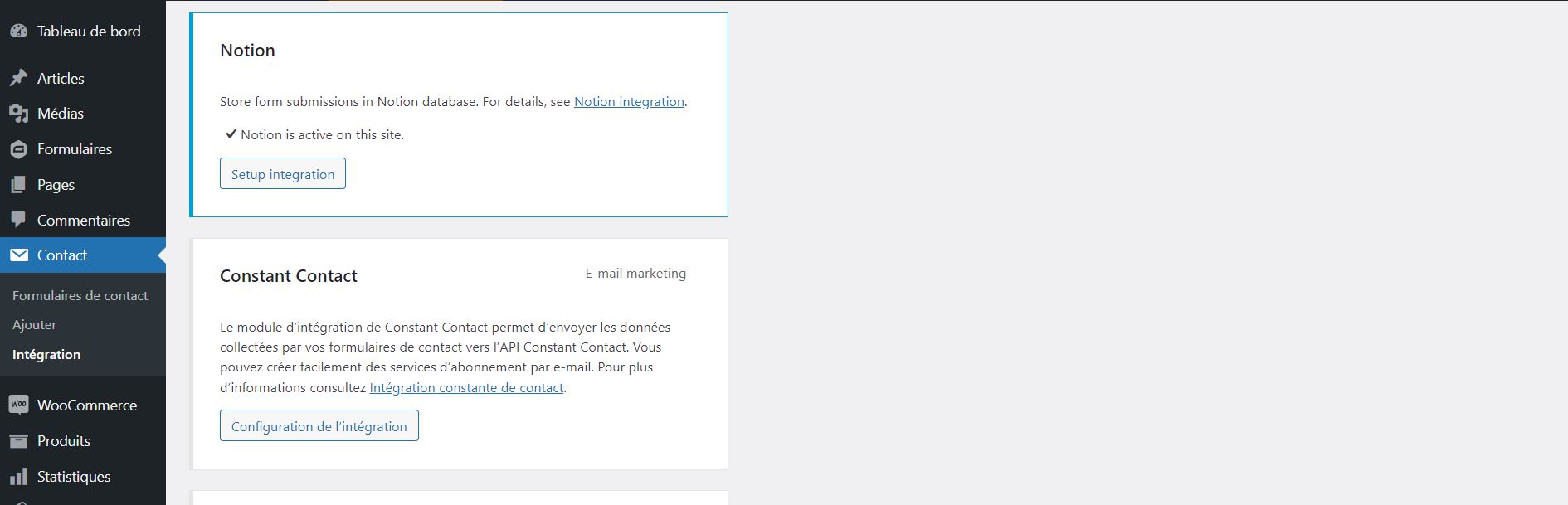
Setting up the Notion Integration
Connect the popular WordPress plugin Contact Form 7 to Notion. This add-on enables you to integrate Contact Form 7 forms so that when users submit a form entry, the entries get directly added to Notion. You can link any field type including custom fields and add information to your Notion database.
Features
Set up the connection with Notion
- Some simple steps to follow (only once)
- A new Notion tab shows up in your form settings
Choose the destination database you want
- Make your Notion page visible to the integration
- For each form, select the database where you want to send data
Map your Contact Form 7 fields with Notion
- All major field types are supported
- Select the corresponding database field for each form field
User-friendly and helpful plugin interface
- Dropdown lists for instant visualization of mapped fields
- Many tooltips to make things easier
How does it work? How to use it?
-
Create a form with at least an e-mail field (don’t forget the consent field)
-
Go to Notion tab and check the box “Add form submissions to your database” to activate the connection
-
Choose the Notion’s database in which the data should be added
-
Map the fields of your Contact Form 7 form with your Notion’s columns
-
Click on “Save settings”
External services
This plugin connects to the Notion API to send Contact Form 7 submissions to the Notion database selected in the plugin settings.
It sends requests to https://api.notion.com/v1/ when an administrator configures the integration, loads available Notion databases or database properties, and when a visitor submits a connected Contact Form 7 form. Data sent to Notion can include the Notion integration token configured by the site administrator, selected database identifiers, mapped form field values, and uploaded file URLs when file fields are mapped. This data is sent only to create or retrieve the Notion records required for the configured integration.
Notion service terms: https://www.notion.so/terms
Notion privacy policy: https://www.notion.so/privacy
Support
If you need support, open a ticket on the Support.
Troubleshooting
Make sure you have created your database and columns in Notion before linking them to your form fields. If you don’t see it, wait 1 minute. Your Notion elements are cached for 60 seconds for optimal performance.
Supported Fields: Title, Text, Number, URL, E-mail, Phone, Select, Multiple Select and Date